
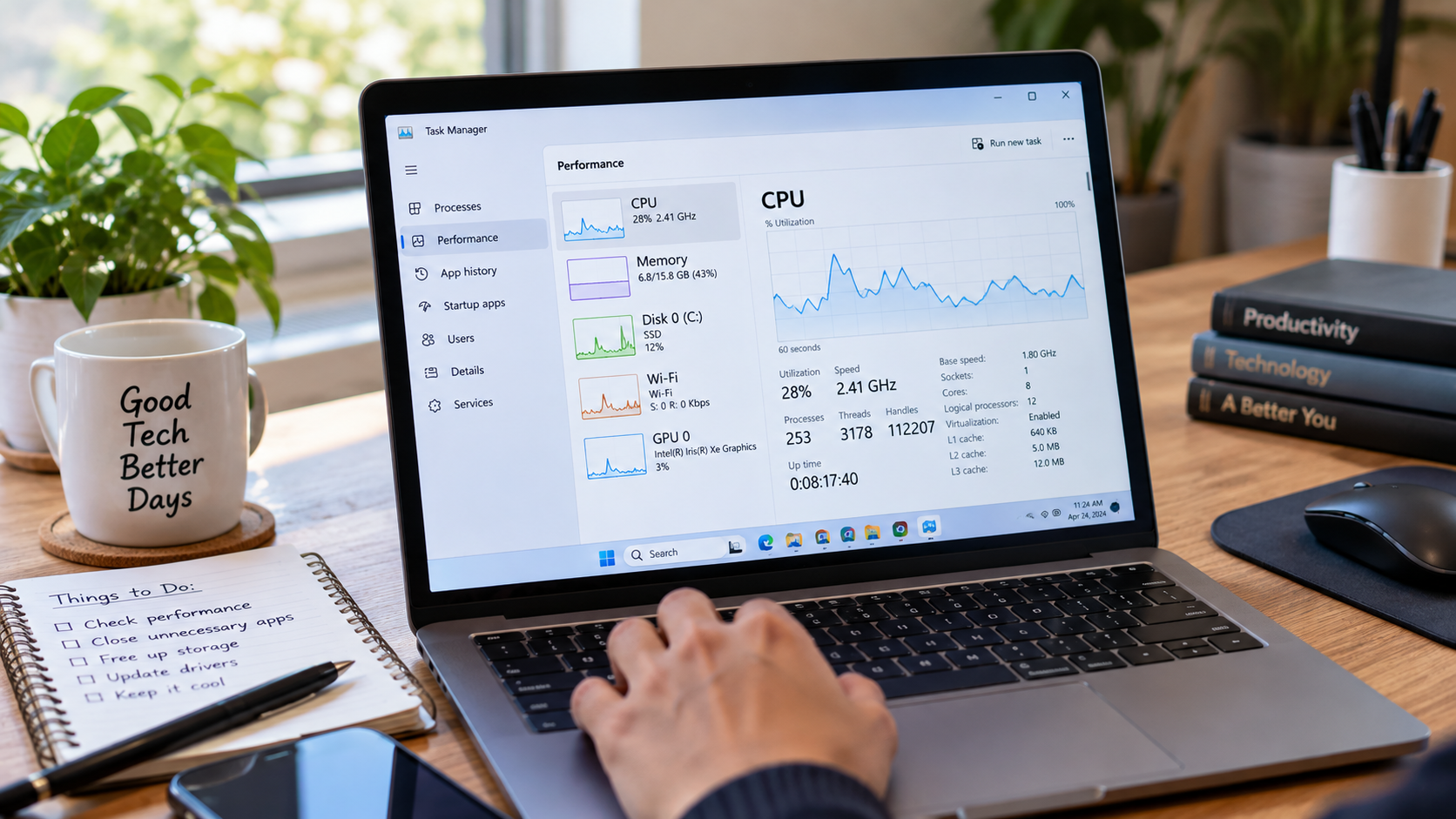
A laptop can feel perfectly fine one month and strangely sluggish the next. Apps take longer to open, browser tabs stop responding, the fan suddenly sounds like it’s preparing for takeoff, and even simple tasks seem to require patience. Why laptops become slow is not always a question of an aging processor. CPU load, RAM pressure, storage, startup apps, background processes, heat, malware, software updates, and aging hardware can all play a role.
Hello…..The good news is that you usually don’t have to guess.
If your laptop becomes slow, the first useful question is not “Should I buy a new laptop?” It is “What is actually being overloaded right now?” Windows Task Manager and macOS Activity Monitor can help identify whether CPU, memory, disk activity, or a particular process is behind the problem.
Table of Contents
ToggleQuick Answer: Why Do Laptops Become Slow?
Laptops become slow when one or more system resources can no longer keep up with the work being requested. The most common areas to investigate are CPU usage, RAM usage, storage, startup applications, background processes, heat, software problems, malware, and aging hardware.
Here is a simple starting point:
| What you notice | What to check first | Possible cause |
|---|---|---|
| Laptop is slow immediately after startup | Startup apps | Too many programs launching automatically |
| Browser slows down with many tabs | Memory/RAM | Insufficient available memory |
| Apps take a long time to open | Disk/storage | Slow HDD, storage activity, or low free space |
| Fan gets loud and performance drops | CPU + temperature | Heavy workload or thermal throttling |
| Laptop freezes while multitasking | RAM + CPU | Memory pressure or processor overload |
| Disk usage stays unusually high | Disk activity | Background processes, updates, scans, or storage issues |
| Laptop slows after several minutes of heavy work | Temperature + CPU | Heat-related performance limits |
| Everything has gradually become slower | Overall system | Aging hardware, software demands, storage, or multiple bottlenecks |
Microsoft lists limited storage, startup apps, outdated software, malware and hardware limitations among possible contributors to slow Windows performance.
The important part is that the same symptom can have different causes. A laptop that takes five minutes to become usable after startup needs a different solution from one that becomes slow only when you open 30 browser tabs.
A Slow Laptop Doesn’t Automatically Mean You Need a New One
“Slow” is a symptom, not a diagnosis.
Imagine two laptops.
The first has an older HDD and takes a long time to boot and open applications. Replacing the HDD with an SSD could make everyday operations much more responsive.
The second has an SSD but only limited memory, and the owner regularly runs a browser with many tabs alongside video editing software and several other applications. An SSD upgrade would not solve the underlying memory problem.
Then there is a third laptop that runs smoothly when cold but becomes sluggish after a demanding workload. That points you toward heat and sustained performance rather than immediately blaming the storage.
This is why troubleshooting should come before upgrading.
A useful laptop diagnosis starts by finding the resource that is being exhausted, not by replacing hardware at random.
Start Here: Watch What Your Laptop Is Doing When It Slows Down
Before changing settings, close applications, or purchase hardware, reproduce the slowdown if possible and watch the system resources.
Windows: Use Task Manager
On Windows, press:
Ctrl + Shift + Esc
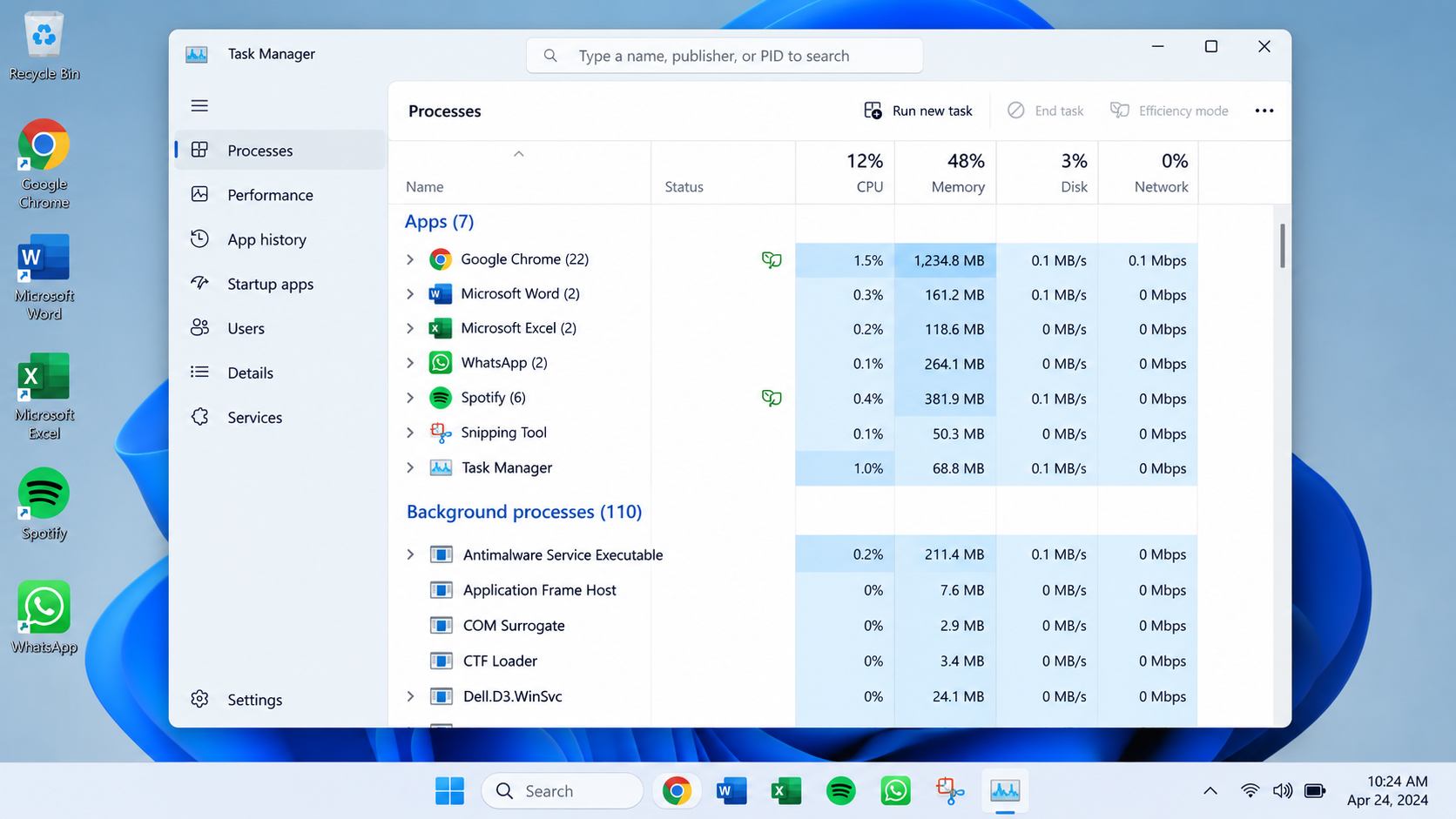
Task Manager gives you information about running applications and system resource consumption. Microsoft describes it as a tool for monitoring CPU load, memory usage, disk activity and other system information.
Look at:
- CPU
- Memory
- Disk
- GPU
- Network
The Processes tab is useful when you want to identify an application or process consuming a large amount of a particular resource.
For example, if your laptop suddenly becomes sluggish and one application is consuming most of the CPU, you have a useful lead.
But don’t assume that a high percentage automatically means something is broken. A demanding application can legitimately use substantial CPU resources.
Mac: Use Activity Monitor
Mac users have a similar built-in diagnostic tool: Activity Monitor.
Apple’s Activity Monitor can display CPU activity, memory usage, energy consumption, disk activity and network activity. Apple also recommends it for locating troublesome applications or processes when a Mac becomes sluggish or stops responding.
Open Activity Monitor and pay particular attention to:
- CPU activity
- Memory
- Memory Pressure
- Disk activity
- Individual processes
The Memory pane is especially useful because macOS reports Memory Pressure, which indicates how efficiently available memory is serving the system’s needs.
CPU: When the Processor Is the Bottleneck
The CPU, or central processing unit, handles instructions and calculations for applications and the operating system. When your workload demands more processing capacity than the CPU can comfortably provide, the laptop can feel slow.
But there is an important distinction:
High CPU usage does not automatically mean you need a faster processor.
A temporary CPU spike is normal when you launch software, render a video, compile code, install updates, or perform another demanding task.
The more useful question is:
Does the CPU remain heavily loaded while the laptop is struggling with ordinary tasks?
Signs the CPU may be responsible
You might notice:
- CPU usage remains very high during the slowdown
- One application consistently consumes substantial CPU resources
- Performance drops during demanding workloads
- Fans become louder during CPU-intensive work
- Applications respond slowly while the processor is heavily occupied
Apple explains that Activity Monitor can show processor activity over time, including CPU usage attributed to macOS and user applications.
What should you do?
Start by identifying the application or process using the CPU.
If it is an application you recognize, ask whether it actually needs to be running. If it is performing a legitimate heavy task, closing it may simply mean stopping the work rather than solving the underlying limitation.
If an unfamiliar process repeatedly consumes substantial CPU resources, investigate it before terminating or deleting anything.
You can also check for:
- Software updates
- Malware
- Browser extensions
- Background utilities
- Recently installed applications
- Processes that repeatedly restart after being closed
RAM: Why Multitasking Can Make a Laptop Feel Slow
RAM is where your laptop keeps data and instructions that active applications need to access quickly.
Think about your desk.
If you have enough space, you can keep your notebook, phone, documents, calculator and other items within reach. If the desk becomes overcrowded, you start moving things around simply to make room.
RAM pressure is somewhat similar.
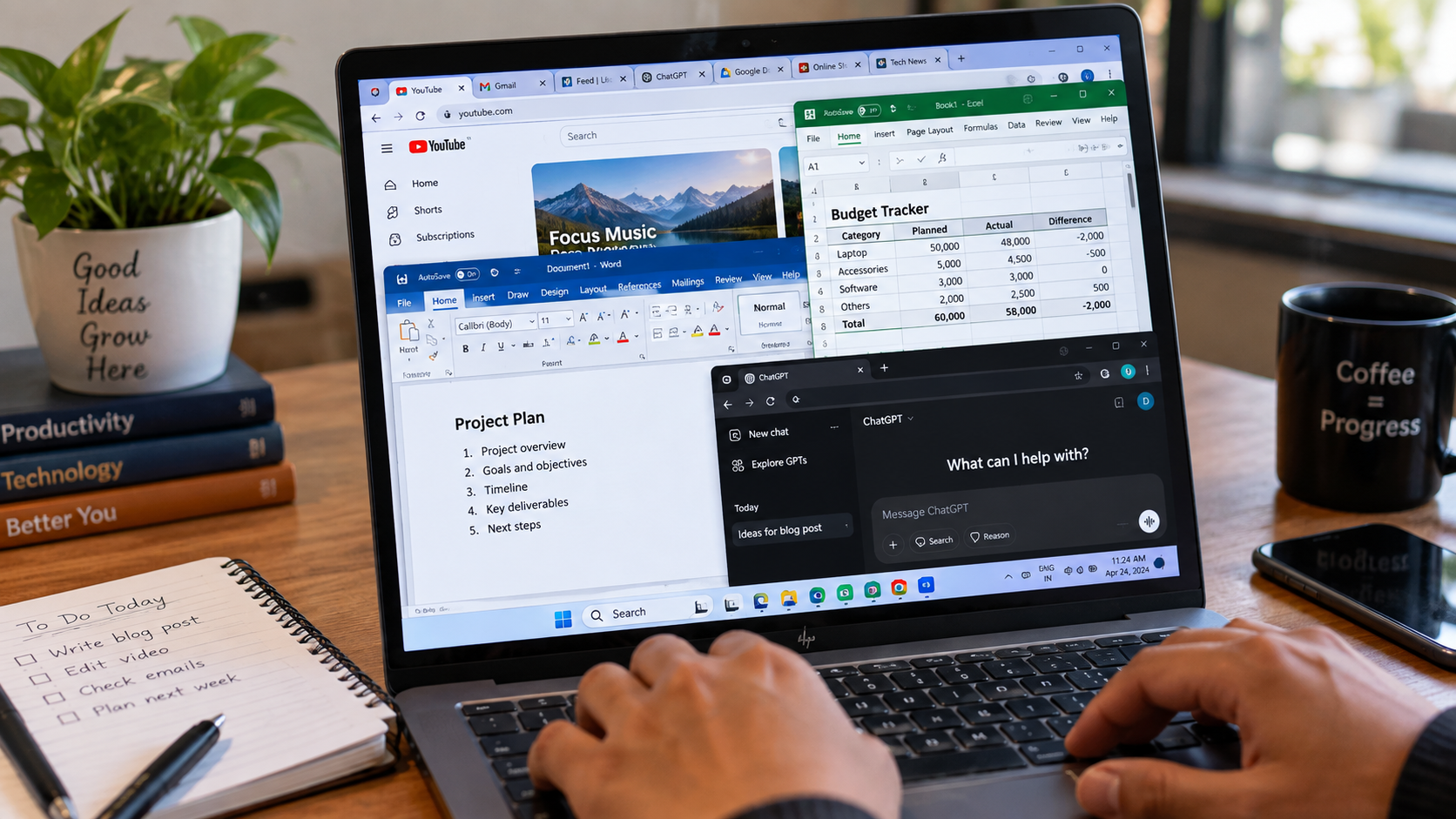
A laptop might have a capable CPU and a fast SSD but still struggle when the workload requires more memory than the system can comfortably provide.
Suppose you have:
- A browser with many tabs
- Microsoft Word
- Photoshop
- A video call
- Spotify
- Cloud synchronization
- Several background applications
The problem may not be that the processor is weak. You may simply be asking the system to juggle more memory-intensive work than it can comfortably handle.
Signs of RAM pressure
Watch for:
- Slowdown when many applications are open
- Browser tabs becoming sluggish
- Apps taking longer to switch between
- Frequent tab reloads
- Heavy multitasking causing noticeable lag
- High memory usage during the slowdown
On Mac, Activity Monitor provides Memory Pressure, memory used, compressed memory and swap information to help determine whether memory is becoming a constraint.
Does adding RAM always make a laptop faster?
No.
Adding RAM helps most when memory is actually limiting your workload.
If your laptop has plenty of available memory and your CPU is already the bottleneck, installing additional RAM may make little difference.
That distinction matters because RAM is one of the easiest upgrades to recommend casually.
The better approach is:
Check memory pressure → confirm the workload is memory-limited → check whether the laptop supports an upgrade → then consider buying RAM.
SSD vs HDD: Storage Can Change How Fast a Laptop Feels
Storage is another major part of the performance equation.
Older laptops often use mechanical hard disk drives, or HDDs. Modern laptops commonly use solid-state drives, or SSDs.
An SSD has no spinning mechanical platters and generally provides much faster access to stored data than a traditional HDD. That difference can be very noticeable during everyday tasks such as:
- Starting Windows or macOS
- Opening applications
- Searching files
- Loading projects
- Copying data
- Launching games
But storage isn’t just about whether you have an SSD.
Can low free storage contribute to slow performance?
Yes. Microsoft explicitly identifies low disk space as one factor that can reduce Windows performance and recommends built-in storage cleanup tools such as Storage Sense.
That doesn’t mean you should believe every arbitrary “keep exactly X% free” rule you see online. The useful lesson is simpler:
A drive that is running extremely low on free space deserves attention.
Check:
Settings → System → Storage
Then look at what is consuming space.
You may find:
- Temporary files
- Large downloads
- Old installers
- Videos
- Games
- Application data
- Cloud-synchronized files
Can replacing an HDD with an SSD help?
For a compatible older laptop, moving from an HDD to an SSD can make everyday storage-related tasks feel dramatically more responsive.
But remember the distinction:
An SSD improves storage responsiveness. It does not turn an old CPU into a new CPU.
If the processor is the bottleneck in your workload, an SSD alone won’t solve that problem.
Startup Programs Can Slow Your Laptop Before You Even Start Working
Some laptops feel slow the moment you sign in because a crowd of applications starts working before you’ve opened anything yourself.
Cloud storage tools, messaging apps, launchers, utilities and other programs may automatically start with Windows.
Microsoft says startup applications can affect both startup speed and overall system performance. Windows lets users manage these applications through Settings or Task Manager.
How to check startup applications in Windows
Open:
Settings → Apps → Startup
Or:
Task Manager → Startup apps
Task Manager can also show the measured startup impact of applications.
Which startup apps should you disable?
Start with programs you recognize and don’t actually need running automatically.
For example, if an application is something you only use once a week, there may be little reason for it to launch every time you sign in.
But don’t blindly disable anything that looks unfamiliar.
Some startup components belong to:
- Security software
- Hardware utilities
- Drivers
- System services
- Manufacturer tools
- Synchronization services you actually use
If you don’t know what a process does, investigate it before disabling it.
Background Processes: The Apps You Aren’t Using Can Still Be Busy
A program doesn’t have to be sitting in front of you to consume system resources.
Background activity can include:
- Cloud synchronization
- Software updates
- Antivirus scans
- File indexing
- Backup applications
- Browser processes
- Messaging applications
- Game launchers
- Photo libraries
- Creative software services
Microsoft notes that malware can consume CPU and disk resources, while its general Windows performance guidance also recommends checking background activity when troubleshooting slow performance.
The trick is not to shut down every background process you see.
Instead, sort the list and look for something unusual.
A simple diagnostic method
When the laptop is slow:
- Open Task Manager.
- Sort processes by CPU.
- Look for unusually heavy activity.
- Then check Memory.
- Then check Disk.
- Identify applications you recognize.
- Investigate unfamiliar processes before terminating them.
The same principle applies to Activity Monitor on a Mac.
Don’t confuse activity with a problem. A backup program consuming resources while it is actively backing up files is doing its job. The question is whether that activity explains the slowdown you’re experiencing.
Heat Can Make a Fast Laptop Perform Like a Slow One
Heat is one of the easiest causes to overlook because it doesn’t always appear as a software error.
A laptop can perform well for the first few minutes of demanding work and then become noticeably slower.
That pattern matters.
The system may be responding to sustained heat by reducing performance to stay within its thermal limits. This behavior is commonly referred to as thermal throttling.
Signs that heat may be involved
Look for a combination of:
- Performance is good immediately after starting
- The laptop becomes hot during demanding work
- Fans become noticeably louder
- Performance drops after sustained use
- The slowdown is worse during gaming, rendering or other heavy workloads
- Ventilation openings are blocked or restricted
What can make a laptop run hotter?
Common possibilities include:
- Dust buildup
- Blocked vents
- Using the laptop on a soft surface
- Poor airflow
- High ambient temperature
- Long periods of heavy processing
- Aging cooling components
Don’t diagnose thermal throttling from fan noise alone. A fan can become loud simply because the laptop is legitimately performing a demanding task.
Instead, look for the combination of heat + sustained workload + performance decline.
Why Does a Laptop Get Slower After Several Years?
This is where things get interesting.
A laptop doesn’t necessarily become dramatically slower simply because time has passed. Instead, several things can change around it.
The operating system evolves. Applications become more demanding. Browsers handle increasingly complex websites. Security tools run in the background. Your own workload may grow.
A laptop that was perfectly adequate for email, documents and a few browser tabs several years ago may struggle when the same owner starts editing video, running development tools, joining video meetings and keeping dozens of browser tabs open.
There can also be physical changes:
- Cooling systems can accumulate dust
- Batteries age
- Storage can fill up
- Older hardware may no longer receive the same level of software support
- New software may demand more processing resources
Microsoft says older PCs with outdated hardware may not see significant improvement from software optimization and identifies consistently high CPU, memory or disk usage among signs that a PC may be approaching replacement time.
So sometimes the problem isn’t simply:
“My laptop got worse.”
It is:
“The workload changed, but the laptop didn’t.”
That distinction can save you from spending money unnecessarily.
Your Laptop’s Symptoms Can Point You Toward the Cause
The fastest way to narrow down the problem is to connect the symptom with what the system is doing at that exact moment.
| Symptom | Check first | Likely area to investigate |
|---|---|---|
| Slow immediately after signing in | Startup apps | Too many applications launching |
| Browser slows with many tabs | Memory | RAM pressure |
| Applications take a long time to open | Disk + storage | HDD, storage activity or low free space |
| Fan is constantly loud during heavy work | CPU + temperature | Heavy processing or thermal limits |
| Performance drops after several minutes | Temperature + CPU | Possible thermal throttling |
| Laptop freezes while multitasking | Memory + CPU | RAM pressure or CPU saturation |
| Disk usage remains unusually high | Disk activity | Background processes, updates or storage issues |
| Everything feels slow all the time | CPU + memory + disk | Multiple bottlenecks or aging hardware |
| Strange pop-ups and unexplained slowdown | Security | Possible unwanted software or malware |
The table isn’t a diagnosis by itself. It is a starting point for investigation.
For example, a laptop that shows high disk activity might be busy installing updates, scanning files, synchronizing cloud storage or dealing with another legitimate process. High disk usage alone doesn’t prove that the SSD is failing.
What Should You Fix First?
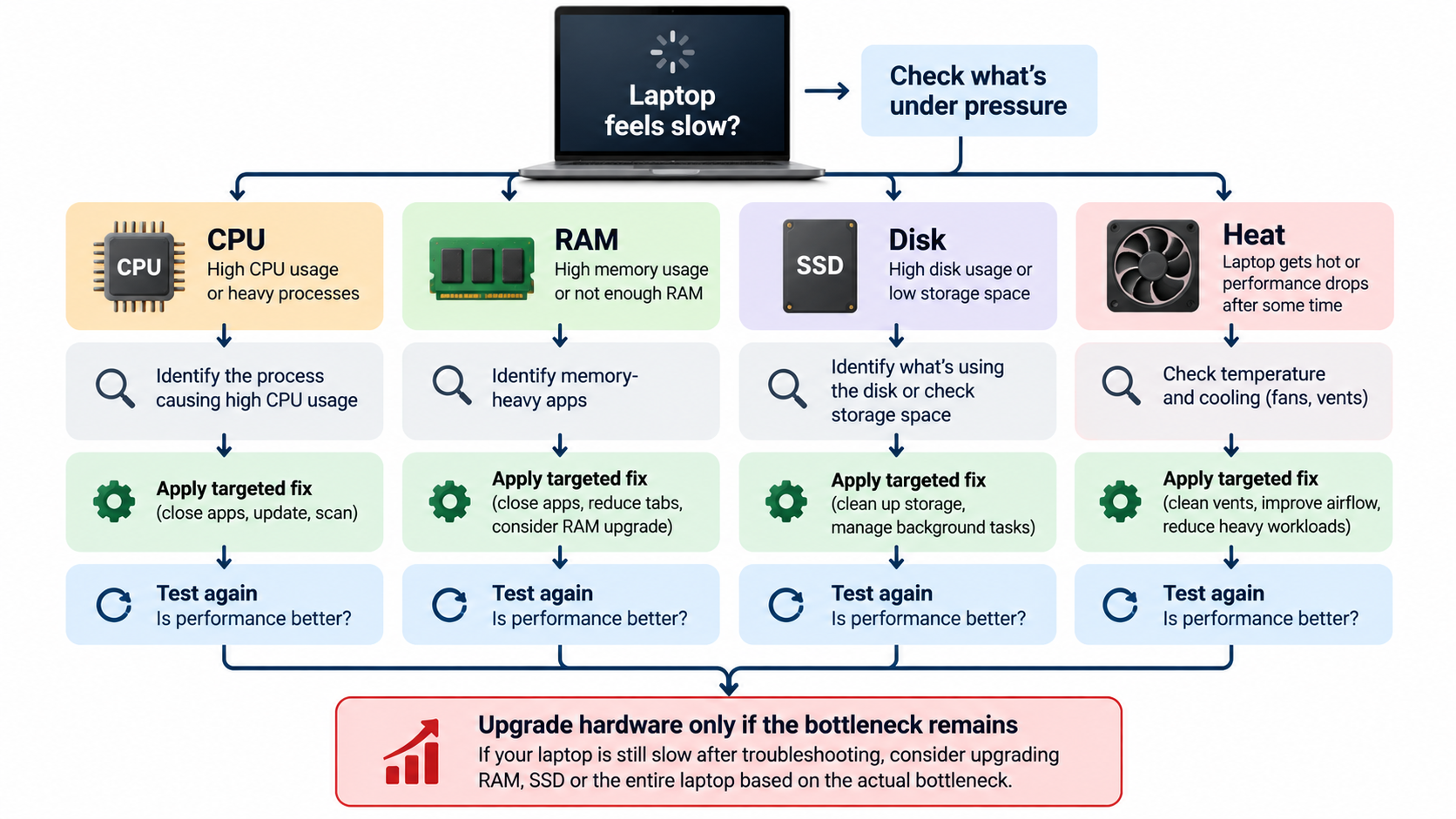
Once you’ve identified a pattern, work through the simplest explanations before buying anything.
1. Restart the laptop
It sounds almost too obvious, but a restart can clear temporary processes and give you a cleaner starting point.
Microsoft also recommends closing unused applications and restarting a Windows PC when performance remains poor.
2. Check CPU, RAM and disk usage
Do this while the slowdown is actually happening.
Otherwise, you may end up diagnosing the laptop when it is behaving perfectly.
3. Review startup applications
Disable unnecessary programs that automatically launch when you sign in.
4. Check available storage
Look for unusually low free space and large unnecessary files.
5. Investigate background processes
Sort by CPU, memory and disk usage and identify what is consuming resources.
6. Check for malware or unwanted software
Unexplained slowdowns, crashes, browser changes or unusual pop-ups can sometimes be associated with unwanted software. Microsoft recommends malware scanning as part of Windows performance troubleshooting.
If you suspect malware, use trusted security software rather than downloading random “PC cleaner” applications from the internet.
7. Install relevant updates
Windows updates and driver updates can contain fixes and performance improvements.
Don’t assume every optional update will magically make an old laptop faster, though. Updates are about maintaining the system, not transforming its hardware.
8. Check cooling and airflow
Make sure vents aren’t blocked and the laptop isn’t being used on a surface that restricts airflow.
9. Test again
After making one meaningful change, check whether the behavior improves.
Changing ten things at once makes troubleshooting harder because you won’t know which change mattered.
10. Only then consider hardware upgrades
If the same bottleneck remains, you can make a much more informed upgrade decision.
Should You Upgrade RAM, Replace the SSD, or Buy a New Laptop?
This is where a slow laptop becomes a purchasing question.
The answer depends on the bottleneck.
| Problem | Potential solution | When it makes sense |
|---|---|---|
| RAM consistently constrained | RAM upgrade | Laptop supports additional/replacement memory |
| HDD causing slow storage response | SSD upgrade | Laptop supports a compatible SSD and other hardware remains adequate |
| Low storage capacity | Larger SSD/storage | You need more working space |
| Thermal problem | Cleaning/service/cooling repair | Performance falls because of heat |
| Startup/background overload | Software cleanup | Hardware itself is still adequate |
| CPU consistently inadequate | Newer laptop | Workload exceeds what the processor can reasonably handle |
| Multiple hardware limitations | Replacement | Several components are outdated or non-upgradable |
Upgrade RAM when memory is the problem
If your actual workload consistently pushes memory capacity and the laptop supports an upgrade, adding RAM can be a sensible way to extend its useful life.
But check compatibility first.
Some modern laptops have memory soldered directly to the motherboard, meaning a traditional RAM upgrade may not be possible.
Upgrade to an SSD when storage is the problem
An SSD upgrade can be especially worthwhile if an older laptop still relies on an HDD.
It can make booting, application launching and file access feel much more responsive.
But again, don’t expect an SSD to solve CPU limitations.
Replace the laptop when the limitations stack up
A new laptop becomes more reasonable when:
- The CPU is consistently inadequate
- Memory cannot be upgraded and is insufficient
- Storage cannot be upgraded easily
- The machine is no longer receiving necessary software support
- It has repeated hardware failures
- Repair costs approach the value of the machine
- Your workload has simply outgrown the hardware
Microsoft similarly points to persistent high CPU, memory or disk usage, long startup times, low storage and other aging-related symptoms as reasons to consider whether a PC should be replaced.
Pros and Cons of Fixing an Existing Slow Laptop
Pros
- Usually cheaper than replacement: A software fix may cost nothing.
- Can extend the laptop’s useful life: A suitable SSD or RAM upgrade can keep capable older hardware useful.
- You solve the actual problem: Diagnosis prevents unnecessary upgrades.
- Less disruption: You don’t have to migrate everything to a new machine.
- Good for older laptops with upgradeable hardware: Some systems still have plenty of useful life left.
Considerations
- Not every laptop is upgradeable: Some modern systems have soldered memory or limited storage options.
- A weak CPU cannot be fixed with software: Optimization cannot change the fundamental capabilities of the processor.
- Troubleshooting takes time: You may need to test several possible causes.
- Incorrect system changes can create new problems: Don’t disable unknown services or delete unfamiliar system files.
- Old hardware may have reached its practical limit: Microsoft notes that older hardware may not see significant improvement from software optimization alone.
Common Mistakes When Trying to Speed Up a Slow Laptop
Disabling every startup program
Not every startup application is unnecessary. Security software and hardware-related utilities may serve a purpose.
Assuming 100% CPU means the CPU is broken
A demanding application can legitimately use a large amount of processor capacity.
Installing several “PC optimizer” applications
More utilities don’t necessarily mean better performance. Some may consume resources themselves.
Deleting random system files
Freeing storage is useful, but randomly deleting unfamiliar files is not a sensible troubleshooting strategy.
Buying RAM without checking compatibility
The laptop needs to support the memory type, capacity and configuration you’re considering.
Assuming an SSD fixes everything
An SSD can address storage-related responsiveness. It doesn’t fix a CPU bottleneck, inadequate cooling or insufficient RAM.
Ignoring heat
If a laptop performs well when cool and slows after sustained workloads, thermal behavior deserves investigation.
Changing everything at once
If you disable startup apps, uninstall software, update drivers, clean storage and change settings simultaneously, you lose the ability to identify what actually helped.
A Better Way to Think About Laptop Performance
There is a useful mental model:
CPU handles the work.
RAM holds the active workload.
Storage keeps the data.
Startup and background processes add workload.
Cooling determines how well the system can sustain demanding work.
If one of those areas becomes a bottleneck, the whole laptop can feel slow.
That doesn’t mean each component is equally important in every situation.
A student opening documents and browser tabs may benefit more from adequate RAM and an SSD than from a premium CPU.
A video editor may encounter CPU, GPU, RAM and storage limitations depending on the project.
A developer compiling large projects may care much more about CPU performance and memory capacity than someone using the laptop primarily for web browsing.
The right solution is therefore workload-dependent.
Frequently Asked Questions for Why Laptops Become Slow
Why is my laptop suddenly so slow?
A sudden slowdown can be caused by a resource-heavy application, background process, software update, malware, low storage, or another system issue. Open Task Manager on Windows or Activity Monitor on Mac while the slowdown is happening and check CPU, memory and disk activity.
Does low RAM make a laptop slow?
Yes, insufficient memory can make multitasking feel sluggish when the workload exceeds what the available RAM can comfortably handle. However, adding more RAM will not automatically make every laptop faster. The upgrade is most useful when memory is actually the limiting resource.
Can a full SSD make a laptop slower?
Very low available storage can contribute to poor Windows performance, so a drive that is nearly full deserves attention. Microsoft recommends checking available storage and using Windows storage-management tools to remove unnecessary files.
Why does my laptop slow down when it gets hot?
Sustained heat can cause a laptop to limit performance to manage thermal conditions. If your laptop starts quickly but becomes slower after prolonged demanding work, check airflow, ventilation and the system’s thermal behavior rather than assuming the CPU suddenly became defective.
How can I find what is slowing down my laptop?
On Windows, open Task Manager and examine CPU, Memory and Disk usage while the slowdown occurs. On Mac, use Activity Monitor to inspect CPU activity, memory pressure and disk activity.
Should I upgrade RAM or replace a slow laptop?
Upgrade RAM when memory is clearly the bottleneck and the laptop supports an upgrade. Consider an SSD when an old HDD is responsible for slow storage performance. A replacement becomes more sensible when the CPU, memory, storage and overall hardware are collectively too limited for your current workload.
What to Do Next
If your laptop is slow right now, don’t start shopping for a replacement just yet.
Instead, reproduce the slowdown and open your system monitor.
On Windows, check:
CPU → Memory → Disk → Startup apps
On Mac, check:
CPU → Memory Pressure → Disk activity
Then ask one simple question:
Which resource is actually struggling when the laptop feels slow?
Once you have that answer, the solution becomes much clearer.
Conclusion
Why laptops become slow has no single answer. Sometimes the CPU is overloaded. Sometimes RAM is under pressure. Sometimes an old HDD or nearly full drive is getting in the way. Startup applications and background processes can add unnecessary work, while heat can cause performance to fall during sustained workloads.
The important thing is not to treat every slow laptop the same way.
Check what the system is doing when the problem occurs. Identify the bottleneck. Fix the simplest cause first. Then, if the same limitation remains, decide whether a RAM upgrade, SSD upgrade, repair or new laptop actually makes sense.
A slow laptop doesn’t automatically need to be replaced.
Diagnose first. Upgrade second.




1 thought on “Why Laptops Become Slow: CPU, RAM, SSD, Heat & More 2026”