
Buying a laptop can feel strangely simple until you reach the display specifications.
Laptop Display Technology Explained, The processor might say Core Ultra or Ryzen, memory might say 16GB, and storage might say 1TB SSD. Then the display section suddenly throws numbers and acronyms at you: 1920×1200, 120Hz, IPS, OLED, 500 nits, HDR, 100% DCI-P3, 1ms response time.
Which of those numbers actually matters?
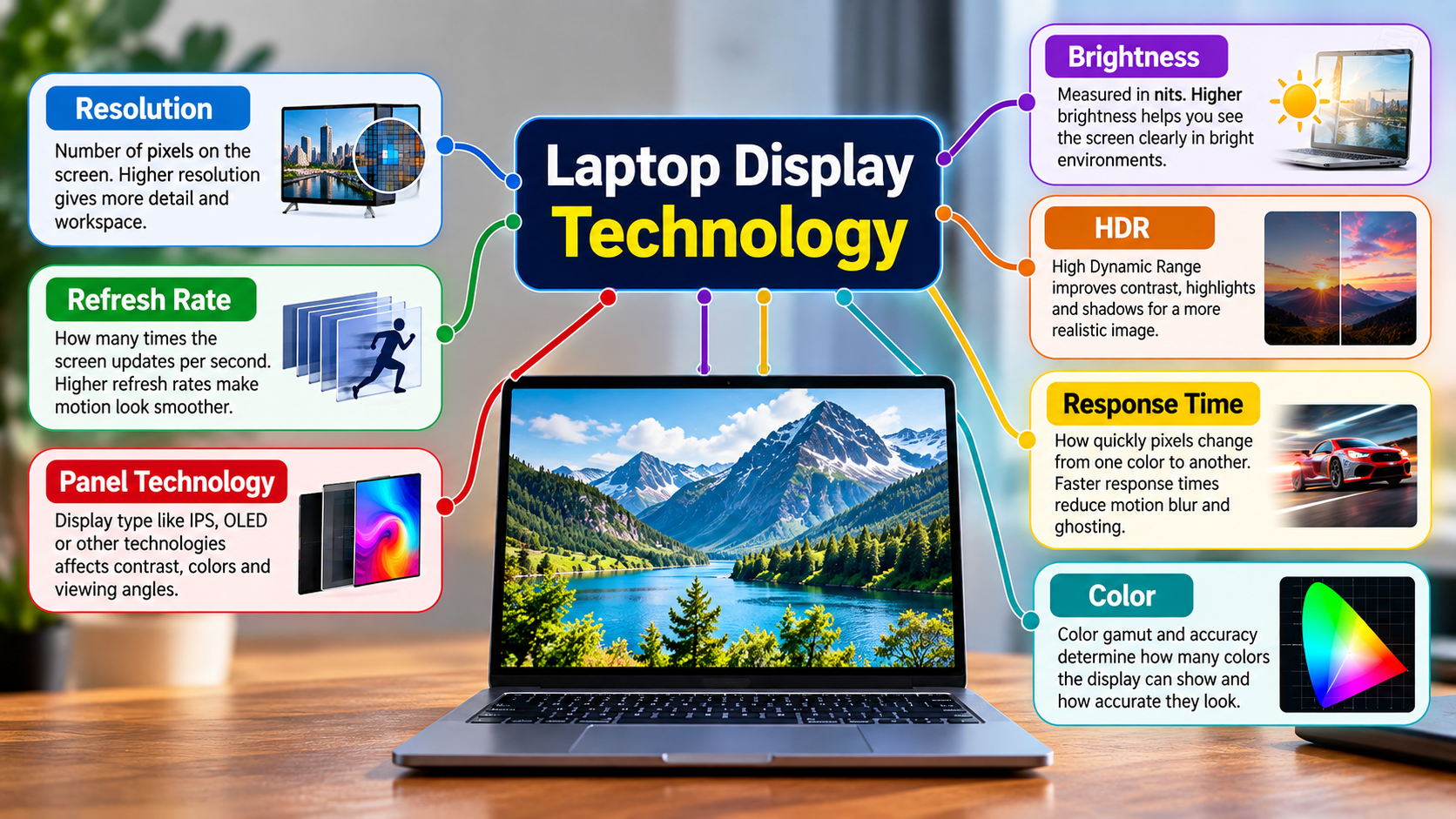
The answer is: it depends on what you do with the laptop. Laptop display technology isn’t one specification. It is a combination of resolution, refresh rate, panel technology, brightness, HDR capability, response time, color performance and other characteristics that collectively determine what you see and how the screen feels to use.
This guide breaks those specifications down into practical terms so you can look at a laptop spec sheet and understand what it means beyond the marketing language.
Laptop display specifications at a glance
Before getting into the technical details, here’s the simplest way to read the most common display specifications:
| Specification | What it measures | What you notice in practice |
|---|---|---|
| Resolution | Number of pixels | Image detail, text sharpness and workspace |
| Refresh rate | Screen updates per second | Smoothness during scrolling, animation and gaming |
| Panel type | Display technology | Contrast, black levels, viewing characteristics and color behavior |
| Brightness | Light output | How easily you can see the screen in bright surroundings |
| HDR | High dynamic range capability | Highlights, shadows, contrast and compatible content |
| Response time | Pixel transition speed | Motion clarity and potential ghosting |
| Color gamut | Range of colors reproduced | Particularly important for creative work |
| Color accuracy | How closely displayed colors match intended colors | Important for photography, design and video |
The key point is that these specifications measure different things. A 4K display isn’t automatically better for every user than a 120Hz display, and a screen advertised as HDR isn’t necessarily an excellent HDR screen.
Resolution: how many pixels are actually on the screen?
Display resolution is the number of horizontal and vertical pixels used to form an image. For example, a 1920×1080 display contains 1,920 pixels across and 1,080 pixels vertically.
More pixels can provide more detail and workspace, but resolution needs to be considered alongside screen size, scaling, graphics performance and the type of work you do.
Common laptop resolutions include:
- 1920×1080 – commonly called Full HD
- 1920×1200 – adds vertical workspace compared with 1920×1080
- 2560×1440 – QHD
- 2560×1600 – a common higher-resolution laptop format
- 2880×1800 – found on some premium laptops
- 3200×2000 – another high-resolution laptop format
- 3840×2160 – 4K UHD
Why screen size changes the equation
Imagine two laptops:
- 14-inch laptop with 1920×1200
- 16-inch laptop with 1920×1200
Both technically have the same resolution, but the smaller display packs those pixels into a smaller physical area. That affects pixel density and perceived sharpness.
The reverse is also true. A very high resolution on a small screen may require operating-system scaling so that text and interface elements remain comfortable to read.
Windows lets users change both display resolution and scaling, and Microsoft recommends using the display’s recommended resolution in normal circumstances.
So when you see “higher resolution”, don’t immediately translate that into “better.”
Ask instead:
Is this resolution appropriate for the screen size and my workload?
When higher resolution is particularly useful
Higher resolution can be valuable for:
- Reading small text
- Working with detailed photographs
- Video editing
- Graphic design
- Large spreadsheets
- Programming with multiple windows
- Viewing high-resolution photographs and video
It can also provide more workspace, although the practical benefit depends on operating-system scaling and application behavior.
What is the downside?
Higher-resolution displays can demand more graphics processing, especially when games are rendered at the native resolution. Depending on the laptop and panel, they can also affect power consumption.
For someone mainly writing documents, browsing websites and answering emails, paying substantially more for an extremely high resolution may not provide the same practical benefit as it would for a designer or video editor.
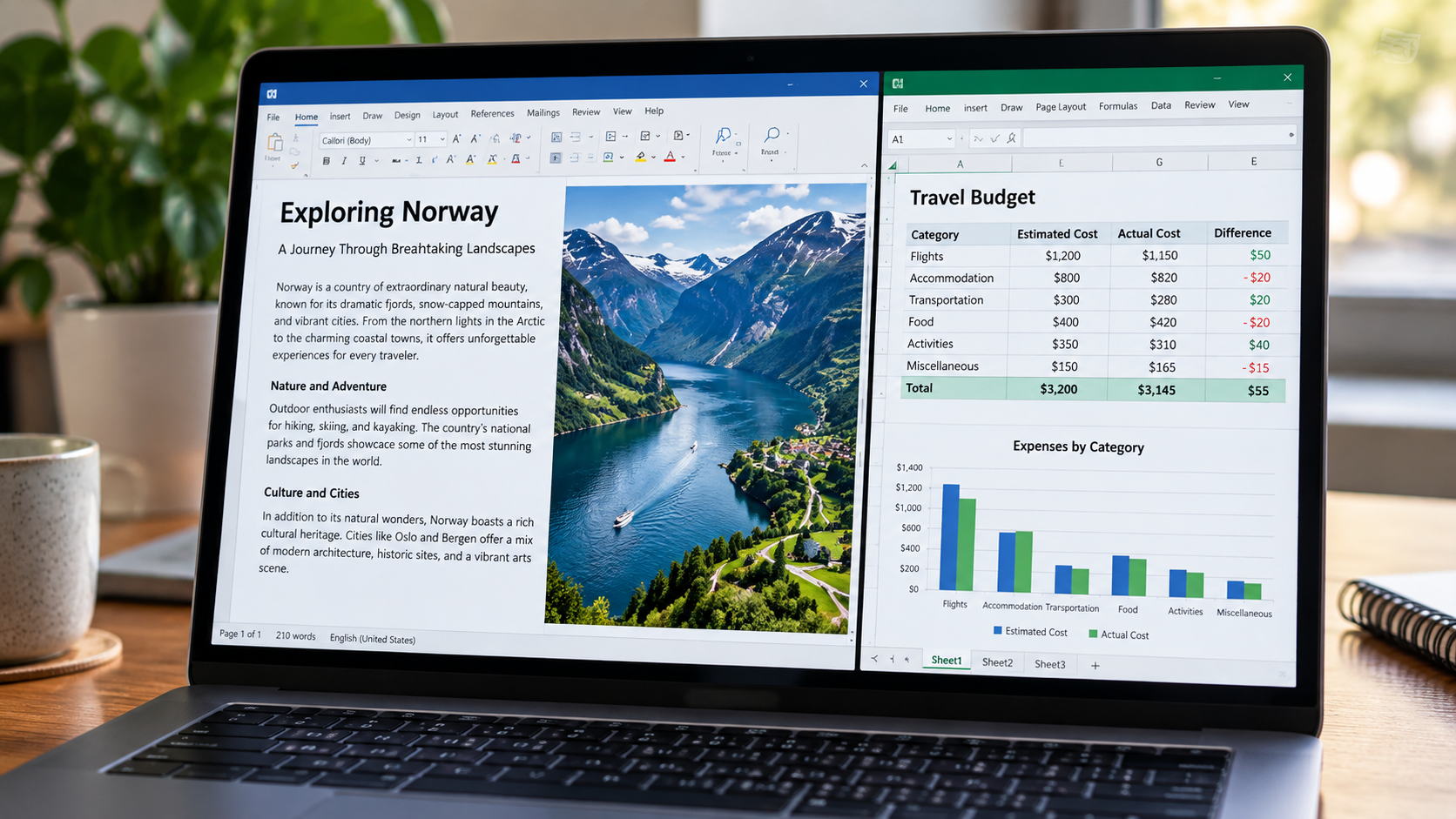
Refresh rate: why 120Hz can feel different from 60Hz
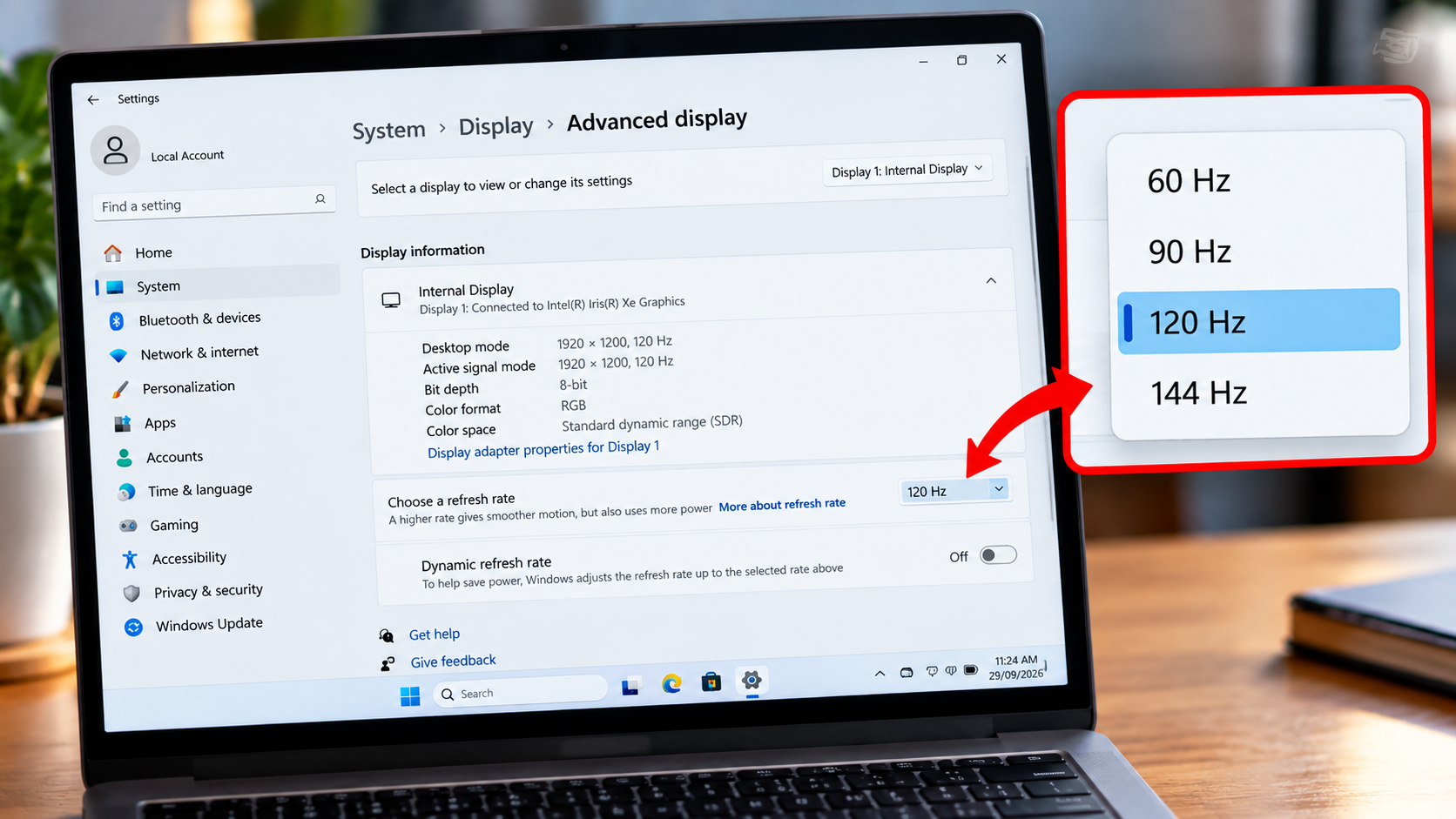
Refresh rate is the number of times a display can update its image each second, measured in hertz (Hz). Microsoft gives the simple example that a 60Hz display updates the screen 60 times per second.
Common laptop refresh rates include:
- 60Hz
- 90Hz
- 120Hz
- 144Hz
- 165Hz
- 240Hz
The higher the refresh rate, the shorter the interval between possible screen updates.
| Refresh rate | Approximate frame interval |
|---|---|
| 60Hz | 16.67 ms |
| 90Hz | 11.11 ms |
| 120Hz | 8.33 ms |
| 144Hz | 6.94 ms |
| 165Hz | 6.06 ms |
| 240Hz | 4.17 ms |
These numbers don’t mean that every application will suddenly become dramatically faster. Instead, a display capable of updating more frequently can make supported motion appear smoother.
Where you’ll notice higher refresh rates
A higher refresh rate can be noticeable when:
- Scrolling through long web pages
- Moving windows around
- Using animated interfaces
- Playing games
- Using a digital pen
- Watching compatible high-frame-rate content
Microsoft specifically notes that higher refresh rates can improve smoothness in browsing and gaming, while lower refresh rates can help reduce display power consumption on laptops.
That last point matters for portable computers.
A 120Hz panel isn’t necessarily something you need to run at 120Hz all the time. Some systems can dynamically adjust refresh rate depending on the workload. Windows 11’s Dynamic Refresh Rate, for compatible hardware, can automatically change refresh rate based on what you’re doing.
So, is 120Hz better than 60Hz?
For smoothness, 120Hz provides more frequent potential updates than 60Hz.
But that doesn’t mean every buyer should prioritize it above everything else.
If you’re choosing between:
- a brighter, better-calibrated 60Hz display, and
- a dimmer 120Hz display,
the right choice depends on how you use the laptop.
For gaming and frequent scrolling, refresh rate becomes more important. For office work in a bright room, brightness and comfortable viewing may matter more.
Would you actually notice 120Hz during your normal workday, or would you notice a brighter, sharper display more?
That is the kind of question a specification sheet can’t answer for you.
IPS vs OLED: two very different approaches to displaying an image
The panel technology underneath the screen changes how the display produces light and therefore affects characteristics such as black levels, contrast and overall image presentation.
IPS displays
IPS is a type of LCD technology. LCD panels require a separate backlight to illuminate the display.
IPS laptop displays are widely used because they can provide:
- Good viewing angles
- Good color reproduction
- Practical brightness
- A wide range of resolutions and refresh rates
- Strong general-purpose performance
The exact quality still depends on the individual panel. Two laptops can both advertise IPS displays while producing noticeably different results.
One might have excellent color accuracy and brightness, while another may be more basic.
That’s why “IPS” alone doesn’t tell you everything about the screen.
OLED displays
OLED is fundamentally different because the pixels are self-emissive: they produce their own light instead of depending on a separate backlight. Samsung Display describes its OLED laptop panels as self-emissive, with individual pixels controlling their own light output.
That enables characteristics such as:
- Very deep blacks
- Extremely high contrast
- Strong image separation in dark scenes
- Fast pixel transitions
- Wide color-gamut possibilities
- Excellent HDR potential
Because individual OLED pixels can turn off in dark areas, an OLED display doesn’t need to illuminate the entire panel behind a black object.
This is one reason OLED can look particularly striking when watching movies or working with dark imagery.
Is OLED automatically better than IPS?
Not necessarily.
OLED can offer major advantages in contrast and black levels, but the actual laptop display still needs to be evaluated for brightness, color accuracy, refresh rate, power behavior, surface finish and other characteristics.
IPS also remains a perfectly sensible choice for many users.
The useful question isn’t:
“Which technology wins?”
It’s:
“Which characteristics matter most for what I’m doing?”
Brightness: what does 500 nits really tell you?
Brightness is commonly expressed in nits, a unit of luminance.
In practical terms, brightness affects how easy the display is to see under different lighting conditions.
A screen that looks comfortable in a dim bedroom can feel very different when you’re working beside a bright window.
Think about where you’ll use the laptop
For example:
Mostly indoors:
Moderate brightness may be perfectly comfortable.
Bright office with strong overhead lighting:
Higher brightness can make the screen easier to see.
Near a sunny window:
Brightness becomes more important, particularly when reflections are also present.
Outdoor use:
Brightness, reflections and the display’s surface treatment all become important.
This is why simply saying “500 nits is good” isn’t enough.
Peak brightness vs sustained brightness
This distinction becomes particularly important with HDR.
A manufacturer might advertise a peak brightness figure achieved under specific test conditions. That doesn’t necessarily mean the entire screen continuously operates at that brightness.
For example, VESA’s DisplayHDR standards evaluate multiple aspects of HDR performance rather than relying on a single brightness number. Its DisplayHDR specification includes luminance, color gamut, bit depth and other performance criteria.
So when comparing displays, look beyond the biggest number printed in the product specification.
HDR on a laptop: more than an “HDR supported” label
HDR stands for High Dynamic Range.
The basic idea is to allow compatible content to represent a wider range between dark and bright areas while supporting appropriate color and brightness characteristics.
HDR can be particularly useful for:
- Movies
- Games
- HDR photographs
- Video production
- Other HDR-compatible content
But here’s where laptop specifications can become confusing.
HDR support does not automatically mean excellent HDR performance.
VESA’s DisplayHDR program was created specifically to establish measurable requirements for HDR display quality, including factors such as luminance, color gamut and bit depth. The standard has also evolved to include additional testing requirements such as color accuracy, contrast ratio and black levels.
That is useful because an HDR logo by itself doesn’t tell you the entire story.
What should you look for?
When evaluating HDR, consider:
- Peak brightness
- Full-screen brightness
- Black levels
- Contrast
- Color gamut
- Color accuracy
- Local dimming, where applicable
- HDR certification or standard
- The actual quality of the panel
OLED has an inherent advantage in controlling individual pixels because it is self-emissive. Modern OLED laptop technology is also evolving rapidly; for example, VESA introduced a DisplayHDR True Black 1400 tier in 2026 for high-brightness OLED displays, showing how the performance ceiling continues to change.
That doesn’t mean every OLED laptop reaches that level.
It means you should evaluate the actual panel rather than assuming the technology name tells you everything.
Response time: the specification hiding behind smoothness
Refresh rate and response time are related to motion, but they are not the same thing.
Refresh rate tells you how frequently the display can update. Response time describes how quickly pixels transition between states.
Imagine a laptop with a 144Hz display.
The screen has the ability to refresh frequently. But if pixels change slowly enough, moving objects can still produce visible trails or ghosting.
That’s why:
High refresh rate does not automatically guarantee excellent motion clarity.
Response-time measurements also need context. Different manufacturers and reviewers can use different measurement methods, transition conditions and definitions.
Professional display testing demonstrates why measurement methodology matters. For example, RTINGS explains that its laptop testing uses dedicated luminance and color measurement equipment, while its current laptop methodology does not provide the same response-time measurement used for its monitor testing.
So don’t compare a manufacturer’s “1ms” claim from one laptop directly against an independently measured number from another without understanding how the figures were obtained.
Why gamers care about response time
Response time becomes particularly relevant when:
- Objects move quickly across the screen
- You play competitive games
- You use high refresh rates
- You are sensitive to ghosting
- You regularly watch fast-moving content
For ordinary document work, response time is generally less important than resolution, brightness and viewing comfort.
Color: the specification many laptop buyers overlook
A display can be sharp and fast yet still be a poor choice for certain creative tasks.
That’s where color gamut and color accuracy become important.
Color gamut
Color gamut describes the range of colors a display can reproduce.
Common standards and spaces you’ll encounter include:
- sRGB
- DCI-P3
- Adobe RGB
A display covering a wider gamut can reproduce a broader range of colors, assuming the content and color-management workflow make use of that capability.
Color accuracy
Color accuracy is different.
A display can cover a wide gamut while still displaying some colors inaccurately.
So:
Wide color gamut does not automatically mean accurate color.
For photography, graphic design and professional video work, you should consider both gamut and measured accuracy.
Look for information such as:
- sRGB coverage
- DCI-P3 coverage
- Adobe RGB coverage
- Delta E measurements
- Factory calibration
- Color profiles
The importance of these characteristics becomes clearer when you work with images that need to look consistent across different devices.
The specifications make more sense when you read them together
This is where laptop display technology becomes much easier to understand.
Consider three hypothetical laptop displays.
Display A
1920×1080 + IPS + 60Hz + 300 nits
This could be a sensible configuration for basic productivity, browsing and office work where price and efficiency matter.
Display B
2560×1600 + IPS + 120Hz + 500 nits
This combination offers higher resolution, smoother motion and greater brightness. It could suit someone who wants a strong general-purpose display for productivity, entertainment and everyday use.
Display C
2880×1800 + OLED + 120Hz + HDR
This combination could be attractive to someone who prioritizes contrast, black levels, high resolution, smooth motion and HDR-capable media.
But these examples aren’t rankings.
A person buying a laptop mainly for email and spreadsheets might have different priorities from a gamer or video editor.
The interesting part is how the specifications interact.
A high-resolution display may look fantastic, but if a gaming laptop’s GPU struggles to render demanding games at native resolution, the user may choose a lower rendering resolution.
A 120Hz panel can make scrolling feel smoother, but a lower brightness level could become frustrating in a bright workspace.
An OLED panel can provide exceptional contrast, but the actual laptop still needs to be evaluated for brightness, power characteristics and other implementation details.
The specification sheet is a starting point—not the entire review.
Which laptop display specifications matter for your type of work?
For students
Prioritize:
- Comfortable resolution
- Good brightness
- Good viewing angles
- Reasonable battery efficiency
- Comfortable everyday viewing
You probably don’t need to pay a premium simply because a specification sheet contains the largest possible refresh-rate or resolution number.
For programmers
Look closely at:
- Resolution
- Vertical screen space
- Text sharpness
- Screen size
- Brightness
- Scaling behavior
A display that makes code comfortable to read for several hours can be more valuable than one impressive specification.
For gamers
Pay closer attention to:
- Refresh rate
- Response time
- Motion clarity
- VRR
- Resolution
- GPU/display balance
A 240Hz display can make sense in a laptop designed around high-frame-rate gaming, but its value depends on whether the hardware and games can actually make use of the additional refresh capability.
For photographers and designers
Prioritize:
- Color accuracy
- Color gamut
- Resolution
- Brightness
- Calibration
- Consistency
A huge resolution number doesn’t compensate for inaccurate color when color reproduction is central to your work.
For video editors
Look for:
- Resolution
- Color accuracy
- Wide gamut
- HDR capability
- Brightness
- Contrast
The right combination depends heavily on whether you’re producing SDR content, HDR content or both.
For movie and streaming fans
Consider:
- Contrast
- Black levels
- HDR capability
- Brightness
- Color reproduction
- Resolution
This is an area where OLED can be particularly attractive because self-emissive pixels allow deep black reproduction.
Don’t let marketing specifications make the decision for you
Some display specifications sound impressive until you ask what they actually measure.
4K
High resolution can provide tremendous detail, but screen size, viewing distance, scaling, GPU performance and battery behavior still matter.
HDR
Ask what HDR standard or certification is involved and what brightness, contrast and color performance the display actually delivers.
120Hz
Ask about response time and motion performance too.
100% sRGB
That tells you about gamut coverage, not necessarily color accuracy.
OLED
It tells you the panel technology, not the complete display quality.
1ms response time
Ask how the manufacturer measured it.
500 nits
Find out whether the number represents typical brightness, maximum brightness or a specific test condition.
The best laptop display isn’t necessarily the one with the longest specification list.
It’s the one whose specifications make sense together for your needs.
Common laptop display mistakes to avoid
1. Looking only at resolution
A higher pixel count doesn’t automatically create a better overall experience.
2. Assuming OLED is always the right choice
OLED’s strengths are significant, but implementation and workload still matter.
3. Ignoring brightness
A beautiful display isn’t particularly useful if it’s difficult to see in your normal environment.
4. Confusing refresh rate with response time
They describe different aspects of display performance.
5. Treating HDR support as proof of excellent HDR
Look at measurable HDR characteristics and certification where available.
6. Ignoring color accuracy
Especially problematic for photography, design and video work.
7. Comparing response-time numbers without checking methodology
Different measurement approaches can make apparently similar numbers difficult to compare.
8. Forgetting screen size
Resolution makes more sense when considered alongside the physical size of the panel.
9. Ignoring scaling
A very high-resolution display may use operating-system scaling to keep text and interface elements readable.
10. Buying specifications you won’t use
A feature is valuable when it improves your actual workflow—not simply because it looks impressive on a product page.
A practical laptop display checklist
Before buying a laptop, run through these questions:
Resolution:
Is the native resolution appropriate for the screen size?
Refresh rate:
Would 60Hz be sufficient, or would 90Hz/120Hz make a meaningful difference to your usage?
Panel type:
Does IPS or OLED better match your priorities?
Brightness:
Will you use the laptop in a bright room, beside windows or outdoors?
HDR:
Is there a meaningful HDR standard or certification, or simply an “HDR supported” label?
Color:
What are the sRGB, DCI-P3 or Adobe RGB coverage figures?
Color accuracy:
Are independent measurements available?
Response time:
Is there credible information about actual pixel transitions?
VRR:
Useful if gaming is a major part of your laptop usage.
Surface finish:
Will a glossy panel create distracting reflections in your environment?
Scaling:
Will the operating system and applications display comfortably at the native resolution?
Battery:
Does the display configuration make sense for a portable computer?
Microsoft provides display controls in Windows for resolution, scaling and refresh rate, while compatible Windows 11 systems can also support Dynamic Refresh Rate.
Pros and cons
Pros
- Understanding display specifications makes laptop comparisons much easier.
- Different display technologies can be matched to different workloads.
- Resolution, brightness, refresh rate and color specifications provide useful information when interpreted together.
- Independent measurements can reveal differences that aren’t obvious from manufacturer specifications.
- A well-chosen display can improve everyday productivity, gaming and creative work.
Cons
- Manufacturer specifications don’t always provide enough information to judge complete display quality.
- Response-time figures can be difficult to compare when testing methodologies differ.
- HDR labels alone don’t describe the complete HDR experience.
- A higher resolution or refresh rate can involve additional power or graphics demands depending on the laptop and workload.
- Two laptops with the same advertised panel technology can still have noticeably different display performance.
Frequently Asked Questions
Is OLED better than IPS for a laptop?
OLED and IPS use different display technologies, so the better choice depends on the user’s priorities. OLED can provide very deep blacks, high contrast and strong HDR potential because its pixels are self-emissive. IPS displays can still offer excellent brightness, color and viewing characteristics, and the quality of individual implementations varies.
Is 120Hz noticeably better than 60Hz on a laptop?
A 120Hz display can make scrolling, animation and supported games appear smoother than 60Hz. The difference is most useful when the content and hardware can take advantage of the higher refresh rate. Microsoft also notes that higher refresh rates can improve smoothness while lower refresh rates can reduce display power consumption.
How many nits should a laptop display have?
There is no single brightness level that is ideal for every user. Indoor use generally places different demands on a display than bright offices, window-side desks or outdoor environments. When comparing laptops, consider the brightness figure together with reflections and the environment where you’ll normally use the computer.
Is 4K resolution worth it on a laptop?
It depends on the screen size, workload, viewing distance and hardware. Higher resolution can provide more detail and workspace, but it can also increase graphics demands and may require scaling for comfortable text and interface sizes.
What is the difference between refresh rate and response time?
Refresh rate describes how frequently a display can update its image, while response time describes how quickly pixels transition between states. A high-refresh display can therefore still have motion-clarity issues if its pixel transitions are slow.
Which display specifications matter most for gaming and content creation?
Gamers generally have more reason to prioritize refresh rate, response time, VRR and the resolution/GPU combination. Content creators usually need to pay closer attention to resolution, color gamut, color accuracy, brightness and HDR capability. The exact priority depends on the type of work and content being produced.
Laptop Display Technology Explained, Conclusion
A laptop display is much more than a number like 4K, 120Hz or OLED.
Resolution affects detail and workspace. Refresh rate affects how smoothly motion can be updated. Panel technology changes how the screen produces light and handles contrast. Brightness affects visibility. HDR can improve compatible content when the underlying display has the necessary performance. Response time influences pixel transitions and motion clarity, while color gamut and accuracy become increasingly important for creative work.
The biggest mistake is to treat any one of these specifications as the definition of a “good” display.
Instead, read them as a group.
If you’re buying a laptop for programming, you may care more about sharp text, workspace and comfortable brightness. For gaming, refresh rate, response time and VRR may move higher on your list. For photography or video production, color accuracy and gamut deserve much more attention.
The next time you see a laptop specification sheet filled with numbers, don’t ask Which number is biggest?
Ask a better question:
Which combination of specifications fits the way I actually use my laptop?
That is the real value of understanding laptop display technology.



“I really find this website innovative, so I’d love to collaborate with you. I’m from NexaByte Technologies, a product-based tech firm located in Bangalore. We’d like to run ads for our business on your website. Please let me know your advertising options and rates. Looking forward to working together!”