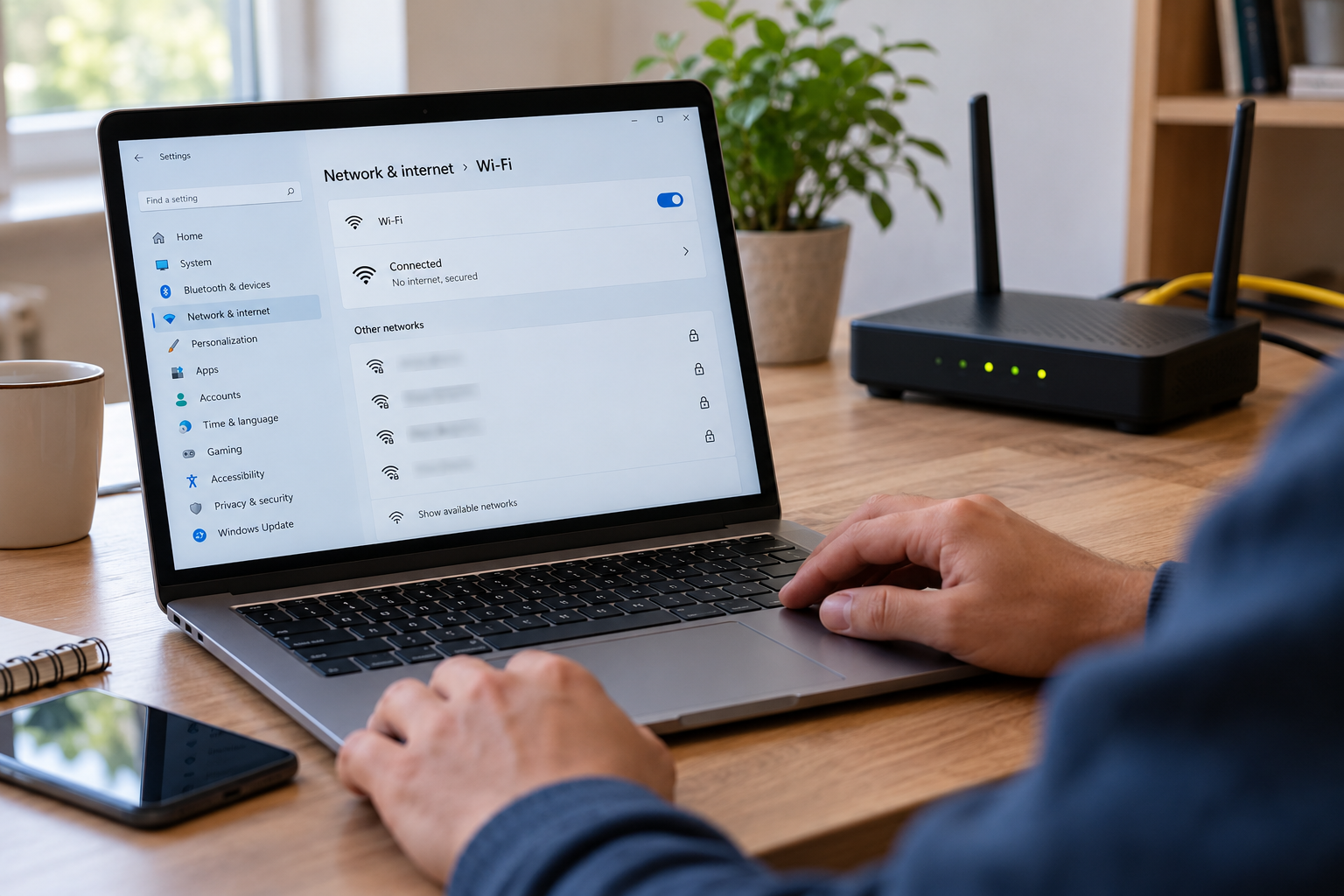
Your laptop says it is connected to Wi-Fi, but the browser refuses to load a page. Your phone is sitting on the same desk and works perfectly. Or perhaps the connection is fine until you move into another room, after which video calls start freezing and downloads crawl.
Laptop Wi-Fi problems are rarely caused by one universal issue. The failure could be inside the laptop, in its wireless driver, somewhere between the laptop and router, in the router itself, or farther upstream with your internet connection.
The fastest way to solve the problem is not to reset everything and hope for the best. It is to find out which part of the connection is actually failing.
That approach also prevents a surprisingly common mistake: changing five settings at once and then having no idea which change fixed—or created—the problem.
Quick answer: Start by checking whether another device works on the same Wi-Fi. Then determine whether your laptop can see the network, connect to it, reach the router, and reach the internet. That sequence helps narrow the problem from a vague “Wi-Fi issue” to a specific cause.
Start by Finding Out Where the Problem Is
Before changing a driver, resetting DNS, or blaming your internet provider, answer one question:
Does the problem happen only on this laptop?
Connect a phone, tablet, or another computer to the same Wi-Fi network from roughly the same location.
| What you observe | Most likely area to investigate | First useful test |
|---|---|---|
| Only the laptop has problems | Laptop, adapter, driver or settings | Test the laptop on another Wi-Fi network |
| Every device has problems | Router, modem/ONT or ISP | Check router status and another connection |
| Laptop cannot see any Wi-Fi networks | Adapter, Wi-Fi radio or driver | Check Wi-Fi settings and Device Manager |
| Laptop sees Wi-Fi but cannot connect | Password, saved profile, authentication or router | Forget the network and reconnect |
| Laptop connects but says “No Internet” | IP, DNS, router or ISP | Check IP configuration and test the gateway |
| Wi-Fi works near the router but not farther away | Signal or interference | Compare performance at different distances |
| Problem started after an update | Driver or operating-system configuration | Check driver version and recent changes |
| Connection drops mainly on battery | Power management or adapter behavior | Compare plugged-in and battery operation |
Microsoft uses this same basic isolation principle in its Windows troubleshooting guidance: connecting another device to the same network can help determine whether the source is the computer or the network.
A useful mental model
Think of the connection as a chain:
Laptop → Wi-Fi adapter → wireless signal → router/access point → modem or ONT → ISP → Internet
A failure anywhere along that path can look like “the Wi-Fi isn’t working.”
That is why a laptop that says Connected can still have trouble reaching websites. The laptop may have a working wireless link to the router while the router itself has lost internet access.
The distinction matters because the fix depends on where the chain breaks.
When the Signal Is the Problem
Sometimes the laptop and router are both working normally. The wireless signal simply isn’t good enough where the laptop is being used.
Distance matters, but it is not the only factor. Walls, floors, furniture, neighboring networks and other sources of radio interference can affect wireless performance.
Move the laptop closer before changing anything
This is one of the simplest diagnostic tests available.
Connect the laptop near the router and perform the same activity that was causing trouble:
- Open the same website.
- Run the same download or video stream.
- Make the same video call if that was the original problem.
- Move back to the usual location.
- Compare the behavior.
If the connection becomes noticeably more stable near the router, you have learned something useful. The laptop may not be defective at all; the wireless environment may be the limiting factor.
Would you really want to reinstall a Wi-Fi driver if the laptop works perfectly from the next room?
2.4 GHz and 5 GHz are not interchangeable in every situation
Many home routers offer multiple wireless bands.
In broad terms, 2.4 GHz tends to provide better range through typical household obstacles, while 5 GHz can provide higher performance at shorter distances. The best choice depends on the router, laptop adapter, distance, interference and configuration.
Microsoft recommends trying another available frequency band as part of troubleshooting certain Wi-Fi problems.
If your router exposes separate network names for 2.4 GHz and 5 GHz, testing both can provide a useful clue.
A laptop that struggles on 5 GHz but works reliably on 2.4 GHz does not necessarily have a broken Wi-Fi adapter. The issue could be range, interference, configuration or compatibility.
Interference can make a healthy connection behave badly
Wireless networks share radio space with other devices and networks. Intel lists interference, router/access-point configuration, adapter settings, network configuration and driver problems among possible causes of Wi-Fi performance and connection issues.
In a crowded apartment building, for example, several nearby networks may be competing for wireless airtime.
Other devices can contribute too. The exact effect depends on the device, environment and wireless band, so avoid treating every nearby electronic device as automatically responsible.
The important clue is where and when the problem occurs.
If your laptop is stable beside the router but unreliable in one particular room, that is a very different problem from a laptop that cannot connect anywhere.
The Wi-Fi Adapter and Driver Deserve a Closer Look
The Wi-Fi adapter is the hardware that allows the laptop to communicate wirelessly. The driver is the software Windows uses to communicate with that hardware.
When either is malfunctioning, the symptoms can be confusing.
You might see:
- the Wi-Fi option disappear;
- no networks appear even though nearby devices can see them;
- repeated disconnects;
- a connection that stopped working after an operating-system update;
- an adapter warning in Device Manager;
- unusually poor performance on one laptop while other devices perform normally.
Microsoft’s current Windows guidance specifically recommends checking whether the wireless adapter is enabled and comparing its driver version and date with the version provided by the computer manufacturer.
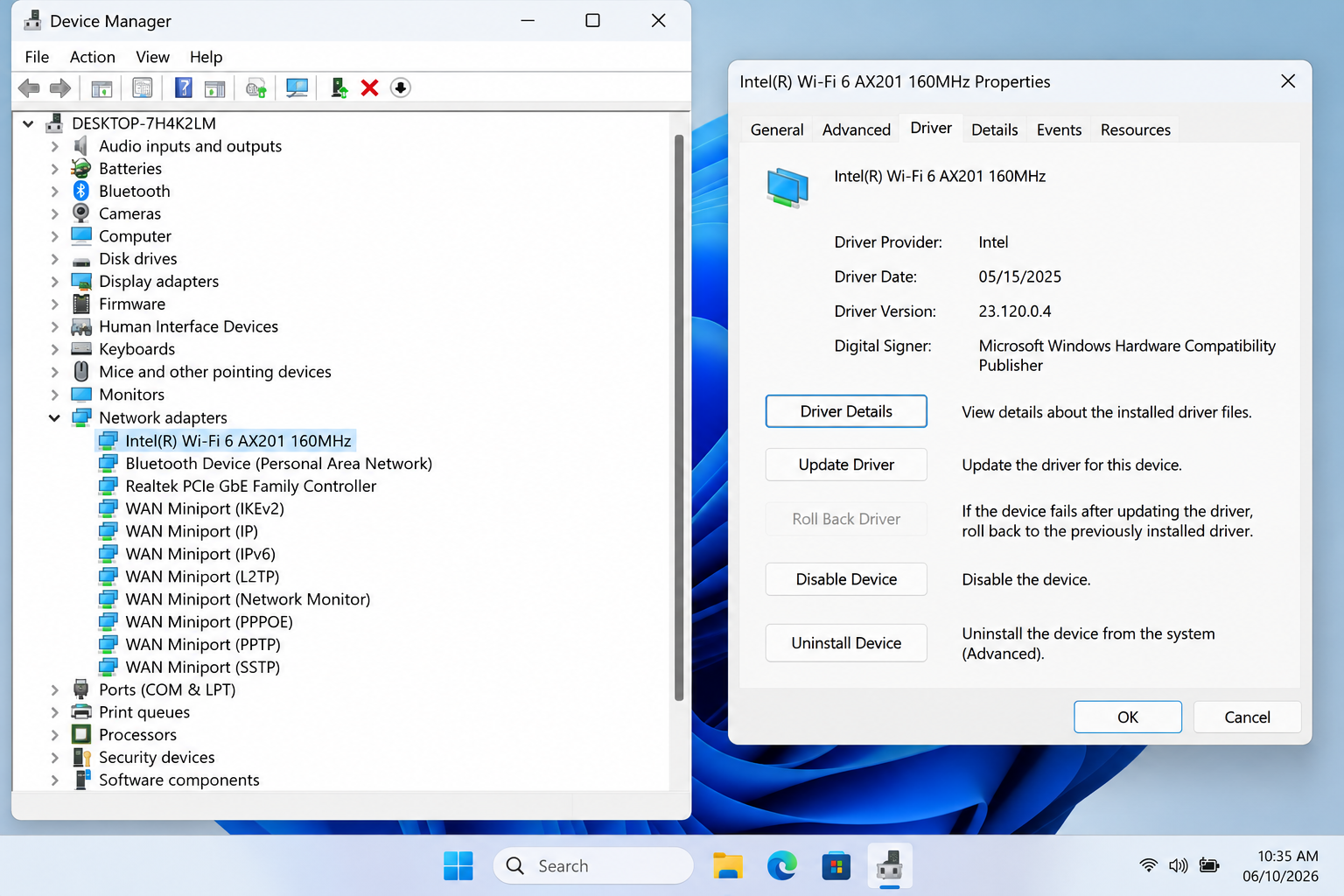
Check Device Manager before reinstalling anything
On Windows:
Start → search for Device Manager → Network adapters
Look for the wireless adapter.
The exact name varies by laptop and hardware. You might see a manufacturer name such as Intel, MediaTek, Realtek, Qualcomm or another wireless-device identifier.
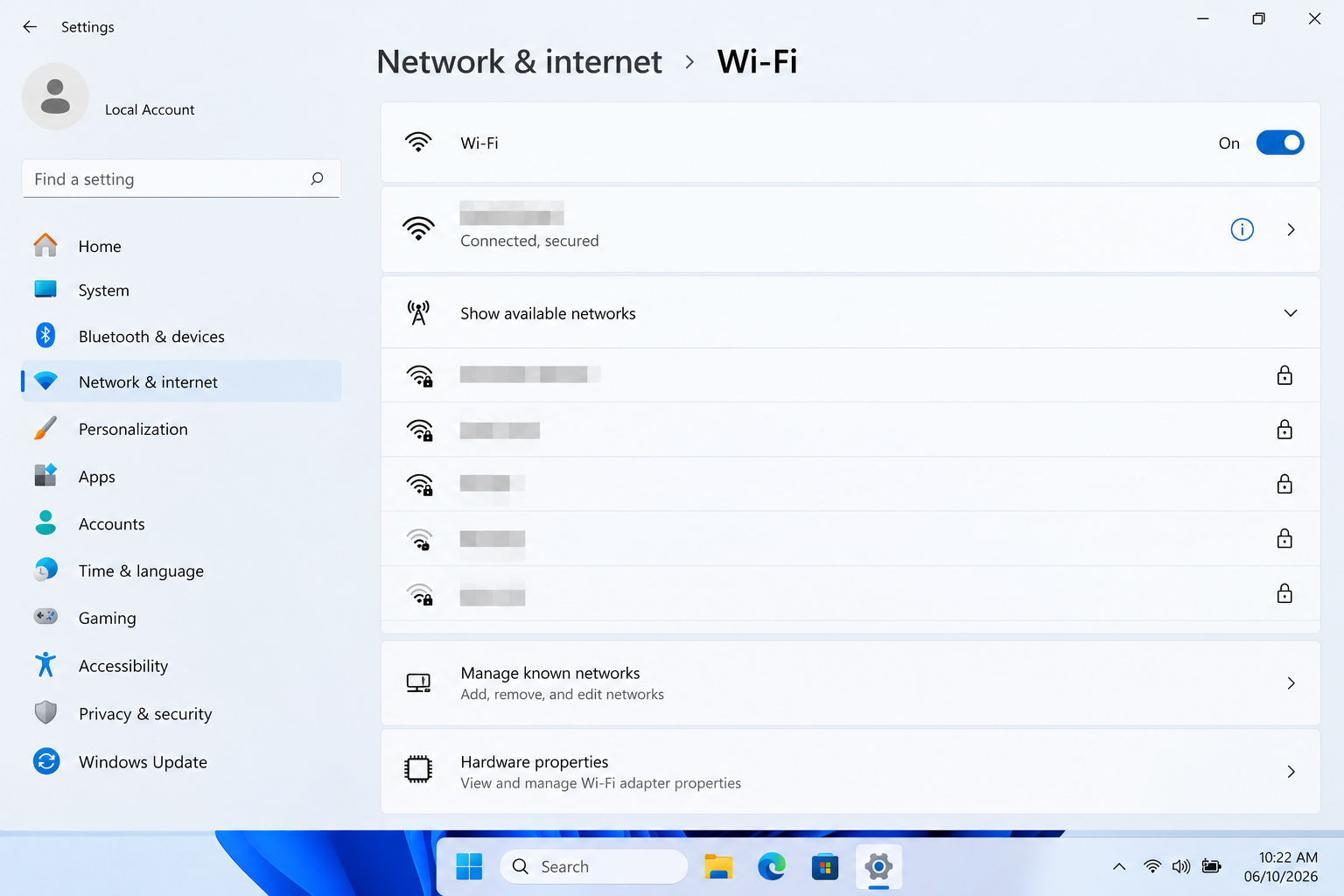
If the adapter is disabled, Windows may offer an Enable device option.
If the adapter is missing entirely, that is more significant. Windows may not be detecting the hardware or its driver correctly.
Do not download a random driver because a website tells you to
Driver websites are a common source of unnecessary risk and confusion.
Start with the laptop manufacturer’s official support page and identify the exact model. Intel also notes that computer manufacturers can customize wireless drivers and recommends checking the computer manufacturer for the appropriate updates.
If the laptop is from Dell, HP, Lenovo, ASUS, Acer, MSI or another manufacturer, the OEM support page is usually the sensible first destination for model-specific drivers.
When should you reinstall the driver?
Not as your first move.
If the adapter is visible and functioning, an update may be enough. If the driver is clearly corrupted or Windows cannot load the adapter properly, reinstalling can make sense.
Microsoft recommends having the manufacturer’s driver available before uninstalling a network adapter driver—especially important if the laptop currently has no internet connection.
That little preparation step can save you from the awkward situation of removing the Wi-Fi driver and then discovering you have no easy way to download it.
Sometimes the Router Is the Real Culprit
A laptop can take the blame simply because it is the device you happen to be holding.
Test another device.
If your phone, tablet and another computer all lose internet access on the same Wi-Fi, spending an hour changing laptop settings is probably the wrong direction.
Apple gives similar advice for network troubleshooting: if other devices can connect to the same Wi-Fi network, the router and network are more likely to be working; if other devices also fail, the network itself deserves investigation.
Restarting the router can help, but understand what it proves
Restarting a router can clear temporary connection problems, but it is not a diagnosis by itself.
It temporarily disconnects everyone using that router.
If restarting fixes the problem, you know that the connection state changed. You do not automatically know why the problem occurred.
For recurring failures, look for patterns instead of repeatedly power-cycling the router.
Check the router’s firmware
Router manufacturers periodically publish firmware updates that can address bugs, compatibility issues and security problems.
If the router is managed by your ISP, firmware updates may be handled by the provider. Follow the manufacturer’s or ISP’s instructions rather than installing unofficial firmware.
Apple likewise recommends keeping router firmware up to date when you manage the router yourself.
Network Settings Can Be the Hidden Problem
Once the hardware, signal and router look healthy, move into network configuration.
This is where terms such as IP address, DHCP, DNS, VPN and proxy become useful—but they should be explained rather than thrown at beginners like a bag of acronyms.
Forget the Wi-Fi network and reconnect
A saved wireless profile can occasionally be the problem.
On Windows, remove the saved network and reconnect by entering the password again.
This is particularly reasonable when:
- the password was changed;
- router settings changed;
- the laptop suddenly refuses to authenticate;
- the network profile appears to be behaving differently from other devices.
On Mac, Apple provides a Forget This Network option under Wi-Fi settings before joining the network again.
IP addresses and DHCP
When a laptop joins a home network, it normally receives network configuration such as an IP address from the router through DHCP.
If that process fails, the laptop may connect to the wireless network but still be unable to communicate normally.
Windows can show a 169.254.x.x address when it cannot obtain a suitable address from the router. Microsoft includes this as one clue to investigate in its current troubleshooting documentation.
That does not mean every 169.254 address has the same cause, but it is a useful diagnostic signal.
DNS problems
DNS translates human-friendly domain names into IP addresses.
That means a DNS problem can produce a strange situation where the network appears connected but websites fail to resolve.
If some applications work while websites do not, or if the issue appeared after changing network software, DNS or related settings may deserve attention.
But don’t immediately replace your DNS provider just because a website failed to load once.
Diagnosis first.
VPNs, proxies and security software
A VPN, firewall, antivirus package, content filter or other network-aware application can interfere with connectivity.
Apple’s current guidance specifically recommends checking VPN and third-party security software when network connectivity is affected.
If your Wi-Fi suddenly stopped working after installing a VPN or security product, that timing is valuable evidence.
Windows Network Commands: Useful When You Know What They Are Doing
For persistent Windows networking problems, Command Prompt can provide more direct troubleshooting than repeatedly clicking buttons.
Open Command Prompt as administrator and, when appropriate, Windows documentation includes commands such as:
netsh winsock reset
netsh int ip reset
ipconfig /release
ipconfig /renew
ipconfig /flushdns
These commands are not five magic spells that should be pasted into Command Prompt every time Wi-Fi misbehaves.
They target different parts of Windows networking:
netsh winsock resetresets the Winsock catalog.netsh int ip resetresets TCP/IP-related configuration.ipconfig /releasereleases the current DHCP configuration.ipconfig /renewrequests a new DHCP configuration.ipconfig /flushdnsclears the local DNS resolver cache.
Microsoft currently includes these types of network commands in its Windows Wi-Fi troubleshooting guidance.
A Ping Test Can Tell You More Than the Wi-Fi Icon
This is one of the most useful technical tests in the article.
The question is:
Can the laptop reach the router?
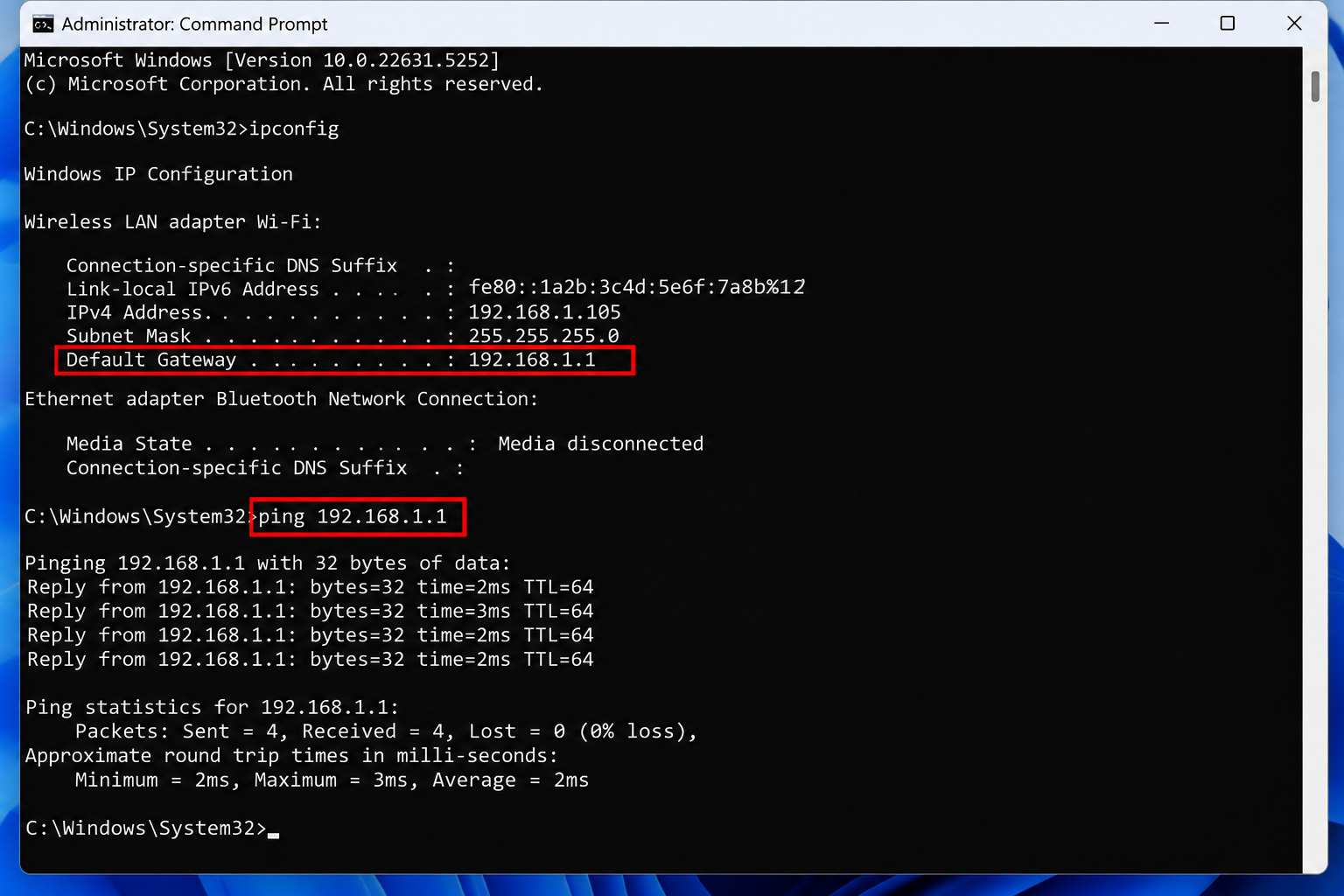
Open Command Prompt and run:
ipconfigFind the Default Gateway under the active wireless adapter.
It may look something like:
192.168.1.1but the actual address depends on your network.
Then test it:
ping 192.168.1.1Replace the example address with your actual default gateway.
If the laptop can successfully communicate with the gateway, that tells you the local connection to the router is functioning well enough to respond to the test.
It does not prove that the internet is working.
That distinction is the whole point.
Think of it as two separate questions:
Can I reach my router?
versus
Can my router reach the internet?
Microsoft specifically recommends pinging the default gateway to help determine whether the computer can communicate with its Wi-Fi router.
Windows Has a Diagnostic Report Many Users Never Open
If Wi-Fi repeatedly disconnects, Windows can generate a Wireless Network Report.
Open an elevated Command Prompt and run:
netsh wlan show wlanreportWindows creates an HTML report containing Wi-Fi events from the previous three days, grouped into connection sessions. It can also include adapter information, driver details, network configuration output and disconnect reasons.
This is much more useful than saying, “My Wi-Fi keeps disconnecting.”
The report can help you look for patterns:
- repeated connection failures;
- recurring disconnect reasons;
- driver information;
- adapter problems;
- session history;
- warnings and errors.
If Wi-Fi Fails Mainly on Battery, Don’t Immediately Blame the Battery
A laptop that behaves differently when unplugged deserves a slightly different investigation.
Wireless adapters use power-management features to balance performance and battery life. Intel documents power-management behavior as one possible factor in wireless connectivity, while also warning against casually changing default wireless power settings.
That makes this an area where many online troubleshooting articles go too far.
You may see advice telling everyone to switch the adapter to maximum performance or disable every power-saving option. That’s not a universal fix.
Changing power settings can increase battery consumption, and Intel recommends retaining defaults unless troubleshooting gives you a reason to change them.
So first compare the symptoms:
Works plugged in + fails on battery
is more useful information than simply saying:
Wi-Fi is bad.
Intel also documents cases where power-saving behavior can interact poorly with some access points, although the appropriate remedy depends on the hardware and software involved.
Five Common Laptop Wi-Fi Situations
Sometimes you don’t need a complete diagnostic theory. You just want to know what to investigate next.
My laptop says connected, but there is no internet
Try this order:
- Check another device on the same Wi-Fi.
- Restart the router if multiple devices are affected.
- Forget and reconnect to the network.
- Check the laptop’s IP configuration.
- Test the default gateway.
- Check VPN or proxy settings.
- Investigate DNS if the local connection works but websites do not.
- Contact the ISP if other devices also cannot reach the internet.
Wi-Fi keeps disconnecting
Start with the environment.
Check:
- distance from the router;
- interference;
- whether another band behaves better;
- driver version;
- router firmware;
- whether the problem occurs on battery;
- whether other devices disconnect at the same time.
If the problem began after an update or configuration change, that timing is particularly useful.
Wi-Fi is slow only on my laptop
Don’t compare the laptop with your phone from different rooms and call it a fair test.
Put both devices in the same location and use the same network.
Then investigate:
- signal quality;
- wireless band;
- adapter capabilities;
- driver;
- background network activity;
- router compatibility.
Intel’s troubleshooting guidance similarly recommends isolating whether the problem affects one computer or multiple computers rather than changing several settings simultaneously.
My laptop cannot see any Wi-Fi networks
Check whether:
- Wi-Fi is enabled;
- Airplane mode is off;
- the laptop has a hardware or keyboard Wi-Fi switch;
- the wireless adapter is enabled;
- Windows recognizes the adapter;
- the driver is installed;
- the router is actually broadcasting;
- the laptop supports the frequency being used.
Microsoft lists disabled adapters, driver problems and frequency compatibility among the possibilities when no wireless networks are found.
Wi-Fi stopped working after a Windows update
Don’t immediately assume the update destroyed the hardware.
Check:
- Current driver version.
- Laptop manufacturer’s driver.
- Device Manager status.
- Whether the problem occurs on another network.
- Whether a driver rollback is available and appropriate.
- Network reset only after simpler investigation.
A change in timing gives you a useful clue, but it does not automatically prove causation.
Troubleshooting Mistakes That Waste Time
Resetting everything before diagnosing anything
A network reset may solve a persistent configuration problem, but it also removes network configuration and can require reconnecting to networks or reinstalling related network software.
Microsoft treats network reset as a later troubleshooting option rather than the first step.
Downloading drivers from random websites
Use the laptop manufacturer’s support page first.
Changing five settings simultaneously
Intel explicitly recommends changing settings or parameters one at a time so that you can tell what affected the problem.
Assuming the Wi-Fi icon tells the whole story
It doesn’t.
The icon tells you something about connection status, but it cannot tell you whether the underlying problem is signal quality, DNS, a router fault, an application, or an upstream internet issue.
Blaming the ISP too early
If every other device works perfectly, the ISP may not be your first suspect.
Treating signal bars as a complete diagnosis
Signal strength is important, but it is only one part of wireless performance.
Pros and Cons of Common Troubleshooting Approaches
| Approach | Pros | Cons / limitations |
|---|---|---|
| Restart Wi-Fi or router | Quick and easy | May fix the symptom without identifying the cause |
| Forget and reconnect | Useful for saved-profile or authentication problems | Requires the Wi-Fi password again |
| Update the driver | Can resolve driver-related compatibility and stability problems | The wrong driver can create additional problems |
| Network commands | Useful for IP, DNS, TCP/IP and Winsock issues | Should not be run blindly |
| Ping the gateway | Helps separate local Wi-Fi communication from upstream internet problems | Requires basic Command Prompt use |
| Wireless Network Report | Provides historical diagnostic information | More technical to interpret |
| Network reset | Can resolve persistent network configuration problems | Removes network settings and may require reconfiguration |
The best approach is not necessarily the most powerful one. It is the least disruptive test that can answer the question you currently have.
A Practical Decision Tree for Laptop Wi-Fi Problems
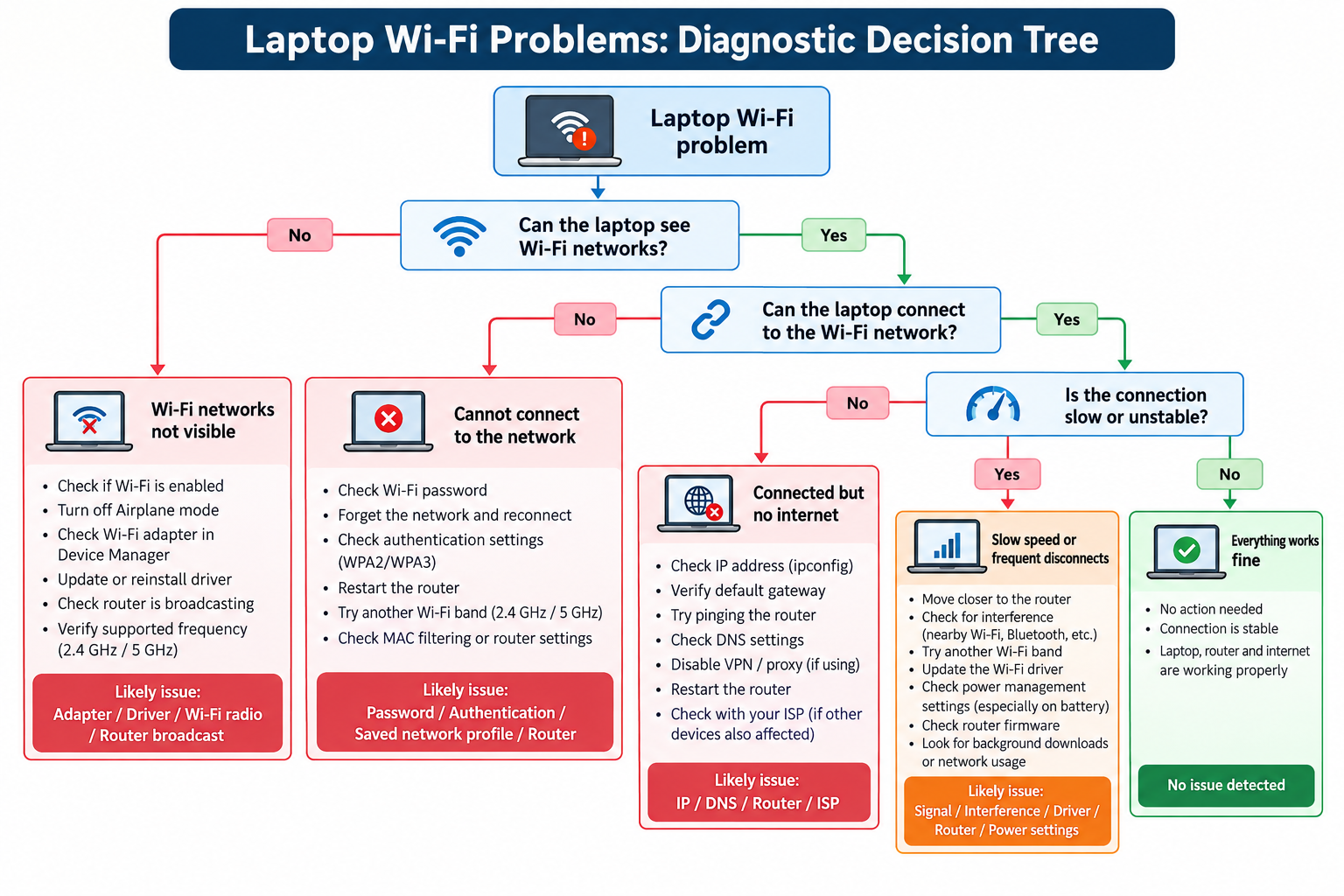
The logic is simple:
No networks visible?
Investigate Wi-Fi radio, adapter, driver and router broadcast.
Networks visible but connection fails?
Investigate password, authentication, saved network profile and router configuration.
Connected but no internet?
Investigate IP, DHCP, DNS, VPN/proxy, router and ISP.
Internet works but performance is poor?
Investigate signal, wireless band, interference, driver, background traffic and router behavior.
This is the part of troubleshooting where patience usually beats cleverness.
When Should You Stop Troubleshooting the Laptop?
There is a point where the evidence should change your next step.
If multiple devices fail on the same Wi-Fi network, stop treating the laptop as the only suspect. Check the router, modem/ONT and ISP.
If only one laptop fails while other devices work normally, focus your investigation on that laptop.
If the laptop cannot connect to any Wi-Fi network, even networks that work for other devices, manufacturer support becomes more relevant.
For a Mac, Apple similarly recommends trying another network to determine whether the issue is specific to the current network; persistent network-wide failures may require help from the ISP or network administrator.
Frequently Asked Questions
Why is my laptop connected to Wi-Fi but has no internet?
A Wi-Fi connection only establishes communication between the laptop and the wireless network. Internet access depends on what happens beyond the router as well. Check another device, then investigate the router, IP configuration, DNS, VPN/proxy settings and ISP connection.
Why does Wi-Fi work on my phone but not my laptop?
If the phone works normally on the same network and in the same location, the laptop becomes the more likely source of the problem. Check its Wi-Fi adapter, driver, saved network profile, supported wireless band and network settings.
Why does my laptop keep disconnecting from Wi-Fi?
Common areas to investigate include weak signal, wireless interference, router configuration, driver problems and power-management behavior. The most useful clue is whether the problem follows the laptop or affects other devices too.
Why can’t my laptop find my Wi-Fi network?
Check that Wi-Fi is enabled, Airplane mode is off and the wireless adapter is recognized and enabled. Driver problems, router broadcast settings and frequency compatibility can also prevent a network from appearing.
Should I update my laptop’s Wi-Fi driver?
If the driver is outdated or you are experiencing connection problems, checking for a newer compatible driver is reasonable. Prefer the laptop manufacturer’s official driver when available because OEMs can customize wireless drivers.
Should I reset my network settings if Wi-Fi isn’t working?
Usually not as the first step. Try simpler diagnostic and corrective steps first. Network reset can remove network configuration and require you to reconnect to networks or restore related settings, so it is better treated as a later troubleshooting option.
What to Do Next
If you’re dealing with laptop Wi-Fi problems right now, don’t start with the most complicated fix.
Use this order:
1. Test another device.
Find out whether the problem is laptop-specific.
2. Move the laptop near the router.
See whether distance or interference changes the behavior.
3. Check whether the laptop can see and connect to the network.
That separates several different classes of problems.
4. Check the adapter and driver.
Use Device Manager and your laptop manufacturer’s support page.
5. Check network configuration.
Look at the IP address, gateway, DNS, VPN and proxy settings when the symptoms point in that direction.
6. Test the gateway.
A ping to the default gateway helps establish whether the laptop can communicate with the local router.
7. Use the Wireless Network Report for recurring Windows problems.
It can reveal patterns that are difficult to see from the Wi-Fi icon alone.
8. Reset the network only when the evidence justifies it.
The goal is not to perform every troubleshooting step. The goal is to perform the right step.
Conclusion
The frustrating thing about laptop Wi-Fi problems is that the symptom often tells you very little by itself. “No internet” could mean a weak signal, a driver issue, a saved network profile, a failed DHCP exchange, a DNS problem, a router problem or an ISP outage.
The good news is that you don’t have to guess.
Start by comparing devices. Then determine whether the laptop can see the network, connect to it, reach the router and reach the wider internet. From there, investigate the signal, adapter, driver, router or network settings that fit the evidence.
And before you reset everything, ask one simple question:
What does the problem tell me about where the connection is actually failing?
That question will usually get you closer to the solution than another random “fix Wi-Fi” checklist.