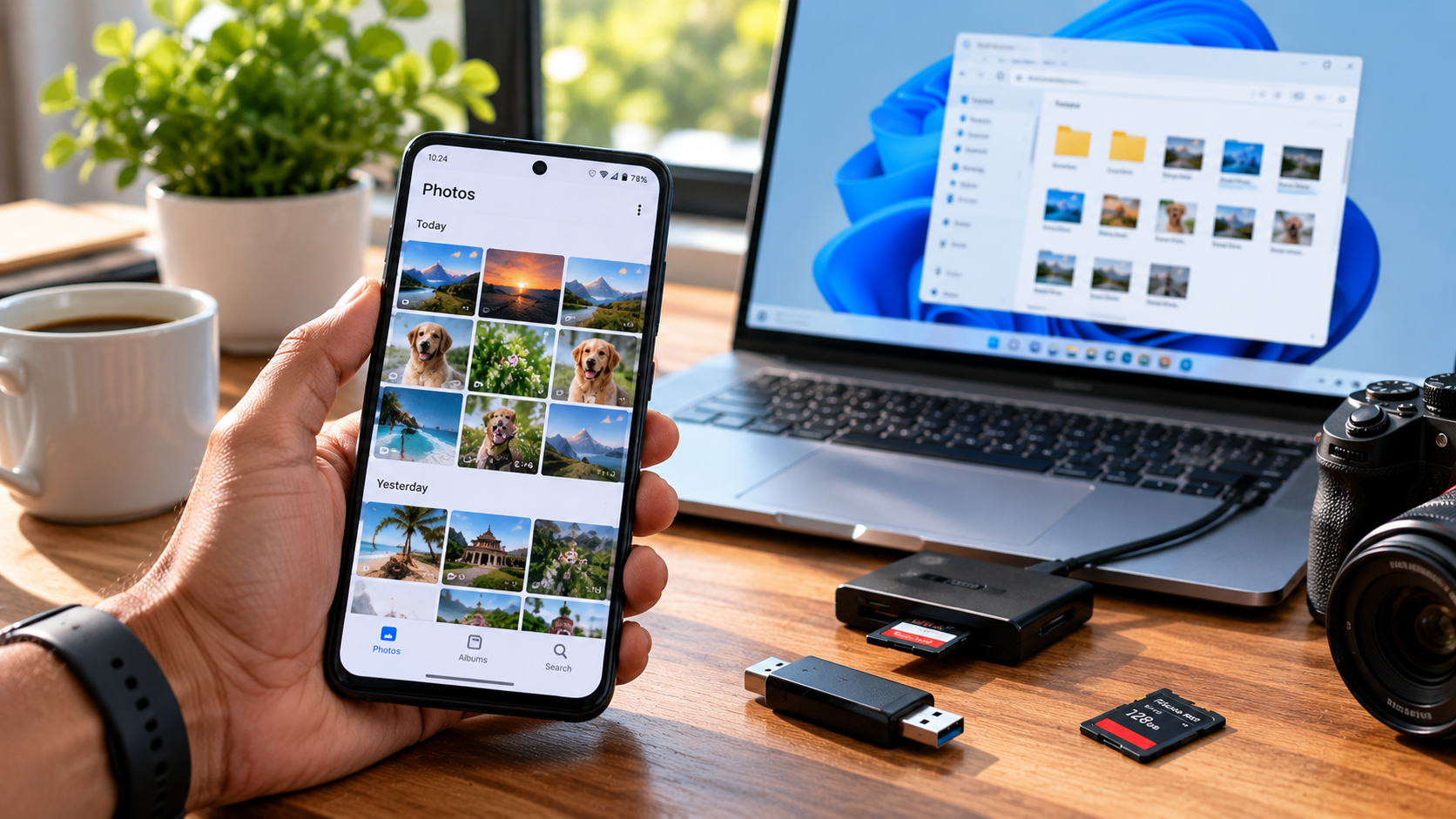
Deleted an important photo or document by mistake? Before installing a recovery app, check where the file was stored and whether it is still available in a trash folder or backup. The best app to recover deleted files and photos depends on your device, the type of file you lost, and how the deletion happened. Sometimes a free built-in recovery option is all you need. In other situations, desktop recovery software may be worth considering. And occasionally, the original file cannot be recovered at all.
The trick is to choose the right method before making the situation harder to fix. This guide compares practical recovery options for Android, iPhone, Windows PCs, SD cards, and USB drives, with an emphasis on compatibility, cost, privacy, and realistic results.
Quick Answer: Which File Recovery Option Should You Try First?
Start with the recovery method built into the device or service where the file was stored. Only move to third-party software when that option is unavailable or unsuccessful.
| Your situation | Recovery option to try first | Cost |
|---|---|---|
| Deleted photos on Android | Google Photos Trash or your phone gallery’s Recently Deleted folder | Usually free |
| Deleted photos on iPhone | Apple Photos’ Recently Deleted album | Usually free |
| Deleted files on Windows | Recycle Bin, File History, or Windows File Recovery where appropriate | Built-in options; some are free |
| Deleted files on an SD card | Stop using the card and consider compatible desktop recovery software | Depends on the tool |
| Deleted files on a USB drive | Check backups and try a compatible recovery utility | Depends on the method |
| Files missing from cloud storage | Check the service’s Trash, Recently Deleted, or recovery options | Usually free for eligible items |
These are starting points, not guarantees. Availability depends on the file’s deletion status, backup settings, storage condition, and the relevant service’s retention rules.
Important: If important files disappeared from an SD card, USB drive, or computer disk, avoid saving new files to that storage. New data can overwrite information that might otherwise have been recoverable.
The Best Apps and Tools for Different Recovery Situations
There is no single recovery app that works equally well on every phone and computer. The following options are worth considering for different situations, based on their documented capabilities rather than unsupported claims of guaranteed recovery.
1. DiskDigger: A Recovery Option for Android
Best suited to: People looking for a dedicated Android photo and file recovery app.
Official download Click Me
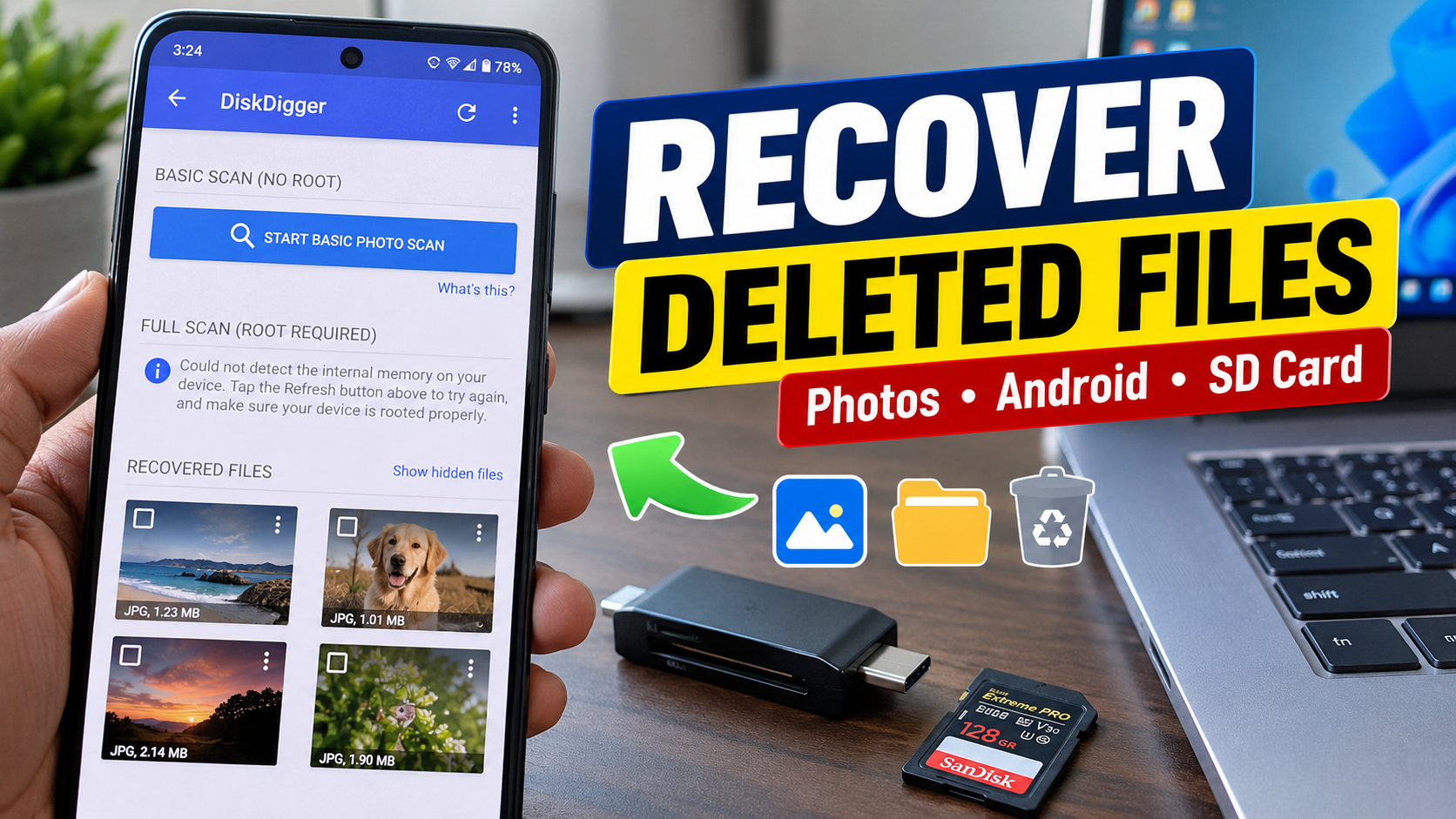
DiskDigger is an Android recovery app that searches for recoverable photos and other files. Its scanning capabilities depend on whether the device is rooted. On a non-rooted device, scanning is limited and may find accessible images, thumbnails, cached files, or other data rather than restoring every permanently deleted original.
That distinction matters. If an app displays a thumbnail of a missing photograph, it does not automatically mean the original full-resolution file is recoverable.
Before installing DiskDigger, check your phone’s own gallery Trash and Google Photos Trash. They may offer a simpler recovery route.
2. Apple Photos: The First Place to Check on an iPhone
Best suited to: Recovering eligible photos and videos deleted from an Apple Photos library.
Official instructions Click Me
On an iPhone, begin with Apple’s built-in Recently Deleted album rather than immediately purchasing third-party recovery software.
Apple says deleted photos and videos remain in Recently Deleted for 30 days. After that, they are permanently deleted from that album and cannot be restored through this feature.
How to recover photos on an iPhone:
- Open the Photos app.
- Find Recently Deleted under Utilities.
- Unlock the album using Face ID, Touch ID, or your passcode when prompted.
- Select the photo or video you want to restore.
- Tap Recover and confirm.
You can also check Photos on iCloud.com if you use iCloud Photos. Remember that a missing item may have been deleted from a synced library rather than just hidden from view.
If the file is not in Recently Deleted, look for another backup or copy before paying for a recovery service. Do not assume that an app advertised for Android can recover permanently deleted data from an iPhone’s internal storage.
3. Windows File Recovery: A Free Microsoft Utility
Best suited to: Windows users who need to attempt recovery of deleted files from supported storage devices.
Official instructions: Click Me
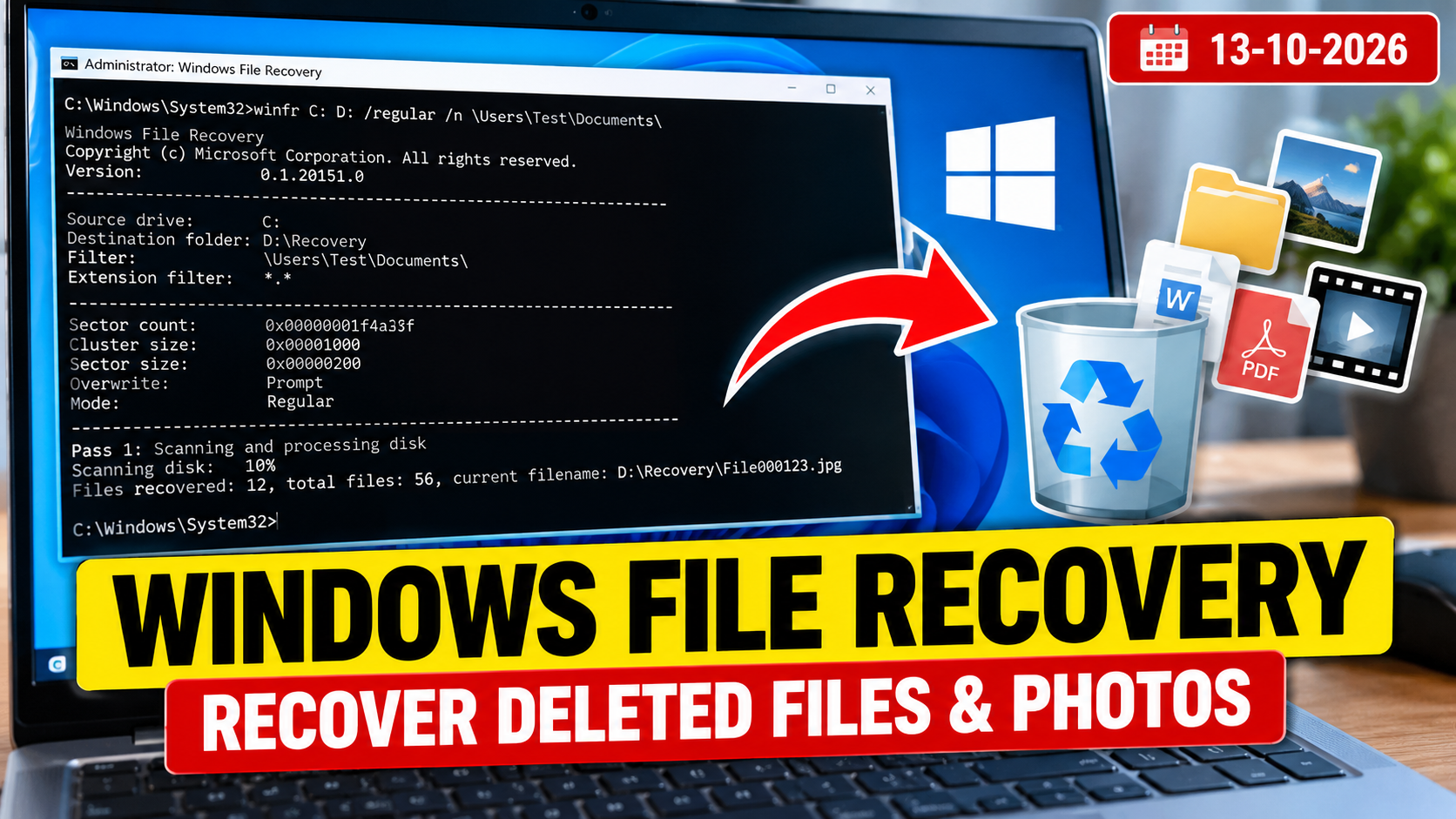
Windows File Recovery is Microsoft’s command-line recovery utility, available through the Microsoft Store. It can help users attempt to recover files from supported local drives and removable storage. It is not a cloud-storage recovery tool, and Microsoft does not support recovery from network file shares with this utility.
Unlike a typical phone app, this utility requires commands. You need to specify a source drive, a different destination drive, a recovery mode, and optionally a file or folder filter.
For example, Microsoft’s documented command pattern is:
winfr source-drive: destination-drive: /regular /n \Users\username\Documents\
Replace the example paths with the correct source, destination, and folder for your computer. This is an illustrative command pattern, not a guarantee that a file will be recovered.
Important: Save recovered files to a different drive from the source whenever possible. Continued use of the affected drive can overwrite deleted-file data and reduce recovery chances.
4. PhotoRec: A Free, Open-Source Option for Computers and Removable Storage
Best suited to: Users comfortable with a more technical recovery process, particularly for memory cards, USB drives, and supported disks.
Official website and documentation: Click me
PhotoRec is free, open-source recovery software that can search supported storage media for lost files, including photographs, videos, documents, and archives. It supports Windows, macOS, Linux, and various removable storage devices.
One trade-off is that PhotoRec uses file-signature recovery techniques and generally does not preserve the original filenames or folder structure. You may need to sort through recovered files manually.
For example, a photographer who accidentally formats a camera’s SD card might use PhotoRec from a computer to attempt recovery. The result depends on the card’s condition, the formatting process, and whether new data has overwritten the missing files.
PhotoRec is not a simple one-tap Android or iPhone recovery app. It is better suited to people willing to follow technical instructions carefully.
5. Recuva: A Windows Recovery Tool
Best suited to: Windows users who prefer a graphical recovery interface for supported files and removable media.
Official website: Recuva
Recuva is a Windows file recovery utility from CCleaner. Its official product page describes recovery for pictures, music, documents, videos, and other data from Windows computers, memory cards, USB sticks, and external drives. It offers a free version and a paid Pro edition.
A graphical interface may feel more approachable than entering recovery commands. However, ease of use does not guarantee a successful scan or a usable restored file.
Check the current edition details, compatibility, and pricing before installing it. If your data is on a phone’s internal storage, do not assume that a Windows recovery tool can directly recover it.
Which Tool Should You Choose?
| Tool or method | Best use | Main limitation |
|---|---|---|
| Google Photos Trash | Eligible deleted, backed-up photos and videos | Cannot restore items permanently deleted from Trash |
| Apple Recently Deleted | Eligible deleted Apple Photos items | The built-in retention period is limited |
| DiskDigger | Android recovery attempts | Results depend on access, device configuration, and available data |
| Windows File Recovery | Supported Windows storage | Requires command-line instructions |
| PhotoRec | Supported disks, SD cards, and USB storage | May not preserve original filenames or folder structure |
| Recuva | Supported Windows drives and removable media | Recovery depends on storage condition and whether data remains recoverable |
These tools are not interchangeable. Choose according to the storage device and file-loss situation, and verify the current official documentation before proceeding.
How to Recover Deleted Photos and Files Step by Step
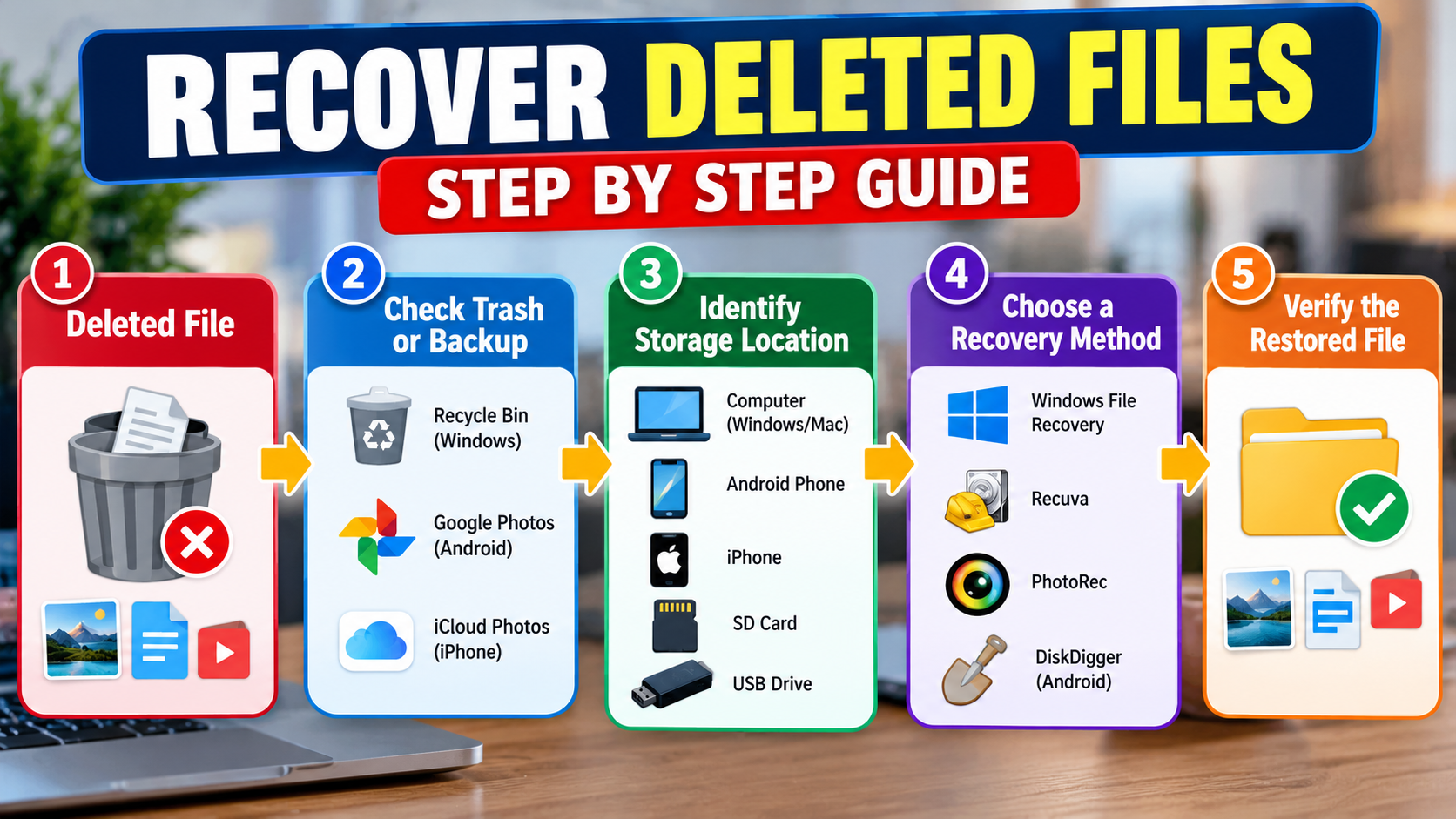
The safest recovery process begins with the least disruptive option. Check built-in recovery folders and backups before installing additional software.
Step 1: Identify Where the Missing File Was Stored
Was it in your phone’s gallery, Google Photos, iCloud, a Windows folder, or a removable memory card?
This question matters because deleting a file from one service does not always mean every copy has disappeared. A photograph might still exist in a separate backup, on another device, or in an album where it was archived rather than deleted.
Step 2: Check the Relevant Trash or Recently Deleted Folder
On Android, open Google Photos and go to Collections → Trash. The labels can vary by app version or region.
On an iPhone, open Photos and locate Recently Deleted under Utilities.
On Windows, open the Recycle Bin and look for the missing file. If you find it, use Restore to return it to its original location.
Google Photos keeps eligible deleted items in Trash for 30 days before permanent deletion. Apple’s Recently Deleted album also retains eligible items for 30 days. These periods apply to the respective services and should not be assumed to apply to every gallery app or backup service.
Official Google Photos instructions: Click me
Official Apple instructions: Click Me
Step 3: Check Cloud Backups and Other Copies
If the file is missing from Trash, check the account or storage location where it might have been backed up.
Possible places include:
- Google Photos or another photo backup service.
- iCloud Photos or an iCloud backup, depending on how the file was stored.
- Google Drive or another cloud storage account.
- A computer, external hard drive, USB drive, or another phone.
- A separate copy sent through email or a messaging service.
Do not assume a phone backup necessarily contains every photo or document. What can be restored depends on the backup settings, when it was created, and the type of data it contains.
Step 4: Stop Writing New Data to the Affected Storage
If the file was deleted from a computer drive, SD card, or USB drive, avoid saving new files to that storage until you decide how to proceed.
Deleted data may remain recoverable until the storage space is reused. Continued writes can reduce recovery chances.
For a memory card, remove it safely and connect it to a computer using a compatible card reader. If the card is physically damaged or the files are irreplaceable, professional recovery may be safer than experimenting with multiple utilities.
Step 5: Select a Compatible Recovery Tool
Choose a tool designed for the specific storage device. Check its official documentation, file-format support, current pricing, and recovery limitations.
For example, a Windows utility such as Windows File Recovery or PhotoRec may be appropriate for supported computer storage and removable media. DiskDigger is an Android recovery option, but its non-rooted scanning capabilities are limited.
Do not root a phone or unlock its bootloader just to experiment with recovery software. Depending on the device and procedure, these actions can erase data or create additional risks.
Step 6: Preview and Restore Carefully
If the tool offers a preview, check whether the file is intact and usable. A thumbnail alone is not proof that the original full-resolution photo can be restored.
Save recovered files to a separate drive, external device, or another safe destination whenever possible. After recovery, open the files and verify their contents before deleting anything else.
Why Some Recovery Apps Cannot Restore Your Files
A recovery app can only restore data that remains accessible to its recovery method. Installing a new app does not recreate information that has already been overwritten or permanently removed.
The Data Has Been Overwritten
When a file is deleted, the storage system may mark its space as available for reuse. If new data occupies that space, recovery can become difficult or impossible.
This is why you should minimize activity on affected computer drives and removable storage. The exact recovery possibilities depend on the storage technology and operating system.
The App Cannot Access the Original Storage
Mobile operating systems restrict how apps access data. A recovery app may scan accessible files, caches, or thumbnails without being able to inspect all the underlying storage.
That explains why an Android app may display images that appear familiar but fail to restore the original files.
The File Was Permanently Deleted from Trash
If a photo has been permanently deleted from Google Photos Trash or Apple’s Recently Deleted album, the respective built-in recovery feature cannot restore it. A separate backup or another surviving copy may still help, but success is not guaranteed.
The Storage Device Is Damaged
A physically failing drive or damaged memory card presents a different problem from an ordinary accidental deletion. Repeated scans can put additional stress on failing hardware.
If the data is valuable, consider professional recovery before trying further software. Avoid formatting, initializing, or repairing the device without understanding the possible consequences.
How to Choose a Safe File Recovery App
A useful recovery tool should do more than display a long list of files. It should support your device, explain its limitations, and provide clear information about permissions and payment.
Before installing an app, check these points:
- Official download source: Prefer the developer’s official website or a recognized app store. Avoid unfamiliar APK mirrors.
- Device compatibility: Confirm that the app supports your operating system and the storage type where the files were deleted.
- Real recovery capability: Check whether the free edition restores files or merely scans and previews them.
- Permissions: Review the access requested. Recovery software may need broad access to inspect files, but that permission should match the intended function.
- Privacy: Read the privacy policy and the app store’s data disclosures. These disclosures describe declared practices; they do not independently guarantee that an app is safe.
- Pricing: Check subscription terms, recovery limits, and whether a paid upgrade is required.
- Destination: Confirm that recovered files can be saved somewhere other than the affected storage.
Never upload private photographs or confidential documents to an unfamiliar recovery service without understanding how the files will be handled.
Pros and Cons of File Recovery Apps
Recovery apps can be useful, but they are not a substitute for backups and cannot guarantee that deleted files will be restored.
Pros
- Convenience: Some tools provide guided scanning and recovery interfaces.
- Multiple file types: Depending on the product, supported formats may include photos, videos, documents, and archives.
- Removable storage support: Certain desktop tools can scan compatible SD cards, USB drives, and external disks.
- Free options: Built-in recovery features and some utilities can be used without buying a paid recovery product.
- Potential recovery after deletion: Files may sometimes be restored when the underlying data remains recoverable.
Cons
- No guaranteed results: A scan may find nothing, or recovered files may be damaged.
- Platform restrictions: A tool designed for Windows or Android may not support another operating system.
- Limited free editions: Some products charge for restoring files or accessing advanced features.
- Technical complexity: Command-line utilities can be difficult for inexperienced users.
- Privacy considerations: Recovery software may require access to sensitive files and storage.
The best choice is the one that matches your actual problem, not necessarily the one with the longest feature list or most impressive marketing.
Frequently Asked Questions
1. What Is the Best App to Recover Deleted Files and Photos?
There is no single best app for every device. Try Google Photos Trash or your phone’s built-in recovery folder first. For Android recovery attempts, DiskDigger is one option. Windows users can consider Windows File Recovery, PhotoRec, or Recuva for supported storage devices. Results depend on the device and whether the data remains recoverable.
2. Can I Recover Permanently Deleted Photos Without Paying?
Sometimes. A surviving backup or another copy may allow free recovery, and some desktop recovery utilities are free. However, if a photo has been permanently removed from the relevant Trash folder and no recoverable copy remains, free software cannot guarantee its restoration.
3. Which App Can Recover Deleted Photos on Android Without Root?
DiskDigger offers a non-rooted scanning mode, but the developer describes that mode as limited. It may find accessible files or thumbnails without restoring the original deleted photo. Check the phone’s gallery Trash and Google Photos first, and avoid assuming that every result represents a recoverable original.
4. Can I Recover Deleted Photos on an iPhone Using an App?
Start with Apple’s Recently Deleted album and check iCloud Photos or other backups. Apple’s built-in recovery feature retains eligible deleted photos for 30 days. Third-party software should not be assumed to have unrestricted access to permanently deleted iPhone storage, and no app can guarantee recovery.
5. Can Deleted Files Be Recovered After Formatting an SD Card?
Possibly. Recovery depends on the type of formatting, whether new data has been written, and the card’s condition. Stop using the card, connect it to a computer using a compatible reader, and consider suitable recovery software such as PhotoRec. Save recovered files to another storage device.
6. Are File Recovery Apps Safe to Use?
Some tools are legitimate, but evaluate each one individually. Download from official sources, check requested permissions, read the privacy policy, and verify whether the free edition actually restores files. Avoid granting unnecessary access or uploading sensitive data to an unfamiliar service.
What to Do Next
If you have just deleted an important file, use this order of operations:
- Check the relevant Trash, Recently Deleted folder, or Recycle Bin.
- Look for backups and other copies.
- Stop writing new data to affected computer drives or removable storage.
- Choose a recovery tool compatible with the specific device.
- Save recovered files somewhere else and verify that they open correctly.
If the device is physically damaged or the information is irreplaceable, consider professional data recovery before attempting further scans.
Conclusion
The best app to recover deleted files and photos depends on where the files were stored and what happened when they disappeared. For recently deleted phone photos, built-in recovery folders are usually the best starting point. For supported computer drives and removable storage, tools such as Windows File Recovery, PhotoRec, and Recuva offer different approaches. Android users can consider DiskDigger while keeping its scanning limitations in mind.
The most useful recovery strategy is not to install every app you can find. Check your backups, protect the affected storage, choose a compatible tool, and verify what can actually be restored. Sometimes that is enough to recover an important file. Sometimes it isn’t—and a trustworthy guide should be honest about the difference.