
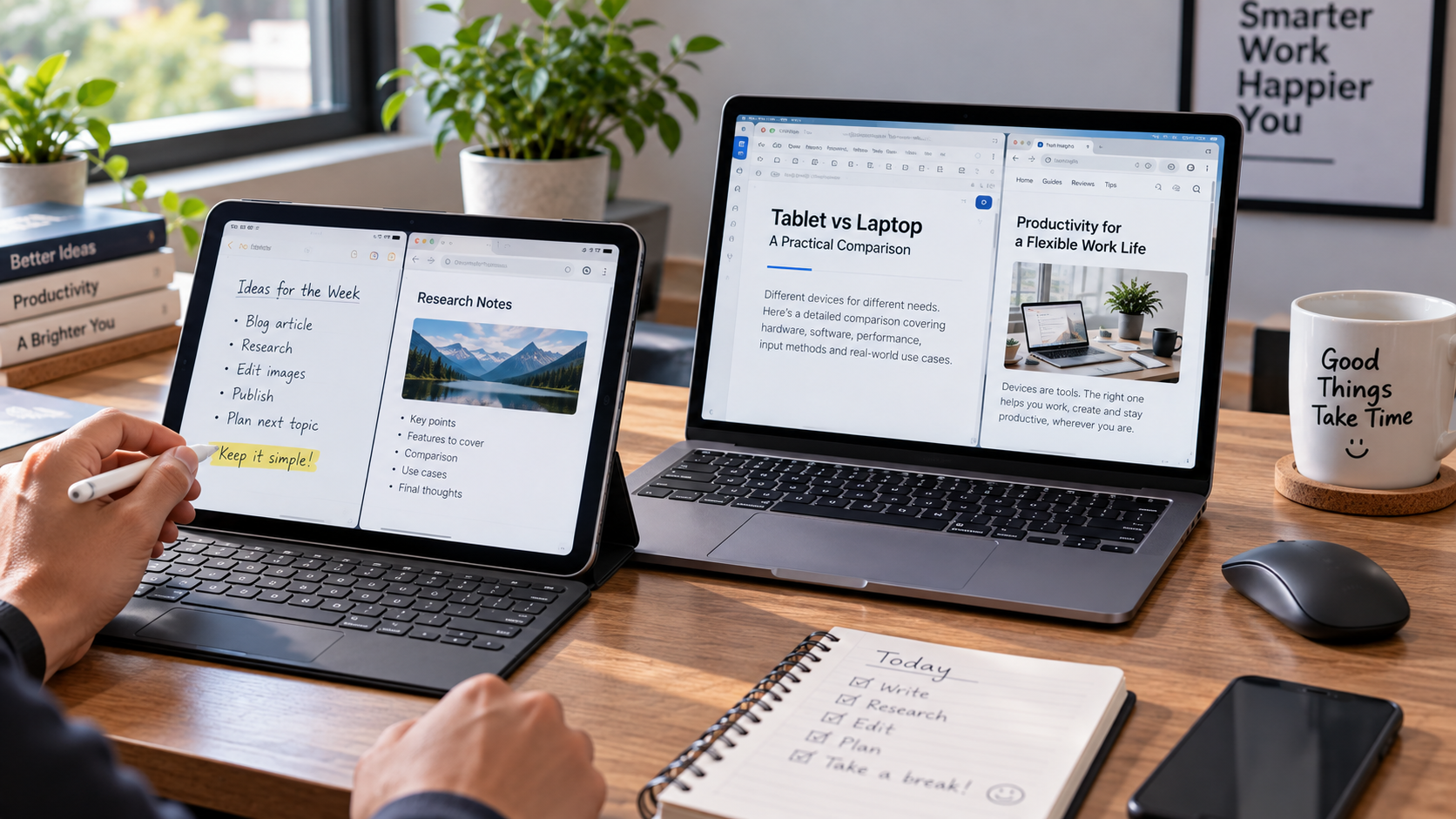
Hello Viewers…. Choosing between a tablet vs laptop 2026 used to be fairly easy. If you needed to type, install desktop software, or work with lots of files, you bought a laptop. If you wanted something lighter for browsing, videos, reading, and casual use, you bought a tablet.
That distinction is much less obvious now.
A modern tablet can have a powerful processor, a high-quality display, a keyboard, a trackpad, a stylus, external display support, and increasingly sophisticated multitasking. iPadOS 26, for example, introduced a more traditional windowed-app system that lets users resize, move, arrange, and work with multiple app windows. Android tablets can also work with physical keyboards and touchpads.
So, tablet vs laptop isn’t simply a question of which device is more powerful.
The better question is: Which computing environment fits the way you actually work?
If you’re mainly reading PDFs, taking handwritten notes, watching videos, browsing the web, or traveling, a tablet may fit naturally into your routine. If you spend hours typing, use specialized desktop applications, manage complex files, or depend on extensive multitasking, a laptop may make more sense.
And if you’re considering a high-end tablet with a keyboard, there’s another question worth asking: Are you buying a tablet because you want a tablet, or are you trying to turn it into a laptop?
That distinction can make the purchasing decision much clearer.
Quick Answer: Tablet or Laptop?
The simplest way to think about the difference is this:
- Tablets are generally designed around touch, portability, reading, handwriting, media and flexible use.
- Laptops are generally designed around a physical keyboard, pointing device, desktop-style software and sustained productivity.
- A tablet can replace a laptop for some workflows, but not every workflow.
- The operating system can matter as much as the processor.
- A keyboard can make a tablet substantially more productive, but it does not automatically make the tablet equivalent to a laptop.
- A laptop is not automatically the better choice if your priorities are portability, touch, handwriting or casual use.
- The right choice depends on the applications you need, how much you type, how you multitask, and whether the device will be your only computer.
Microsoft’s current guidance similarly emphasizes that the choice should be based on how the device will be used rather than specifications alone.
The Real Difference Starts With the Hardware
At first glance, tablets and laptops seem to contain many of the same building blocks: a processor, memory, storage, display, wireless connectivity and battery.
The difference is how those components are packaged and what the device is designed to do with them.
A tablet typically puts more emphasis on a thin, lightweight body, touchscreen interaction and battery-efficient hardware. A laptop has more physical room for a keyboard, trackpad, cooling hardware, ports and, depending on the model, higher-performance components.
That doesn’t mean every laptop is faster than every tablet.
A premium tablet can outperform an inexpensive laptop in some workloads, while a powerful laptop can obviously outperform many tablets in demanding sustained workloads. Comparing categories purely by processor name can therefore be misleading.
Processor performance isn’t the whole story
When comparing CPUs or system-on-chip designs, consider what you’re actually doing.
Opening a browser, writing emails and watching videos place very different demands on a processor than compiling software, rendering a long video, running virtual machines or working with large datasets.
Sustained performance matters too. A thin device with limited thermal headroom may behave differently during a long demanding workload than a larger computer with a more substantial cooling system.
So instead of asking:
“Which processor is faster?”
ask:
“Which device can handle my workload comfortably for the amount of time I need it to?”
That is a much more useful question.
RAM affects multitasking
RAM becomes especially important when your workflow involves several applications or large files.
Imagine you’re researching an article with:
- 15 browser tabs open
- a document editor
- image-editing software
- cloud storage
- a spreadsheet
- a video call
The experience depends on much more than the amount of RAM printed on the specification sheet. The operating system’s memory management and the applications themselves also matter.
This is one reason you shouldn’t compare “8GB vs 8GB” as if the two devices will necessarily behave identically.
Storage matters more than people expect
Storage affects how much local content you can keep and how easily you can work with large files.
A laptop may offer easier access to external SSDs, USB devices, memory cards or other storage accessories depending on its ports. Tablets vary considerably in this area.
If you regularly work with large video projects, RAW photographs, software development files or large datasets, investigate the complete storage workflow rather than looking only at internal capacity.
Ports can change the workflow
Ports are easy to ignore while shopping because they don’t look exciting on a specification page.
Then you arrive at a desk with:
- an external monitor
- USB storage
- a camera
- wired headphones
- a mouse
- a card reader
- a charging cable
Suddenly, connectivity matters.
Many tablets can expand their connectivity through USB-C hubs and docks, but that adds another accessory to carry. Laptops often provide a wider selection of built-in connections, although the exact port selection varies dramatically by model.
Displays: A Tablet Isn’t Just a Smaller Laptop
The display is one area where the two form factors can feel completely different.
A tablet is designed to be held, touched and viewed from different positions. A laptop screen is generally designed around a fixed keyboard-and-display relationship.
Screen size changes how you work
A larger laptop display gives you more physical space for multiple windows.
You might have:
- a browser on one side
- a document in the middle
- messaging or reference material on another part of the screen
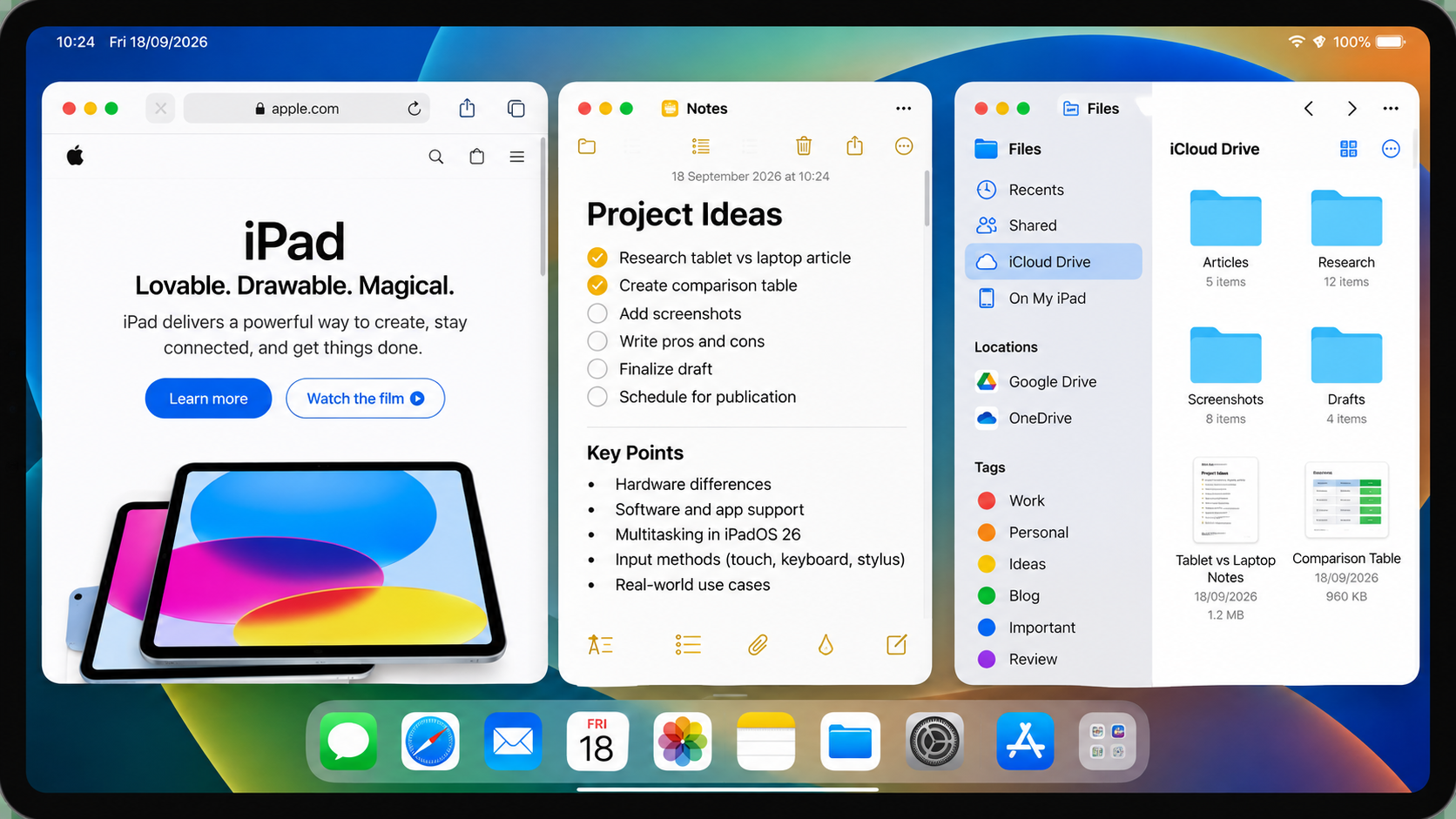
A tablet can also provide sophisticated multitasking. Apple’s current iPadOS 26 documentation describes resizable windows, multiple windows, side-by-side arrangements and other window-management features.
But physical screen size still matters.
Even if two devices can technically display the same applications, the experience of arranging them on an 11-inch tablet and a 15-inch laptop is not identical.
Touch changes the experience
Touchscreens are particularly useful for:
- scrolling
- reading
- drawing
- annotating documents
- selecting objects
- browsing while standing
- casual media use
A laptop with a touchscreen can provide some of the same advantages, but the traditional laptop remains centered around the keyboard and trackpad.
OLED, LCD, brightness and refresh rate
Don’t stop at screen size.
For a specific device, investigate:
- panel technology
- resolution
- brightness
- refresh rate
- color coverage
- contrast
- viewing angles
- touch responsiveness
OLED can provide strong contrast and deep blacks, while LCD panels can vary significantly in quality. A high refresh rate can make scrolling and supported animations feel smoother.
The important point is that “tablet display” and “laptop display” are not single categories. Individual models can have dramatically different panels.
Input Methods Change More Than You Think
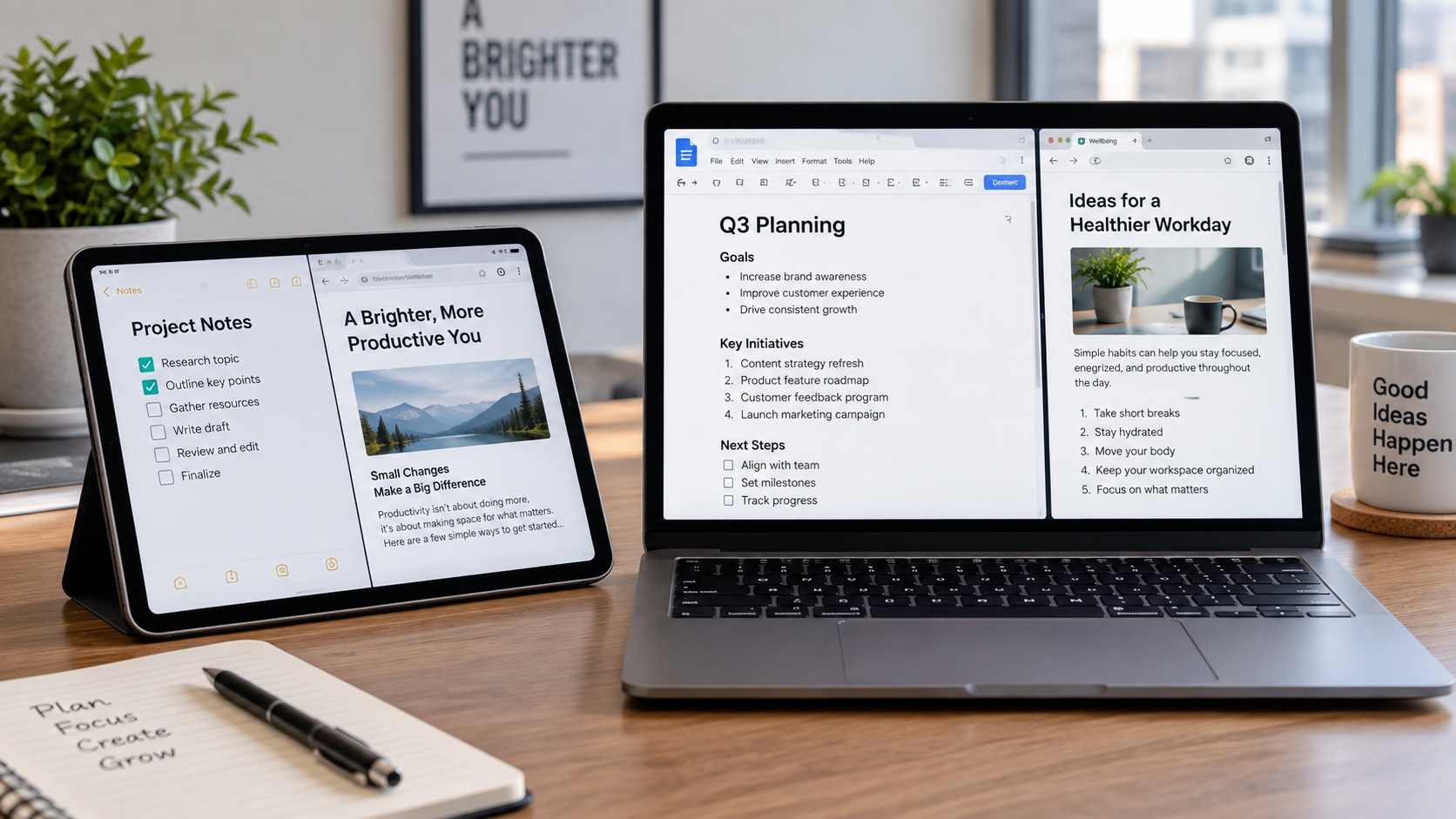
This may be the biggest practical difference between a tablet and a laptop.
The tablet starts with your finger.
The laptop starts with your keyboard.
That sounds simple, but it changes how you interact with almost everything.
Tablets: touch, stylus and optional keyboards
A tablet can support several input styles:
- finger
- stylus
- virtual keyboard
- physical keyboard
- trackpad
- mouse
- gestures
Android’s official documentation confirms that compatible physical keyboards can be connected to tablets, with settings for keyboard layouts, shortcuts and touchpad behavior.
That makes a tablet much more versatile than the old “large smartphone” description suggests.
A stylus can also transform a tablet for:
- handwritten notes
- sketches
- PDF annotation
- diagrams
- photo editing
- marking documents
Laptops: keyboard and trackpad first
A laptop’s biggest advantage for many productivity tasks is that its keyboard and pointing device are already attached.
You don’t need to:
- purchase a keyboard separately,
- attach it,
- find a stable surface,
- adjust your setup,
- carry another accessory.
Open the laptop and start typing.
That simplicity matters when you’re writing for hours.
Is a tablet keyboard good enough for serious typing?
Sometimes, yes.
But “good enough” depends on the keyboard, the tablet, the software and how much you type.
For short emails, documents and occasional writing, a good keyboard accessory can work extremely well.
For several hours of daily typing, consider:
- key size
- key travel
- keyboard stability
- trackpad quality
- palm rest
- shortcut support
- viewing angle
- lap comfort
- overall weight
A tablet plus keyboard can become a productive setup. The question is whether you still enjoy using it after the novelty wears off.
Would you actually want to type a 3,000-word report on that setup every week?
That is a more useful test than simply asking whether the keyboard works.
Software Is Where Tablet vs Laptop Gets More Complicated
Hardware tells only part of the story.
The operating system determines how that hardware becomes a working environment.
This is why two devices with similar processors and memory can feel completely different.
Tablet operating systems
Common tablet environments include:
- iPadOS
- Android
- Windows on tablet and 2-in-1 hardware
These aren’t interchangeable.
An iPad running iPadOS, an Android tablet and a Windows 11 2-in-1 may all have touchscreens, but they provide different application ecosystems, file-management systems and multitasking experiences.
Laptop operating systems
Laptop users commonly encounter:
- Windows
- macOS
- ChromeOS
Again, the application environment matters.
If your work depends on a particular desktop application, don’t assume a tablet version exists simply because the service has a mobile app.
Desktop applications vs tablet applications
This is where your actual workflow becomes important.
A tablet may be perfectly comfortable for:
- browser-based work
- note-taking
- documents
- presentations
- video calls
- media
- drawing
- cloud applications
But a professional workflow may require:
- a specific desktop application
- advanced plug-ins
- local development tools
- complex file management
- multiple external monitors
- specialized peripherals
- background processes
- desktop browser extensions
The exact answer depends on the operating system and software involved.
Tablet multitasking has changed
Older tablet comparisons often relied on the assumption that tablets were fundamentally single-task devices.
That is no longer a reliable description.
Apple’s current iPadOS 26 documentation describes a windowed multitasking environment where supported iPads can resize and move application windows and work with multiple windows at once.
Apple also describes external-display support within its updated iPad windowing environment.
Windows 11 takes a different approach on compatible touch devices. Microsoft says Windows 11 automatically changes its tablet-oriented behavior when a keyboard is detached or the device changes into a tablet form factor.
So the better statement isn’t:
“Tablets can’t multitask.”
It’s:
Tablet multitasking has become much more capable, but the exact experience depends on the operating system, device and applications.
Performance Depends on What You Actually Do
Performance comparisons become much more useful when you stop talking about benchmarks for a moment.
Ask what the device needs to accomplish.
Browsing and office work
For web browsing, email, word processing, presentations and video calls, both tablets and laptops can be capable.
The difference often comes down to:
- keyboard comfort
- screen size
- software
- multitasking
- file management
- accessory requirements
A premium tablet may feel extremely fast for these tasks. A laptop may simply feel easier when the work involves lots of typing and windows.
Photo and video editing
This is more complicated.
Look at:
- application availability
- supported codecs
- storage
- external drives
- display quality
- sustained performance
- accessories
- workflow complexity
A tablet may be excellent for certain creative workflows, particularly touch or stylus-oriented work.
A laptop may be more suitable for workflows built around desktop-class applications, extensive file management or long rendering sessions.
Gaming
Gaming depends heavily on the platform.
Consider:
- game availability
- graphics performance
- controller support
- cooling
- display refresh rate
- storage
- accessories
- compatibility with your preferred games
Don’t assume that “laptop” automatically means gaming laptop, either. A thin office laptop and a dedicated gaming laptop are very different machines.
Programming
This is one of the clearest examples of why software matters.
A developer might need:
- IDEs
- terminal access
- Git
- package managers
- containers
- local servers
- development frameworks
- external displays
- keyboard shortcuts
Some tablet-based development workflows are possible, particularly with cloud environments, remote development or specialized applications.
But if your workflow depends heavily on a full local development environment, verify the exact tools before replacing a laptop with a tablet.
Portability: The Tablet Advantage Isn’t Only About Weight
A tablet can be convenient because it changes how you carry and use a computer.
You can:
- hold it while reading
- use it standing up
- annotate documents with a stylus
- place it on a small café table
- use it on an airplane
- quickly show someone something on screen
A laptop can also be highly portable, especially modern thin-and-light models.
But a laptop usually asks you to interact with it in a more structured way: open the lid, position it, use the keyboard and trackpad, and work from that setup.
The tablet is often more adaptable to informal situations.
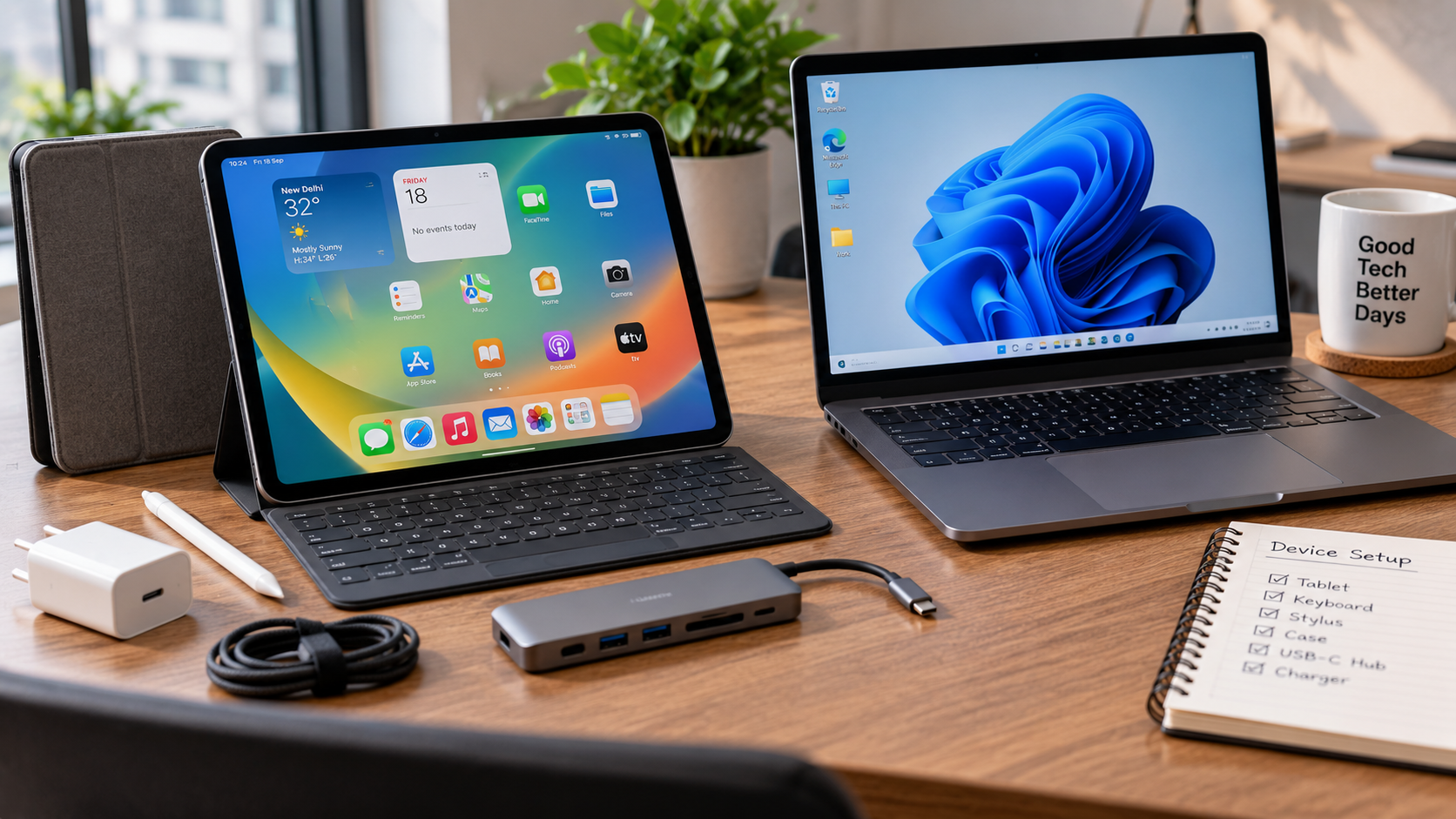
Don’t forget the accessories
There’s a catch.
If you add:
- keyboard
- stylus
- protective case
- USB hub
- external storage
your lightweight tablet setup can become considerably more substantial.
That doesn’t make it bad. It simply means you should compare the complete setup, not just the tablet’s advertised weight.
Tablet vs Laptop for Students
Students are a good example of why there isn’t one universal answer.
A student might need:
- textbooks
- PDFs
- handwritten notes
- research
- presentations
- spreadsheets
- programming
- online classes
- university-specific software
A tablet can be particularly appealing for reading, annotation and handwriting.
A laptop can be more convenient for long assignments, research-heavy writing and software that expects a desktop environment.
The right choice therefore depends partly on the course.
An art student, medical student, engineering student and computer science student may have very different requirements.
What applications does your course actually require?
Check that list before choosing a device.
Tablet vs Laptop for Writers and Content Creators
For writers, the physical keyboard becomes a major consideration.
If your typical workflow involves:
research → browser tabs → document editor → CMS → image editing → spreadsheet → email
a laptop can be very comfortable.
A tablet can still handle many of those tasks, particularly if you add a keyboard and use cloud-based tools.
But long-form writing is where ergonomics become important.
The question isn’t only whether the tablet can run your writing application.
It’s whether the entire workflow feels comfortable enough that you won’t constantly look for another computer.
For content creators, also consider:
- image editing
- video editing
- file transfers
- external storage
- camera workflows
- publishing platforms
- browser extensions
- SEO tools
Tablet vs Laptop for Developers
For developers, software compatibility usually becomes more important than portability.
A laptop generally provides a familiar environment for:
- code editors
- IDEs
- terminals
- version control
- local development servers
- databases
- containers
- external monitors
A tablet can still be useful as a secondary development device, remote workstation or note-taking machine.
But before choosing one as your only development computer, list every tool you use and verify that the required workflow is supported.
This is one area where “I can technically write code on it” is not the same as “it can replace my development computer.”
Tablet vs Laptop for Designers and Artists
Here the tablet can become particularly interesting.
A stylus and touchscreen can make drawing, annotation and direct manipulation feel natural.
For digital artists, consider:
- stylus latency
- pressure sensitivity
- screen quality
- color accuracy
- application ecosystem
- file compatibility
- external monitor support
- storage
But professional designers may also rely on desktop applications, keyboard shortcuts, plugins and complex file-management workflows.
So again, the software matters as much as the hardware.
Tablet vs Laptop for Office Work
For office work, the laptop remains attractive because the keyboard, trackpad, desktop applications and multitasking environment are already integrated.
Think about a normal workday:
You might be switching between:
- spreadsheets
- presentations
- browser tabs
- company software
- video meetings
- documents
- cloud storage
A tablet can handle many of these tasks, but the experience depends heavily on the operating system and applications your employer uses.
If your company relies on specialized Windows software, verify compatibility before making the switch.
Tablet vs Laptop for Travel and Entertainment
This is where the tablet’s design can shine.
For:
- Netflix and other streaming services
- YouTube
- reading
- browsing
- casual gaming
- digital magazines
- travel documents
- video calls
a tablet can be extremely convenient.
You can use it without needing a desk.
A laptop remains useful when the same trip also involves substantial work.
That’s why some travelers eventually carry both: one device for serious work and another for lightweight consumption.
Can a Tablet Actually Replace a Laptop?
Yes, for some people. No, for others.
That answer sounds unsatisfying, but it reflects the reality of the hardware and software landscape.
A tablet is more likely to replace a laptop if your workflow mainly consists of:
- web browsing
- reading
- handwritten notes
- documents
- presentations
- video calls
- cloud applications
- media
- drawing
- light productivity
A laptop becomes more compelling if you regularly:
- type for several hours
- use specialized desktop software
- manage complex file structures
- run local development environments
- use multiple external displays
- perform long, demanding workloads
- rely heavily on keyboard shortcuts
- connect numerous peripherals
Microsoft’s current Windows guidance makes a similar distinction: tablet PCs are positioned for touch, pen input, note-taking and mobility, while traditional laptops are emphasized for long typing sessions, heavy multitasking and broader port requirements.
The one-computer test
Here’s a useful way to decide.
Imagine your current laptop disappeared tomorrow.
Could the tablet handle every task you would need to complete that week?
Not just watching videos.
Not just browsing.
Everything.
If the answer is yes, a tablet may genuinely be enough.
If there’s one critical workflow that requires your laptop, you need to decide whether that limitation is acceptable.
The Hidden Cost of a Tablet Setup
The price printed on the tablet box may not represent the final cost of the setup you actually want.
You might need:
Tablet + keyboard + stylus + case + hub + storage
A laptop often includes its keyboard and trackpad as part of the device.
That doesn’t automatically make the laptop cheaper. Premium laptops can be expensive, and some tablet accessories may not be necessary.
But the comparison should be fair.
Before buying, write down everything you expect to use.
For example:
| Requirement | Tablet Setup | Laptop Setup |
|---|---|---|
| Main device | Tablet | Laptop |
| Physical keyboard | May be additional | Usually included |
| Stylus | Optional, depending on workflow | Usually optional |
| Trackpad | Accessory-dependent | Usually included |
| External storage | Model/accessory dependent | Model/accessory dependent |
| External display | Model/OS dependent | Model/OS dependent |
| Protective case | Often useful | Often unnecessary |
| Dock/hub | May be useful | May be useful |
The interesting question isn’t “Which device has the lower starting price?”
It’s:
“How much will the setup I actually want cost?”
Tablet vs Laptop 2026: A Practical Comparison
| Factor | Tablet | Laptop |
|---|---|---|
| Basic form | Touch-first slate | Keyboard-based portable computer |
| Main input | Touch and stylus | Keyboard and trackpad |
| Physical keyboard | Usually optional | Built in |
| Touchscreen | Common | Depends on model |
| Stylus support | Common on selected models | Model dependent |
| Desktop software | Depends on operating system | Usually broader |
| Multitasking | Increasingly capable, OS dependent | Generally extensive |
| Long typing | Depends on keyboard accessory | Natural use case |
| Port selection | Often more limited | Varies, often broader |
| Portability | Usually excellent | Varies by model |
| Reading | Very convenient | Convenient, but usually less flexible to hold |
| Handwriting | Strong use case on supported models | Usually less natural |
| File management | Depends on operating system | Generally flexible |
| External displays | Model and OS dependent | Widely supported on many models |
| Best fit | Touch, reading, notes, mobility | Productivity, software, sustained work |
The table describes categories rather than individual products. A premium tablet and entry-level laptop can behave very differently from the general pattern.
How to Choose Without Getting Distracted by Specifications
Before comparing processor names, answer these ten questions.
1. What applications do you actually need?
This should come first.
Make a list of the software you use every week and check compatibility.
2. How much do you type?
If your work involves thousands of words every week, keyboard comfort should receive serious attention.
3. Do you need a stylus?
If handwritten notes or drawing are central to your workflow, this can significantly change the value of a tablet.
4. Do you need desktop software?
Check the exact application rather than assuming the mobile version is equivalent.
5. How many windows do you use at once?
If your screen regularly looks like a crowded control room, screen size and window management matter.
6. Do you connect external displays?
If yes, verify the exact device and operating system’s display capabilities.
7. How portable does the device need to be?
Think about where you will actually use it, not just how much it weighs.
8. What is the total accessory cost?
Include keyboard, stylus, case, storage and hubs when necessary.
9. Will this be your only computer?
This is one of the most important questions.
A tablet can be an excellent secondary computer even when it isn’t the ideal primary computer.
10. What will you need to do next year?
Don’t buy for today’s easiest workload if you know your requirements are about to become more demanding.
Pros and Considerations
Tablet Pros
- Excellent portability
- Touch-first interaction
- Strong reading experience
- Convenient handwriting and annotation on supported devices
- Stylus support on many models
- Flexible positioning
- Good fit for travel and media
- Can become a productive keyboard-based machine with the right accessories
Tablet Cons
- Professional software availability varies
- Keyboard accessories may increase the total cost
- Ports may be limited
- File-management workflows differ by operating system
- Long typing depends heavily on keyboard quality
- Performance can vary considerably between models
Laptop Pros
- Built-in physical keyboard
- Integrated trackpad
- Broad desktop software support
- Strong multitasking environment
- Suitable for sustained typing
- Often broader peripheral connectivity
- Large range of hardware configurations
- Strong fit for development and professional workflows
Laptop Cons
- Generally less comfortable to hold like a tablet
- Usually less convenient for handwriting
- Touch capability varies by model
- Some models are substantially heavier than tablets
- Touchscreen laptops may not provide the same tablet-style experience
Frequently Asked Questions
Is a tablet better than a laptop for everyday use?
It depends on what “everyday use” means for you. A tablet can be excellent for browsing, reading, streaming, note-taking and light productivity. A laptop can be more practical when everyday use includes extensive typing, spreadsheets, desktop software or complex multitasking.
Can a tablet replace a laptop for work?
It can for some work environments. If your job primarily uses browser-based applications, documents, email, meetings and cloud services, a capable tablet with a keyboard may be sufficient. If your work depends on specialized desktop software, extensive file management or long typing sessions, verify the exact workflow before replacing your laptop.
Is a tablet or laptop better for students?
Neither category is universally better. A tablet can be particularly useful for reading, annotation and handwritten notes, while a laptop can be more convenient for long assignments, research and desktop applications. The student’s course requirements should determine the choice.
Which is better for typing, a tablet or laptop?
A laptop generally provides the more straightforward typing setup because its keyboard and trackpad are built in. A tablet with a good keyboard can work well for substantial writing, but keyboard quality, stability and ergonomics become much more important.
Can you code on a tablet instead of a laptop?
You can perform some coding tasks on tablets using compatible applications, browser-based development environments, remote development or other workflows. However, developers who depend on local IDEs, terminals, containers, servers and specialized tooling should verify compatibility before choosing a tablet as their primary computer.
Is a tablet with a keyboard worth it?
It can be, particularly if you want touch and stylus capabilities while also doing regular typing. Compare the complete setup cost and make sure the tablet’s operating system supports the applications and workflow you need. Android officially supports compatible physical keyboards and touchpads, while modern iPadOS also supports external keyboards and more advanced multitasking.
A Simple Decision Rule
If your priority is touch, reading, handwriting, portability and flexible use, start by looking at tablets.
If your priority is long-form typing, desktop applications, heavy multitasking and a built-in productivity setup, start with laptops.
If you need both sets of capabilities, consider whether a 2-in-1 or a two-device setup makes more sense. Windows 11 supports tablet-oriented behavior on compatible 2-in-1 hardware, while Microsoft’s current guidance describes these machines as combining laptop structure with tablet-style touch and pen interaction.
And if you already own one of the two, don’t assume you need to replace it simply because another category looks more capable on paper.
A tablet can complement a laptop.
A laptop can complement a tablet.
Sometimes the smartest setup isn’t choosing one side of the comparison at all.
Conclusion
The tablet vs laptop debate has become less about raw hardware and more about how you interact with a computer.
Tablets have become capable enough to handle serious productivity, and modern software has closed some of the multitasking gap that existed in earlier generations. At the same time, laptops continue to offer an exceptionally straightforward combination of physical keyboard, trackpad, desktop software and sustained productivity.
So don’t start with the processor.
Start with your workflow.
If you spend your day reading, annotating, drawing, browsing, attending meetings and moving between locations, a tablet may fit naturally into your routine. If your day revolves around typing, spreadsheets, development tools, professional desktop applications and multiple windows, a laptop may be the more practical primary computer.
And if you still can’t decide, ask one final question:
What is the one task you absolutely cannot afford to struggle with?
Choose the device that handles that task comfortably. Everything else is secondary.


1 thought on “Tablet vs Laptop 2026 | Best Hardware, Software, Performance, Displays and Use Cases”