
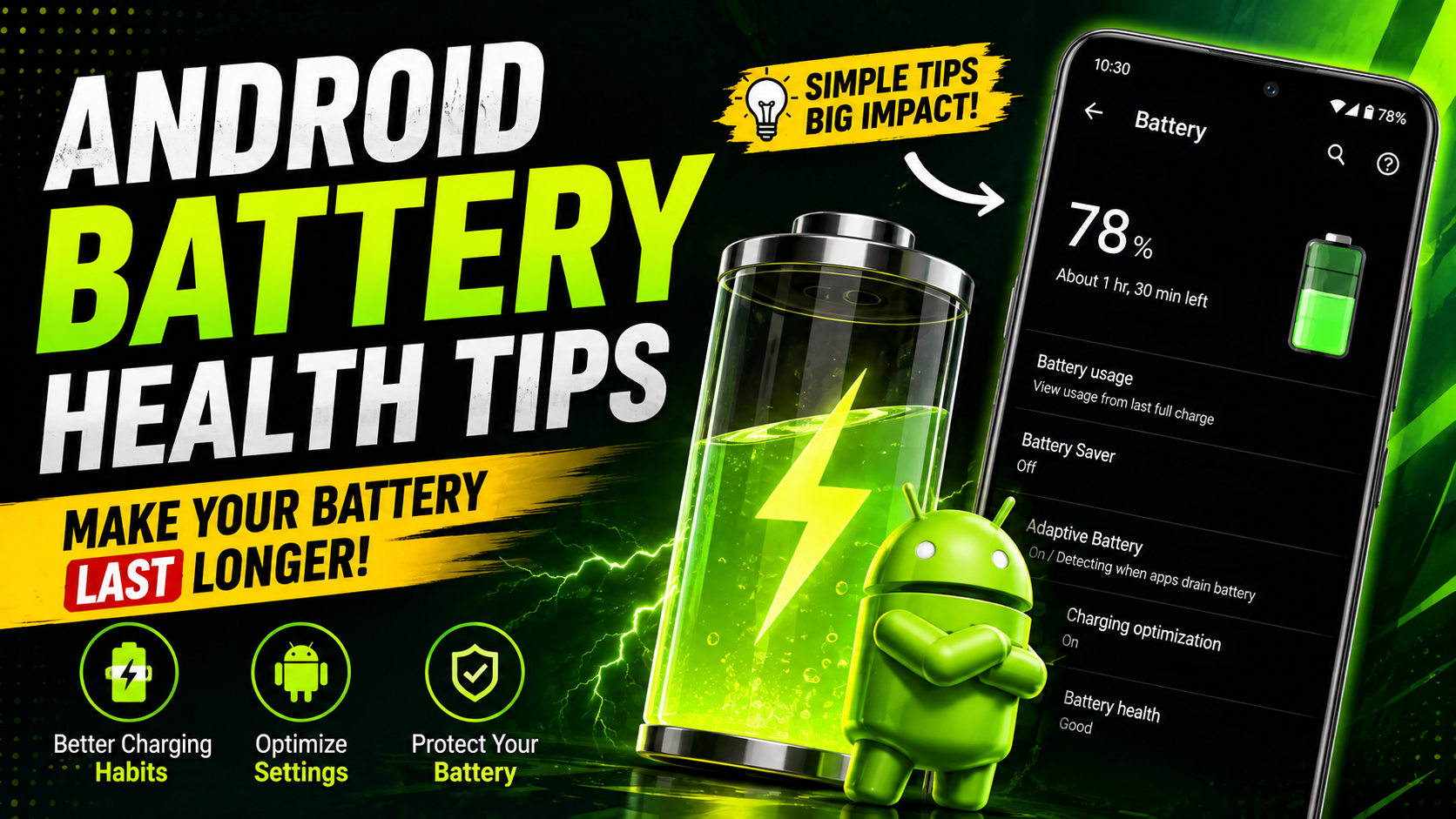
You probably already know that charging your Android phone regularly and avoiding unnecessary battery drain can help it last longer. Phone Battery Health Tips Android, But battery health depends on more than how often you plug in your phone – heat, charging habits, software settings, and everyday usage all influence long-term battery aging. In this guide, we’ll explain practical phone battery health tips Android users can follow, which charging habits to avoid, and how to keep your battery performing well for longer.
Phone Battery Health Tips Android:- Key Takeaways
- Android battery health measures the remaining capacity of a phone’s battery compared with its original capacity.
- Heat is one of the biggest battery-health concerns because prolonged exposure to high temperatures accelerates lithium-ion battery aging.
- Optimized or adaptive charging features reduce the amount of time compatible Android phones remain fully charged.
- Partial charging and avoiding frequent deep discharges can reduce unnecessary stress on lithium-ion batteries.
- Battery Saver, Adaptive Battery, brightness controls, and background-app management reduce daily battery drain but cannot restore lost battery capacity.
- Android battery-health and charging-protection features vary between Google Pixel, Samsung Galaxy, OnePlus, Xiaomi, Motorola, and other devices.
- Rapid battery drain, unexpected shutdowns, excessive heat, or physical swelling can indicate that a battery needs professional inspection or replacement.
What Is Battery Health on an Android Phone?
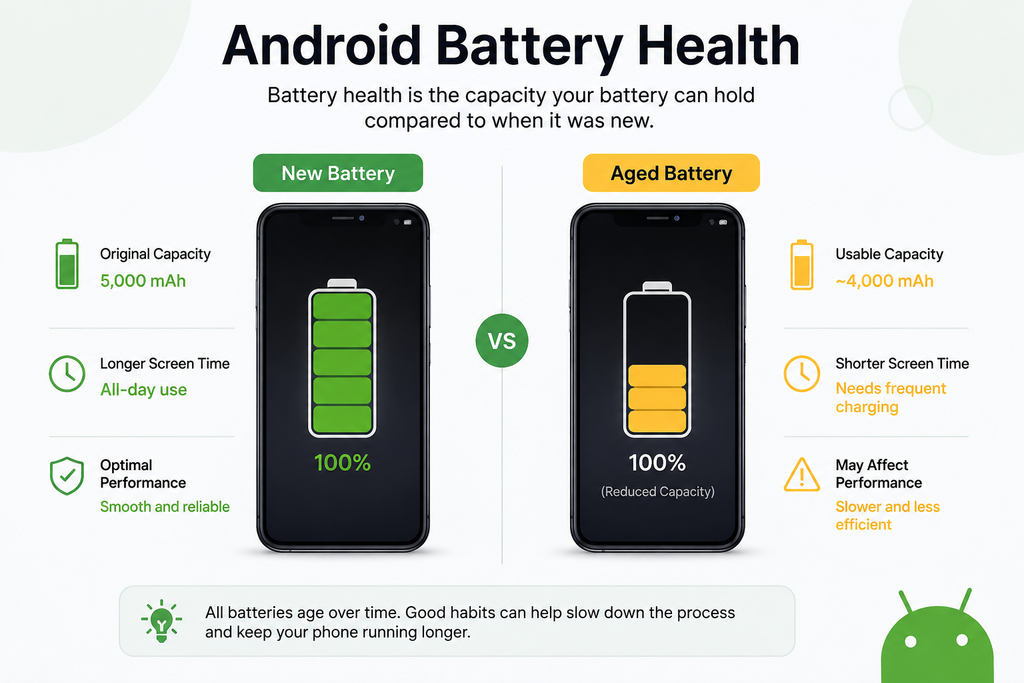
Android battery health is a measure of how much charge a battery can hold compared with the capacity it had when it was new. A new battery begins near its designed capacity, but lithium-ion batteries gradually lose usable capacity through chemical aging, charging cycles, temperature exposure, and normal use.
For example, imagine your phone originally has a 5,000 mAh battery. If aging eventually leaves it able to store roughly 4,000 mAh under comparable conditions, its usable capacity has fallen substantially even though Android can still display “100%” after charging.
Google describes battery health on supported Pixel devices as an estimated percentage of remaining capacity compared with when the battery was new.
Battery Health vs. Battery Life: What’s the Difference?
Battery health describes long-term battery condition, while battery life describes how long your phone lasts between charges. The two concepts are related, but they are not interchangeable.
For example, turning down screen brightness can make your phone last longer today. It does not restore chemical capacity that the battery has already lost.
| Battery Health | Battery Life |
|---|---|
| Measures long-term battery condition | Measures runtime between charges |
| Declines gradually through chemical aging | Can change dramatically from day to day |
| Influenced by heat, age, cycles, and charging conditions | Influenced by display, apps, signal, GPS, gaming, and usage |
| Lost capacity generally cannot be restored with settings | Runtime can often be improved through settings |
| May eventually require battery replacement | Often improves after reducing power consumption |
What Is an Android Battery Charge Cycle?
A battery charge cycle represents cumulative usage equal to 100% of the battery’s capacity, rather than necessarily one charging session. Partial discharges can therefore combine into a complete cycle.
For example, Google explains that using a Pixel from 100% to 50% and then recharging it represents approximately 0.5 of a cycle.
Moreover, Google states that Pixel 3 through Pixel 8 Pro and Pixel Fold batteries are designed to retain at least 80% of initial capacity for about 800 cycles when charged as recommended. Pixel 8a and later models are rated for about 1,000 cycles to that threshold.
Lithium-ion smartphone batteries naturally lose capacity over time, so battery health gradually decreases with charging and everyday use.
Why Is Android Battery Health Important?
Android battery health is important because declining battery capacity can reduce runtime and eventually affect the phone’s practical usability. A healthy battery lets you spend less time searching for a charger and helps keep an otherwise functional smartphone useful for longer.
For example, a phone that comfortably lasted from morning until night when new may eventually need an afternoon recharge. That does not automatically mean Android is malfunctioning; the battery itself may simply hold less energy than before.
Better Battery Health Can Extend Your Phone’s Useful Life
Good battery-care habits can slow avoidable degradation, although they cannot stop natural battery aging. Keeping a usable battery for longer may postpone the point at which you need battery service or a new phone.
For example, Google recommends considering battery replacement on supported Pixels when remaining capacity drops below 80% or the device reaches its specified cycle threshold.
Plus, replacing an aged battery can improve runtime and may extend a phone’s useful life rather than requiring replacement of the entire device.
Battery Health Affects More Than the Percentage Icon
An aging battery can provide less runtime even when Android still shows a full charge. The “100%” on your screen describes the current battery relative to its present usable capacity, not necessarily the same amount of stored energy the battery held when new.
For example, two identical phones can both show 100%, while the older phone may discharge sooner because its battery has experienced more capacity loss.
As such, learning how to maintain Android battery health is more useful than obsessing over the battery percentage at a single moment.
How Can You Keep Your Android Phone Battery Healthy?
Keeping an Android battery healthy involves controlling heat, reducing unnecessary time at extreme charge levels, using suitable charging equipment, and enabling your phone’s battery-protection features. You do not need to follow a complicated charging ritual.
Let’s explore the most useful habits.
1. Keep Your Android Phone Away From Excessive Heat
Managing heat is one of the most important ways to slow unnecessary battery degradation because high temperatures can accelerate battery aging.
For example, leaving your phone on a car dashboard in direct sunlight can expose it to far more heat than ordinary indoor use. Heavy gaming while fast charging can also combine processor heat with charging heat.
Google recommends charging Pixel phones in a cool location around 25°C (78°F) when practical.
Moreover, Battery University notes that prolonged elevated-temperature exposure reduces lithium-ion longevity and that many chargers prohibit charging above 50°C (122°F).
2. Avoid Regularly Draining the Battery to 0%
Frequently running a lithium-ion battery completely flat is unnecessary for modern Android phones. Partial charging is generally easier on lithium-ion batteries than repeated deep charge-discharge cycles.
For example, you do not need to wait until 1% before connecting your charger. If your battery reaches 30% during the afternoon and charging is convenient, plugging it in is perfectly reasonable.
Battery University estimates that shallower discharge cycles can provide more cycle life than repeated 100% depth-of-discharge cycles, although actual results depend on battery chemistry and device management.
A practical battery routine is better than chasing a perfect charging percentage every day.
3. Don’t Keep the Battery at 100% Longer Than Necessary
A full charge is safe when you need maximum runtime, but minimizing unnecessary time at a very high state of charge can reduce long-term battery stress. Modern Android phones increasingly include charging controls specifically for this reason.
For example, Google’s Adaptive Charging can delay the final part of charging so a compatible Pixel reaches 100% closer to when you normally unplug it. Google also offers an 80% charging limit on supported Pixel devices.
At the same time, you should not panic when your phone reaches 100%. Charging fully before travel, a long workday, or an emergency is a reasonable trade-off.
4. Use Optimized or Adaptive Charging
Optimized charging is a software feature that changes charging behavior to reduce unnecessary battery stress. Depending on your device, it may delay reaching 100% or impose a selectable charging limit.
For example, Google’s Adaptive Charging learns charging patterns and finishes charging shortly before the phone expects you to unplug it. Google says the feature may need about 14 days to learn charging habits.
Samsung also offers Battery protection options on supported Galaxy devices. Its current Maximum mode can stop charging at a selected limit of 80%, 85%, 90%, or 95%, depending on the device and software.
5. Use Compatible, Good-Quality Chargers and Cables
A suitable charger and cable help the phone’s charging system operate as intended. You do not necessarily need to use only the charger included with the phone, but accessories should support appropriate charging standards and come from reputable manufacturers.
For example, Google recommends compatible USB-C Power Delivery or Programmable Power Supply charging equipment for supported Pixel devices.
In addition, replace cables with damaged connectors, exposed wires, or unreliable charging behavior.
6. Avoid Heavy Gaming While the Phone Is Hot and Charging
Heavy workloads during charging can increase device temperature, especially when gaming, recording high-resolution video, or using demanding navigation apps. Heat rather than the act of using the phone itself is the main concern.
For example, playing a graphics-heavy game while fast charging under a thick case on a hot day can create considerably more heat than replying to a message while charging.
By reducing demanding workloads when your device already feels unusually hot, you can remove one avoidable source of battery stress.
7. Keep Android and Your Apps Updated
Software updates can include power-management improvements, bug fixes, and app optimizations that affect battery consumption. A poorly behaving app can drain energy even when the physical battery remains healthy.
For example, if an app begins running continuously in the background after an update, a later bug fix may correct that behavior.
Which Android Charging Habits Should You Avoid?
Android users should avoid charging habits that repeatedly create excessive heat, deep discharges, or unnecessarily prolonged high charge levels. Many older charging myths, however, are exaggerated or no longer apply to modern smartphones.
Is Overnight Charging Bad for an Android Phone?
Overnight charging is not automatically harmful because modern phones manage charging electronically, but spending unnecessary hours fully charged can increase long-term battery stress. Charging optimization exists to reduce this concern.
For example, a supported Pixel can use Adaptive Charging during a predicted long charging session and complete charging closer to when you normally unplug it.
Therefore, overnight charging does not need to become a source of anxiety. Enable your manufacturer’s optimized charging feature if you routinely charge while sleeping.
Does Charging an Android Phone to 100% Damage the Battery?
Charging to 100% occasionally is normal, but repeatedly keeping a lithium-ion battery at a high state of charge for extended periods can increase aging stress. The important distinction is between reaching 100% and remaining there unnecessarily.
For example, charging to 100% before a long journey provides useful extra runtime. Leaving a phone plugged in for days when you only need half of its capacity provides less practical benefit.
Battery University reports that elevated temperature combined with high state of charge is particularly stressful for lithium-ion cells.
Does Fast Charging Reduce Android Battery Health?
Fast charging is designed to charge compatible phones quickly, but higher charging rates can create additional heat under some conditions. The actual effect depends on battery design, charging control, temperature, and the charger used.
For example, fast charging before leaving home can be useful. If your phone is already very hot, however, letting it cool before demanding high-speed charging is a sensible precaution.
That being said, you do not need to disable fast charging every time. Focus on temperature management and compatible charging equipment rather than assuming all fast charging is harmful.
Should You Charge an Android Phone From 20% to 80%?
A roughly 20%-to-80% routine can be a useful battery-conscious habit, but it is not a mandatory rule for every Android user. Avoiding charge extremes can reduce battery stress, while using more capacity when you actually need it remains perfectly reasonable.
For example, someone working beside a charger may choose an 80% limit. A traveler who needs maximum navigation and camera time may reasonably charge to 100%.
Battery care should support how you use your phone, not make the phone inconvenient to use.
How Can You Reduce Battery Drain on Android?
Reducing Android battery drain involves lowering unnecessary power consumption from the display, apps, wireless radios, location services, and background activity. These changes extend daily runtime but do not reverse chemical battery degradation.
Battery-saving settings can reduce daily power consumption, but they cannot restore battery capacity that has already been lost through chemical aging.
Reduce Screen Power Consumption
The display is often a significant source of power consumption during active smartphone use. Brightness, screen-on time, resolution, refresh rate, and always-on display settings can all affect runtime.
For example, using maximum brightness indoors all day consumes more energy than allowing adaptive brightness to reduce the screen output when high brightness is unnecessary.
Try these changes:
- Enable adaptive brightness.
- Reduce screen timeout.
- Lower refresh rate when maximum smoothness is unnecessary.
- Disable always-on display if you do not use it.
- Use Battery Saver when extended runtime matters.
Find Apps That Are Draining Your Battery
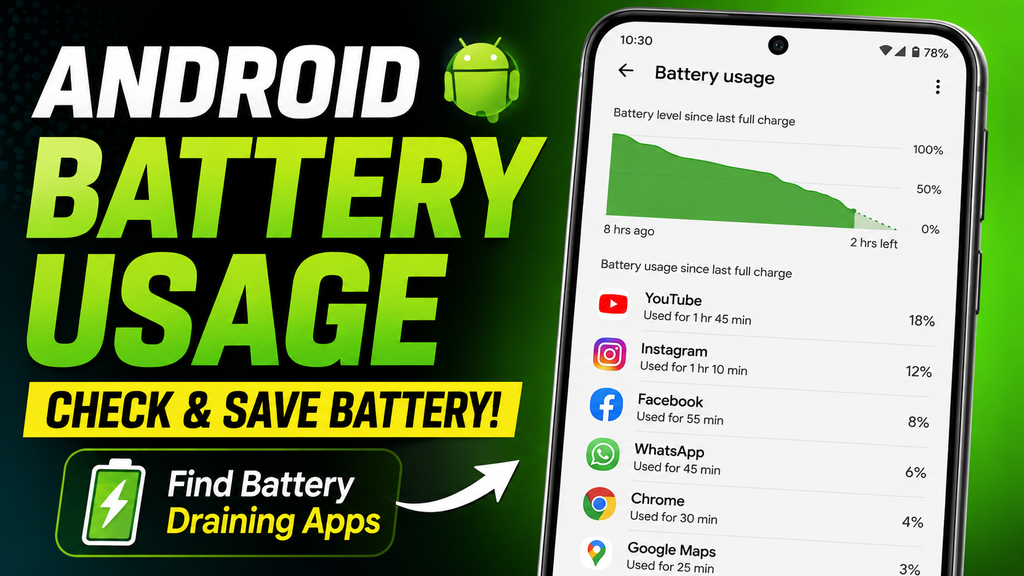
Android’s battery-usage screen can identify apps consuming an unusually large share of power. The exact menu path varies by manufacturer and Android version.
For example, if a rarely used shopping app accounts for substantial background battery usage, you can restrict its background activity, update it, or uninstall it.
Moreover, avoid installing random “battery booster” apps simply because they promise to repair battery health. A software utility cannot chemically restore lost lithium-ion capacity.
Control Location, 5G, Hotspot, and Background Activity
Wireless features consume additional power when actively transmitting, searching for networks, or running continuously in the background. You should manage them according to your needs rather than permanently disabling useful features.
For example, a mobile hotspot transferring data to a laptop can drain a phone much faster than leaving Bluetooth enabled with no active connection.
In addition, poor cellular coverage can increase power use because the phone must work harder to maintain connectivity.
Remove Unnecessary Background Activity
Background apps can consume power through syncing, notifications, location checks, uploads, and other tasks. Android already manages many background processes, but problematic apps can still stand out in battery usage.
For example, a social media app repeatedly checking location or uploading content can consume more energy than an app sitting inactive.
As such, review battery usage before aggressively restricting every app. Restricting essential messaging, navigation, or email apps may delay notifications you actually need.
Which Android Battery Settings and Tools Should You Use?
Android battery settings provide built-in tools for monitoring consumption, reducing drain, and managing charging behavior without third-party battery boosters. Available features and menu names vary by manufacturer, model, and Android version.
Android battery-health information and charging-protection features vary by manufacturer and device, so the exact settings available depend on the phone model and Android software.
Google Pixel Battery Health and Charging Optimization
Google Pixel phones provide several battery-management features, although availability depends on the Pixel generation and software version. Supported devices can include Adaptive Charging, an 80% charge limit, battery information, and battery-health status.
For example, on supported Pixels, Google currently directs users to Settings → Battery → Battery health → Charging optimization to configure charging optimization.
Google also says Pixel 8a and later devices can display cycle count under Settings → About phone → Battery information.
Interestingly, Google notes that supported Pixels using the 80% charging limit periodically need a full charge for capacity-estimation accuracy, including a full charge around every 10th cycle.
Samsung Galaxy Battery Protection
Samsung Battery protection manages charging behavior on supported Galaxy phones to reduce time spent at higher charge levels. Available modes and limits can differ depending on the Galaxy device and software version.
For example, Samsung’s 2026 guidance describes Basic mode as stopping at 100% and resuming at 95%, while Maximum mode lets supported devices use limits from 80% to 95%.
What About OnePlus, Xiaomi, Motorola, and Other Android Phones?
Other Android manufacturers offer their own battery optimization, smart charging, or charging-protection features on selected models. Feature names and menu paths can change between devices and software releases.
For example, search your Settings app for terms such as battery health, optimized charging, smart charging, charging protection, or battery protection. Checking the manufacturer’s support documentation for your exact model is safer than assuming instructions for another Android phone will match yours.
How Can You Check Battery Health on an Android Phone?
Checking Android battery health involves using built-in battery-health information when available, manufacturer diagnostics, cycle-count information, and real-world symptoms of battery degradation. Android does not provide exactly the same battery-health interface across every manufacturer and model.
Check Built-In Battery Information First
Built-in battery diagnostics are the best starting point because they use information available to the phone’s own battery-management system. Look in Settings before installing third-party apps.
For example, supported newer Pixel phones expose battery-health information, while some older Pixel models do not show the same status. Google specifically notes that Pixel 6a, Pixel 7, Pixel 7 Pro, Pixel 7a, Pixel 8, and Pixel 8 Pro do not indicate the same battery-health status described for supported newer devices.
That being said, a missing battery-health percentage does not mean your battery cannot be evaluated. Runtime, cycle information where available, diagnostics, and physical symptoms can still reveal problems.
Can Third-Party Apps Measure Android Battery Health?
Third-party battery apps can estimate capacity and monitor charging behavior, but their figures should be treated as estimates rather than definitive hardware measurements. Their accuracy depends on available Android data and enough charging history.
For example, an app may estimate usable capacity after observing multiple charging sessions. A single session is unlikely to provide a perfect assessment of long-term battery condition.
Therefore, use third-party tools for trends and diagnostics, not as proof that a battery has exactly a particular health percentage.
When Should You Replace an Android Phone Battery?
An Android battery should be considered for replacement when substantial capacity loss or physical problems make the phone unreliable or unsafe. Replacement timing depends on the device, battery condition, usage requirements, and manufacturer’s guidance.
Common warning signs include:
- Battery runtime becoming dramatically shorter
- Unexpected shutdowns despite remaining charge
- Repeated excessive heating during ordinary use
- Charging behavior becoming unreliable
- Battery-health warnings from the manufacturer
- Physical battery swelling or device separation
For example, Google’s guidance recommends replacement for supported Pixel models after remaining capacity falls below 80% or the rated cycle threshold is reached.
If you notice physical swelling, stop treating the problem as a battery-optimization issue and seek professional service.

What Are the Most Common Android Battery Health Myths?
Android battery myths often come from older battery technologies or turn useful recommendations into unnecessary absolute rules. Modern lithium-ion phones use charging-management electronics that make many old habits irrelevant.
Myth: You Must Drain Your Battery to 0% Before Charging
Modern lithium-ion phones do not need routine 0% discharges before recharging. Partial charging is normal and can avoid unnecessary deep cycling.
For example, plugging in at 35% instead of waiting for 1% does not “confuse” a modern Android battery under ordinary use.
Myth: You Should Never Charge to 100%
Charging to 100% is not something Android users must completely avoid. Reducing prolonged time at full charge can support longevity, but maximum charge remains useful when you need maximum runtime.
For example, charging fully before a day of travel makes more sense than limiting yourself to 80% and running out of power when navigation is essential.
Myth: Battery Saver Repairs Battery Health
Battery Saver reduces current power consumption but cannot reverse chemical aging inside a battery. The feature improves runtime by limiting or adjusting energy-consuming activity.
For example, Battery Saver may restrict background activity and reduce some performance demands, allowing your remaining charge to last longer.
Myth: Every Android Phone Has the Same Battery Settings
Android battery features vary substantially between manufacturers, models, and software versions. Instructions written for a Pixel may not match a Samsung Galaxy or Xiaomi device.
For example, Google calls one feature Charging optimization, while Samsung uses Battery protection terminology on supported Galaxy devices.
What Is the Best Daily Android Battery-Care Routine?
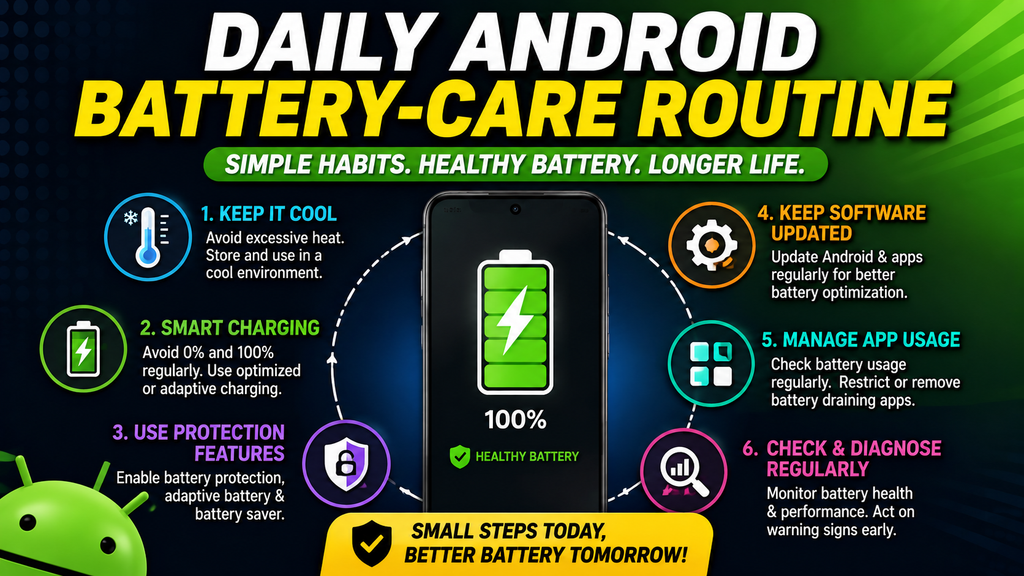
The best Android battery-care routine is a simple set of habits that reduces excessive heat and unnecessary battery stress without interfering with normal phone use. Consistency matters more than obsessing over individual percentage points.
Use this practical routine:
- Keep your phone reasonably cool. Avoid leaving it in direct sunlight or a hot parked car.
- Charge when convenient instead of regularly waiting for 0%. Partial charging is normal for lithium-ion batteries.
- Enable optimized charging or battery protection. Use your manufacturer’s built-in charging controls.
- Use an 80%-style charging limit when it suits your routine. Charge fully when you genuinely need extra runtime.
- Check battery usage periodically. Investigate apps consuming unusually high background power.
- Keep Android and important apps updated. Updates can fix bugs that contribute to abnormal drain.
- Use reliable charging equipment. Avoid damaged or questionable cables and adapters.
- Watch for abnormal behavior. Sudden shutdowns, swelling, or extreme heat deserve attention.
For example, someone working from home may use an 80% charging limit most days and switch it off before traveling. This balances battery longevity with practical daily needs.
What’s Next for Improving Your Android Battery Health
Your next step is to change the few battery habits that create the most unnecessary stress rather than trying to micromanage every charge. Start with temperature, charging optimization, battery usage, and problematic apps.
First, open your Android battery settings today and look for Battery health, Battery protection, Adaptive Charging, Optimized Charging, or similar options. Enable the feature that best matches how you normally use your phone.
Second, check your app battery-usage screen after a normal day. If one app consumes far more power than expected, update it, review its permissions and background activity, or remove it if you no longer need it.
Third, pay attention to temperature for a week. If the phone becomes hot during gaming, navigation, video recording, hotspot use, or charging, identify which combination of activities is causing the heat.
Finally, stop worrying about achieving a perfect charging percentage every single day. Battery longevity comes from reducing repeated stress over months and years, not from one imperfect charging session.
Conclusion
The best phone battery health tips Android users can follow are to control excessive heat, avoid unnecessary deep discharges, use optimized charging features, monitor battery-hungry apps, and rely on compatible charging equipment. Lithium-ion battery degradation is unavoidable, but your daily habits can influence how quickly that degradation becomes noticeable.
Moreover, battery life and battery health are different problems. Reducing screen brightness or background activity can extend today’s runtime, while good charging and temperature habits are aimed at protecting long-term battery condition.
Most importantly, use your phone normally. A battery is a consumable component designed to serve you, not something you should spend every day worrying about. Adopt a few sensible habits, monitor unusual behavior, and consider professional battery replacement when aging begins to limit your phone’s usefulness.





2 thoughts on “Phone Battery Health Tips Android | Complete 2026 Guide to Better Battery Life & Health”