One dead earbud doesn’t automatically mean your earbuds are broken. Why one earbud stops working can come down to something surprisingly simple: the earbud may not have charged, the Bluetooth connection may have glitched, the phone’s audio balance may be shifted, or debris may be blocking the speaker mesh. In other cases, the battery or internal hardware may actually be failing.
The trick is not to try every fix at random. Start with the symptom you can see, check the most likely cause, and only move to more involved fixes such as resetting the earbuds when the simpler checks don’t solve it.
Quick answer: Why is only one earbud working?
The most common areas to check are:
- Charging: The silent earbud may not actually be charging because it is not seated correctly or its charging contacts are dirty.
- Bluetooth pairing: The phone and earbuds may have lost their connection or the two earbuds may no longer be properly coupled.
- Audio balance: A left/right balance setting can send most or all media audio to one side.
- Speaker blockage: Dirt or earwax around the speaker mesh can make one earbud extremely quiet or appear silent.
- Software: A temporary firmware, app or Bluetooth problem can interfere with normal operation.
- Battery: One earbud may be draining much faster or failing to hold a charge.
- Hardware: If the same earbud continues to fail after charging, reconnecting, resetting and testing it with another device, a physical fault becomes more likely.
These aren’t just theoretical possibilities. Current support documentation from Apple, Samsung and Google all includes charging, connection, cleaning, software or reset checks for one-sided earbud problems.
One earbud stopped working? Start with the symptom
Before changing settings, look at exactly what is happening.
| What you’re seeing | Check first | What it may indicate |
|---|---|---|
| One earbud shows 0% battery | Charging and case contacts | Charging problem |
| One earbud isn’t detected | Bluetooth and pairing | Connection problem |
| Both earbuds appear connected, but one is silent | Left/right audio balance | Phone setting |
| One side is much quieter | Speaker mesh and fit | Debris or positioning |
| Earbud keeps disconnecting | Bluetooth and firmware | Software/connection |
| One side repeatedly dies first | Battery and charging | Battery degradation or charging issue |
| Same earbud fails on another phone | Earbud itself | Hardware/battery issue |
This approach matters because “not working” can describe several different problems. A completely undetected earbud needs a different first check from an earbud that is connected but producing very little sound.
The charging case may be the real culprit
A wireless earbud can look completely dead when it simply hasn’t received a proper charge.
Start by putting both earbuds into the case and checking whether the case recognizes them. Make sure each earbud is sitting correctly in its slot and that the case itself has enough charge.
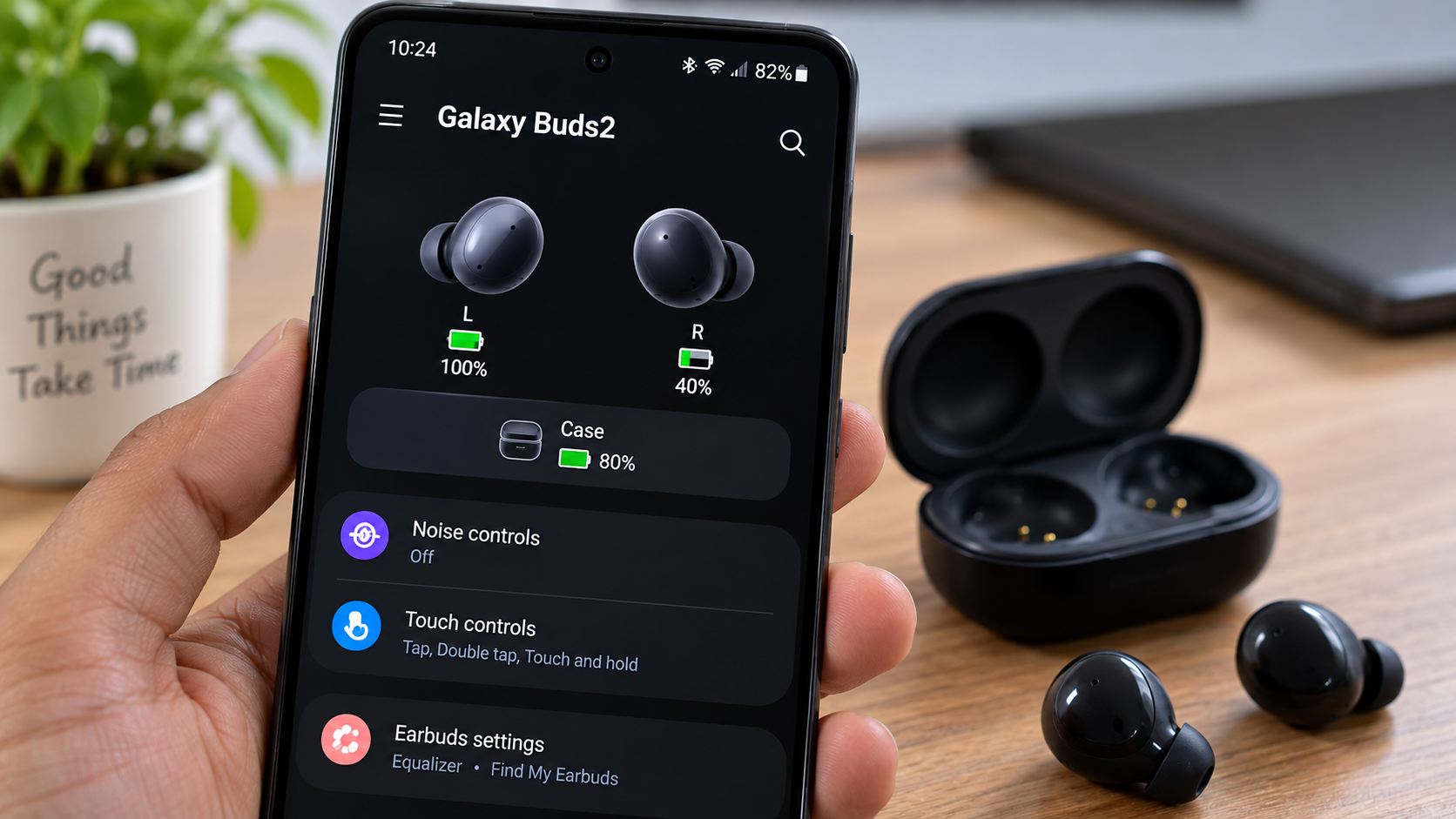
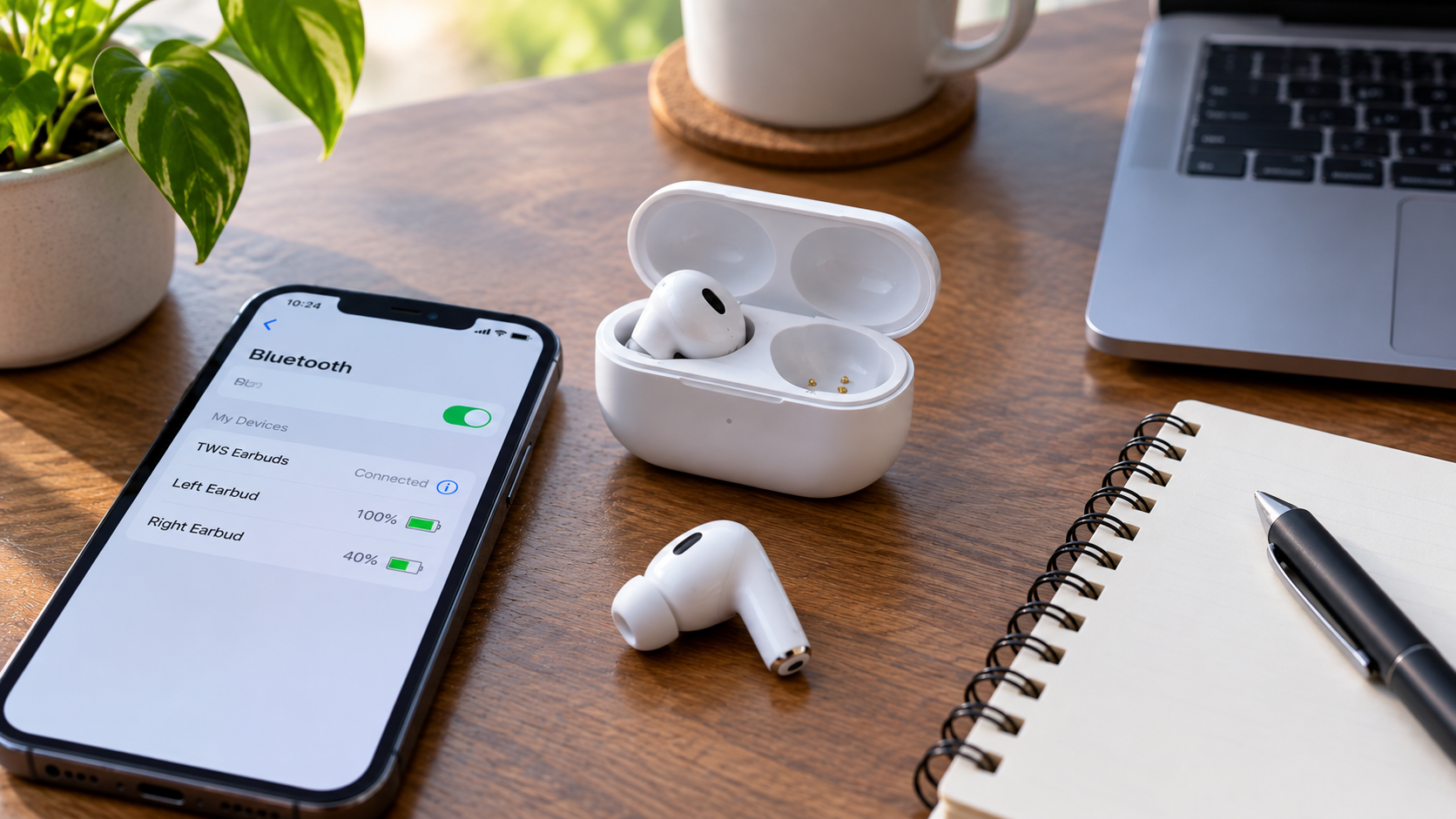
Look for signs that the silent earbud is charging. If your earbuds have individual battery indicators in their companion app, compare the left and right percentages.
For example, Google’s current Pixel Buds troubleshooting instructions tell users to check whether each earbud is charging when it is placed into the case. The status light can indicate whether an earbud is charging or fully charged.
Apple likewise recommends making sure both AirPods are charging when troubleshooting connection problems.z
Check the charging contacts
If the case has power but one earbud repeatedly remains at 0%, inspect the charging contacts.
Dust, pocket lint or residue can interfere with contact between the earbud and case. Don’t poke inside the charging port or use liquids casually. Follow the cleaning instructions for your specific model.
A useful clue is repetition: if the same earbud refuses to charge every time you place it in the case, the problem deserves more attention than a one-time Bluetooth glitch.
Bluetooth pairing can make one side disappear
Bluetooth problems aren’t always as obvious as a complete disconnection.
You may see the earbuds listed as connected while one side doesn’t produce sound. In some cases, the two earbuds themselves may also need to re-establish their connection with each other.
A simple first attempt is to turn Bluetooth off, wait a few seconds, then turn it back on. Reconnect the earbuds and test the audio again.
Google recommends this basic Bluetooth cycle for Pixel Buds connection and audio problems, along with checking that the buds and charging case are charged and that the latest firmware is installed.
Forget the earbuds and pair them again
If simply toggling Bluetooth doesn’t help, remove or forget the earbuds from your phone’s Bluetooth settings and pair them again.
This is more thorough than just switching Bluetooth off and on.
However, don’t assume every brand uses the same reset or re-pairing procedure. Manufacturer instructions can vary by model and software version.
Check your phone’s left/right audio balance
This is one of the easiest problems to overlook.
Your earbuds can be perfectly connected, charged and functional, yet one side can appear silent if the phone’s left/right audio balance has been moved too far toward the opposite channel.
Think of the setting like this:
Left ←────────●────────→ Right
The exact menu name varies by phone and operating system. On Samsung devices, for example, Samsung documents the left/right sound balance under Accessibility and Hearing enhancements.
Check that the balance slider is roughly centered.
Why this check comes before resetting
Because it takes seconds and doesn’t require you to erase Bluetooth pairings or restore the earbuds to default settings.
If you accidentally moved the slider while changing accessibility settings, the earbuds themselves may not have anything wrong with them.
Would you really want to reset a perfectly healthy pair of earbuds because a slider was sitting at the far left?
Probably not.
Is the earbud connected but extremely quiet?
There is an important difference between no audio and very low audio.
If the earbud is connected but you can barely hear anything from it, inspect the speaker mesh before assuming the Bluetooth connection has failed.
Earwax, dust and debris can accumulate around the sound outlet. Samsung’s current one-sided Galaxy Buds guidance specifically recommends checking the speaker mesh for debris or earwax and checking earbud fit. Google similarly recommends removing dirt around Pixel Buds speaker or microphone openings.
Don’t insert sharp objects into the speaker opening. The goal is to clean according to the manufacturer’s instructions without damaging the mesh.
Fit can matter too
An earbud that isn’t sitting properly can sound different from the other side, especially when using silicone tips.
Check that:
- The ear tip is attached correctly.
- Both sides are using appropriate tip sizes.
- The earbud is seated normally.
- The speaker opening isn’t blocked.
This is particularly useful when one side isn’t completely silent but sounds noticeably weaker.
Software and firmware problems are worth checking
Sometimes the hardware is fine and the problem is simply a temporary software or connection issue.
If the earbuds are charged and the audio balance looks normal, move on to:
- Restart the phone.
- Reconnect the earbuds.
- Check for an available earbud firmware update.
- Check whether the manufacturer’s companion app has an update.
- Test the earbuds again.
Samsung’s support documentation recommends updating Galaxy Buds software and the connected device when troubleshooting audio-related problems.
Google also recommends keeping Pixel Buds firmware current when troubleshooting audio issues.
The important point is not to treat a firmware update as a magic solution. It is simply one part of the diagnostic process.
Don’t assume the menu is the same on every device
A common mistake in troubleshooting articles is giving one exact menu path as if every Android phone uses the same interface.
It doesn’t.
Settings can differ between Samsung, Google Pixel, OnePlus, Xiaomi, Motorola and other Android devices, and they can change between software versions.
Use the manufacturer’s current instructions for your particular earbuds and phone.
Try a restart before you reach for the reset button
A restart is less disruptive than a factory reset.
Depending on the earbud model, this may involve placing both earbuds into the charging case, closing it, waiting, and then trying again.
Samsung’s current Galaxy Buds support information includes model-specific instructions for reconnecting earbuds, while Google’s Pixel Buds documentation provides its own reset and pairing procedures.
If the earbuds start working after a restart, you have probably avoided an unnecessary reset.
Resetting the earbuds: useful, but save it for later
A reset can resolve persistent connection or performance problems, but it should not be the first thing you try.
Why?
Because resetting can remove saved settings, device names or other preferences, and the procedure is different across brands and models.
For example, Apple’s current instructions for supported AirPods models include putting the earbuds in their case, forgetting the device and holding the case setup control before reconnecting.
Samsung’s current instructions also vary according to One UI/software version. On One UI 8.0 or later, certain Galaxy Buds can be reset from phone settings; earlier One UI versions use the Galaxy Wearable app. Samsung also says both earbuds should have at least 15% battery before resetting.
Google’s Pixel Buds reset procedure likewise requires the earbuds to be seated correctly in the charging case and involves holding the case button for a model-specific process.
So the safe rule is simple:
Use the manufacturer’s reset instructions for your exact model rather than following a random universal button combination from a third-party website.
One earbud still isn’t working? Test it with another phone
This is one of the most useful diagnostic steps because it helps separate an earbud problem from a phone problem.
Suppose your left earbud isn’t working with your usual phone.
Connect the same earbuds to another compatible device.
Then look at the result:
| Test result | What it suggests |
|---|---|
| Same earbud fails on both phones | Earbud-side issue becomes more likely |
| Both earbuds work on another phone | Original phone/settings issue becomes more likely |
| Same physical side repeatedly fails | Charging, battery or hardware problem becomes more likely |
| Problem changes sides or disappears | Connection/settings issue becomes more likely |
This is not a laboratory diagnosis. It is a practical isolation test.
The more consistently the same physical earbud fails across different devices, the less likely it is that your original phone’s Bluetooth settings are responsible.
AirPods, Galaxy Buds and Pixel Buds don’t all troubleshoot the same way
The general logic is similar, but the actual buttons, apps and menus can be different.
AirPods
Apple provides dedicated support for one AirPod not working, charging problems, connection problems, cleaning and resetting. Its support hub also provides options for replacing an individual AirPod or getting service.
For AirPods, don’t blindly follow instructions written for an older generation. Apple has updated reset procedures for newer models, so check the current support page for the exact AirPods generation.
Samsung Galaxy Buds
Samsung’s current troubleshooting guidance for one-sided audio includes checking fit, debris, sound balance and the connection between the two earbuds. It also lists model-specific recoupling procedures.
This is a good example of why model-specific instructions matter.
Google Pixel Buds
Google’s current troubleshooting documentation recommends checking charging, Bluetooth pairing, firmware and speaker openings for audio problems affecting the left or right earbud.
Other TWS earbuds
For brands such as Sony, JBL, boAt, OnePlus, Nothing, Realme or other TWS manufacturers, use the official support documentation for the exact model.
Don’t assume that a reset method from AirPods or Galaxy Buds will work on another brand.
How to tell if the battery is becoming the problem
A battery issue usually becomes more suspicious when the same earbud repeatedly dies before the other one.
For example, imagine both earbuds begin a listening session fully charged. If the right side consistently reaches a critically low level much earlier while the left remains healthy, investigate charging and battery behavior.
But don’t immediately conclude that the battery has failed.
Uneven battery use can have other explanations, including differences in usage or features. Samsung explicitly notes that left and right Galaxy Buds battery consumption can differ.
A stronger hardware warning sign is a pattern like this:
Charge → use → same earbud dies unusually quickly → recharge → same problem repeats.
If the pattern continues after checking the charging contacts and testing the earbuds with another device, professional diagnosis becomes more sensible.
When should you stop troubleshooting?
At some point, repeatedly resetting an earbud isn’t productive.
Consider contacting the manufacturer or an authorized service provider if:
- The same earbud remains completely dead after proper charging.
- It fails on multiple compatible devices.
- The charging case consistently fails to recognize it.
- There is visible physical damage.
- The earbud has suffered liquid exposure.
- Battery behavior has become severely abnormal.
- The product is still covered by warranty.
Don’t open a sealed earbud just to investigate the battery yourself. Tiny lithium-ion batteries and internal components are not good candidates for improvised repair.
Apple, for example, offers AirPods service and repair options and says technicians can inspect the product and provide service or replacement options.
Google also provides warranty and replacement procedures for Pixel Buds, including specific provisions for customers in India.
Should you replace one earbud or buy a completely new pair?
If only one earbud has failed, replacing the entire set isn’t automatically the best option.
A single-earbud replacement can make sense when:
- The manufacturer sells individual replacements.
- Your charging case is still working properly.
- The other earbud’s battery is healthy.
- The replacement cost is reasonable.
- The product is otherwise in good condition.
Apple’s official AirPods support pages include individual replacement options, while Samsung documents procedures for coupling a replacement Galaxy Bud with an existing earbud.
On the other hand, a new pair may make more financial sense when the earbuds are several years old, multiple components are showing battery problems, or the charging case is also failing.
The important thing is to compare the actual replacement cost with the value and remaining life of your existing pair. Don’t make the decision based solely on the fact that one side stopped working.
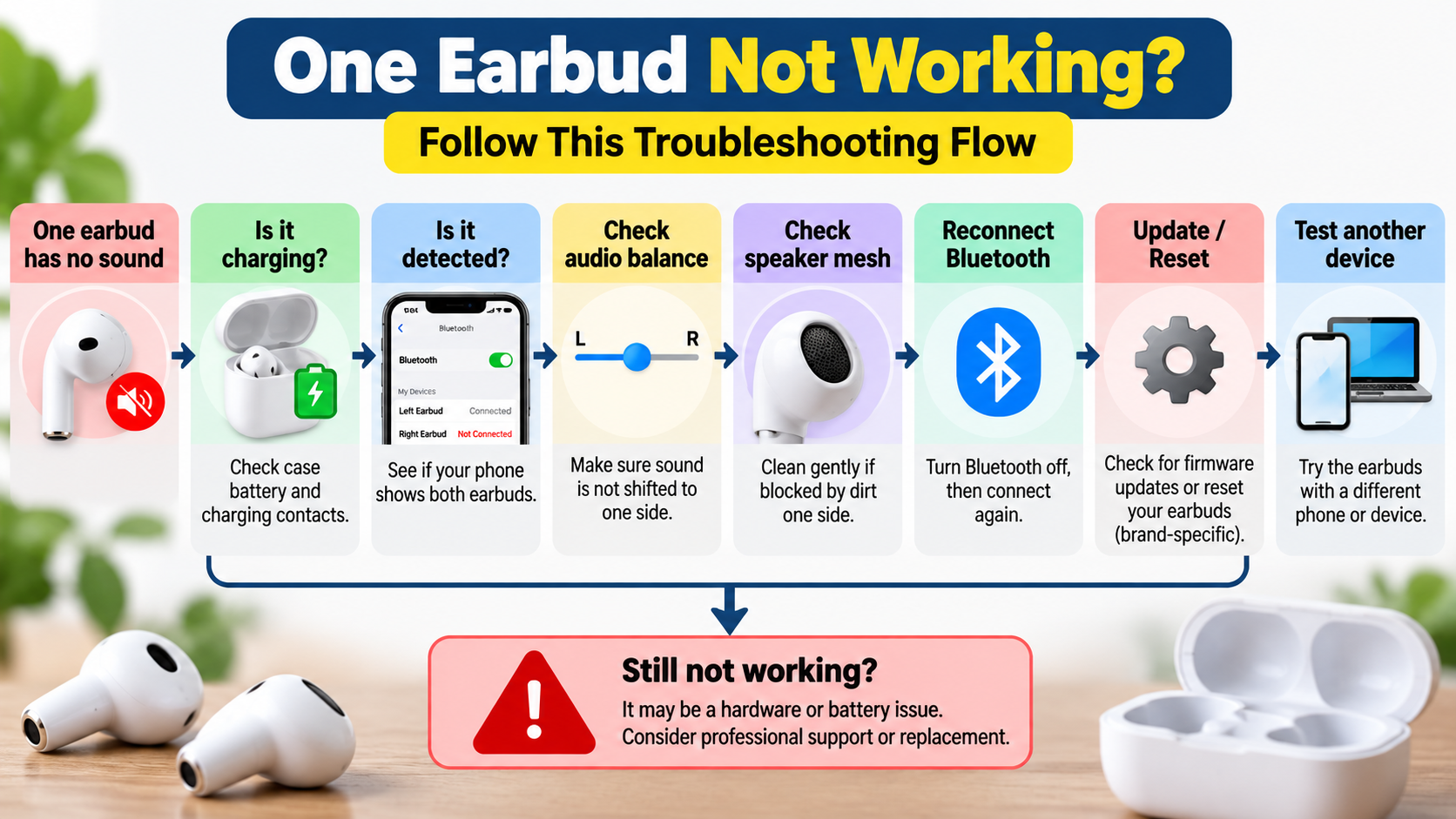
A simple troubleshooting order you can save
If you want the shortest possible version of this guide, use this order:
1. Charge both earbuds.
Make sure the silent earbud is seated properly in the case.
2. Check the battery levels.
Look for a major difference between the left and right sides.
3. Inspect and clean the charging contacts and speaker mesh.
Follow the manufacturer’s cleaning instructions.
4. Check left/right audio balance.
Make sure the balance is centered.
5. Turn Bluetooth off and on.
Reconnect the earbuds.
6. Forget and pair the earbuds again.
This can resolve persistent connection problems.
7. Restart and update.
Check the manufacturer’s app or support instructions for firmware updates.
8. Reset the earbuds.
Only after the simpler steps fail, and only using the manufacturer’s instructions.
9. Test them with another device.
This helps identify whether the phone or earbuds are responsible.
10. Contact support if the same side still fails.
At that point, a hardware or battery problem becomes more plausible.
Pros and Cons of Troubleshooting Before Replacing Your Earbuds
Pros
- It can save money. A charging or settings problem doesn’t require a new pair.
- It helps identify the real cause. You can distinguish a phone problem from an earbud problem.
- It can extend the life of working earbuds. Simple charging and cleaning issues are worth resolving.
- It gives you useful evidence for a warranty claim. Knowing what you’ve already tested can make a support conversation easier.
Cons
- Troubleshooting takes time. Especially when the manufacturer’s reset process is model-specific.
- Some fixes may reset settings. A factory reset can remove saved preferences.
- Menus vary between devices. Android instructions aren’t identical across manufacturers.
- Hardware problems still need hardware service. Software troubleshooting can’t repair a physically damaged battery or speaker.
Why One Earbud Stops Working, Frequently Asked Questions
Why is only one earbud working?
One earbud can stop working because it isn’t charging, the earbuds have lost their pairing, the phone’s left/right audio balance is shifted, the speaker mesh is blocked, the software has encountered a problem, or the earbud has a battery or hardware fault. Start with charging and connection checks before resetting the earbuds.
Why is one earbud not charging?
Check whether the earbud is seated correctly in the charging case and whether the case itself has enough power. Inspect the charging contacts for dirt or debris and compare the battery status of both earbuds. If the same earbud repeatedly fails to charge, the issue may require manufacturer support.
Why is one earbud connected but has no sound?
First check the phone’s left/right audio balance and volume. Then check whether the speaker mesh is blocked and whether another app produces sound. If the problem continues, reconnect the earbuds or test them with another device. Samsung specifically lists sound balance, debris and connection as checks for one-sided Galaxy Buds audio.
How do I reset wireless earbuds when one side isn’t working?
The reset procedure depends on the brand and model. AirPods, Galaxy Buds and Pixel Buds use different procedures, and newer models can have different instructions from older ones. Use the manufacturer’s current support instructions for your exact model rather than a generic reset method.
Why does one earbud keep dying before the other?
A difference in battery consumption doesn’t automatically mean the battery is defective. First check whether that side is charging properly and whether the case recognizes it consistently. If the same earbud repeatedly loses charge much faster after those checks, battery degradation or another hardware problem becomes more likely.
How do I know if one earbud is permanently damaged?
There is no single test that proves permanent damage at home, but the diagnosis becomes more concerning when the same earbud fails after being fully charged, re-paired, reset and tested with another compatible device. If it still doesn’t work, contact the manufacturer’s support or an authorized service provider rather than opening the earbud yourself.
Conclusion
Why one earbud stops working isn’t always a sign that you need a new pair. In many cases, the cause is much simpler: the earbud didn’t charge correctly, the Bluetooth connection needs to be restored, the audio balance has shifted, or the speaker mesh is blocked.
The best troubleshooting strategy is to work from the least disruptive checks toward the more involved ones:
charging → physical inspection → audio balance → Bluetooth → software update → reset → cross-device test.
If the same earbud continues to fail after all of that, especially when it also fails with another phone, it’s reasonable to suspect a battery or hardware problem and contact the manufacturer.
In other words, don’t let one silent earbud convince you that the whole pair is dead. Diagnose the symptom first, then decide whether it actually needs replacing.