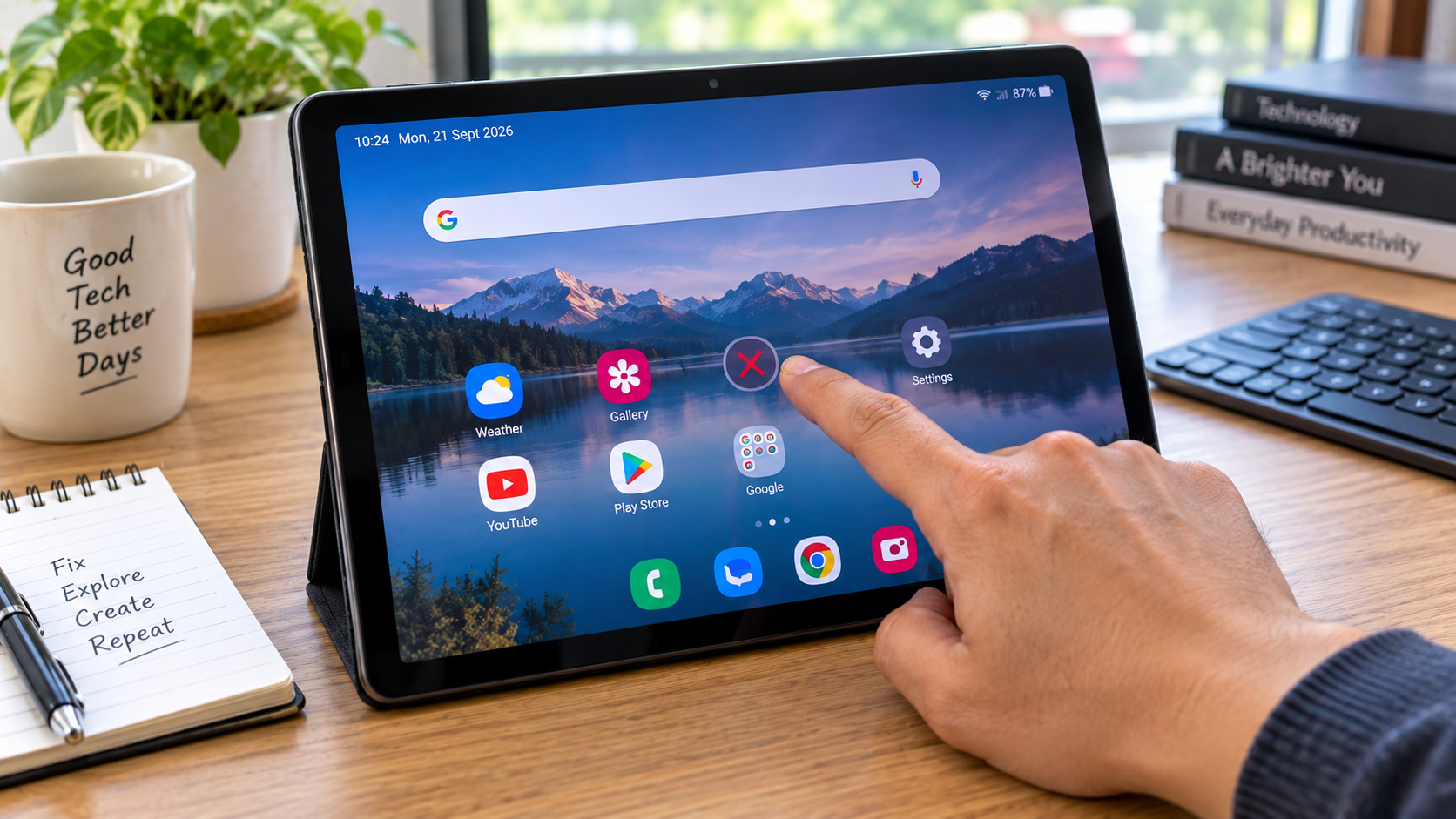
A tablet can look perfectly healthy and still become surprisingly frustrating to use when its touchscreen starts misbehaving. One tap does nothing, another registers somewhere else, or a section of the display suddenly stops responding. Tablet touchscreen problems don’t always mean the screen itself is broken. Software glitches, accessibility settings, screen protectors, moisture, accessories, drivers, and physical damage can all produce similar symptoms.
The useful question, then, isn’t simply “How do I fix my touchscreen?” It’s “What is causing the touch problem, and how can I narrow it down without making things worse?”
This guide takes that approach. Instead of jumping straight to a factory reset or screen replacement, we’ll work from the simplest checks toward software diagnostics and, finally, signs that point toward hardware trouble.
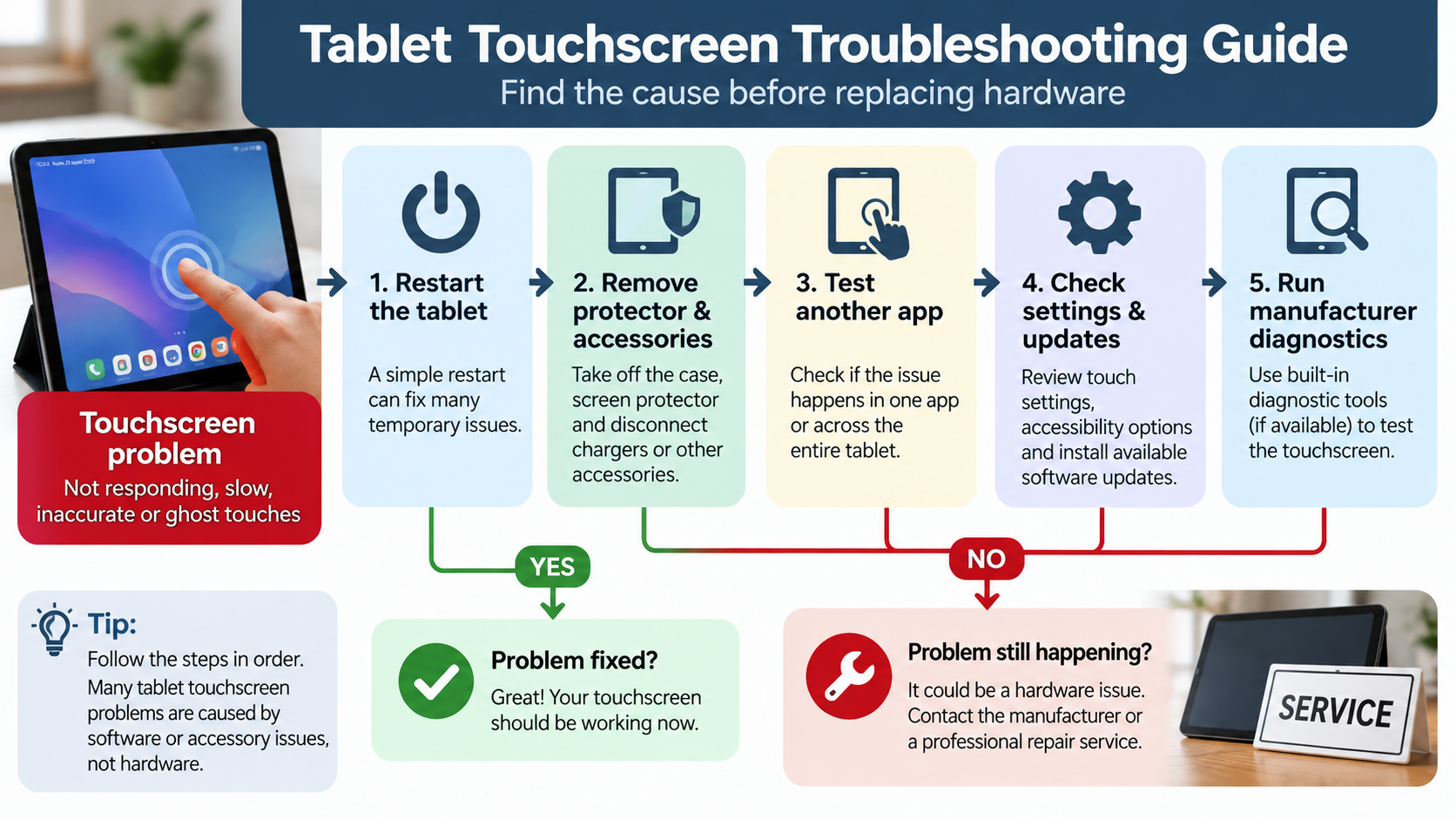
Quick answer: Restart the tablet, clean and dry the screen, temporarily remove the case and screen protector, disconnect accessories, test whether the problem occurs in one app or everywhere, check relevant touch/accessibility settings, install supported updates, and use manufacturer diagnostics where available. If the problem persists—especially after physical or liquid damage—professional service may be necessary.
Start With the Symptom, Not the Repair
The fastest way to troubleshoot a touchscreen is to pay attention to how it is failing.
A completely dead screen points you in a different direction from a touchscreen that works everywhere except one app. Likewise, a single dead area is different from a screen that registers phantom taps.
Here are the common patterns.
| Touchscreen symptom | What it may indicate | First thing to check |
|---|---|---|
| Entire screen doesn’t respond | Software freeze, driver issue, hardware fault | Restart |
| Touch works intermittently | Moisture, accessory, software or hardware issue | Clean screen and remove accessories |
| One area doesn’t respond | Possible localized hardware problem | Test the same area repeatedly |
| Touch feels slow | Device performance or touch settings | Check system performance and settings |
| Random touches appear | Moisture, interference, accessory or hardware issue | Dry screen and remove accessories |
| Problem occurs in one app | App/software issue | Test another app |
| Problem began after a drop | Possible physical damage | Inspect device and seek service if needed |
| Touch changes after installing protector | Accessory/sensitivity issue | Remove protector temporarily |
These aren’t definitive diagnoses. They are starting points. For example, Microsoft separates several Surface touchscreen symptoms, including dead areas, inaccurate touch, ghost touches and slow response, and recommends different troubleshooting paths for them.
When the entire touchscreen stops responding
If absolutely nothing happens when you tap, start with the simplest possibility: the operating system may have frozen.
A restart can clear a temporary system problem without changing your files or settings. Samsung’s current Galaxy troubleshooting guidance specifically recommends restarting when a temporary system error may be affecting touchscreen behavior.
If restarting doesn’t help, move on to the physical checks below.
When only part of the screen responds
This symptom deserves more attention.
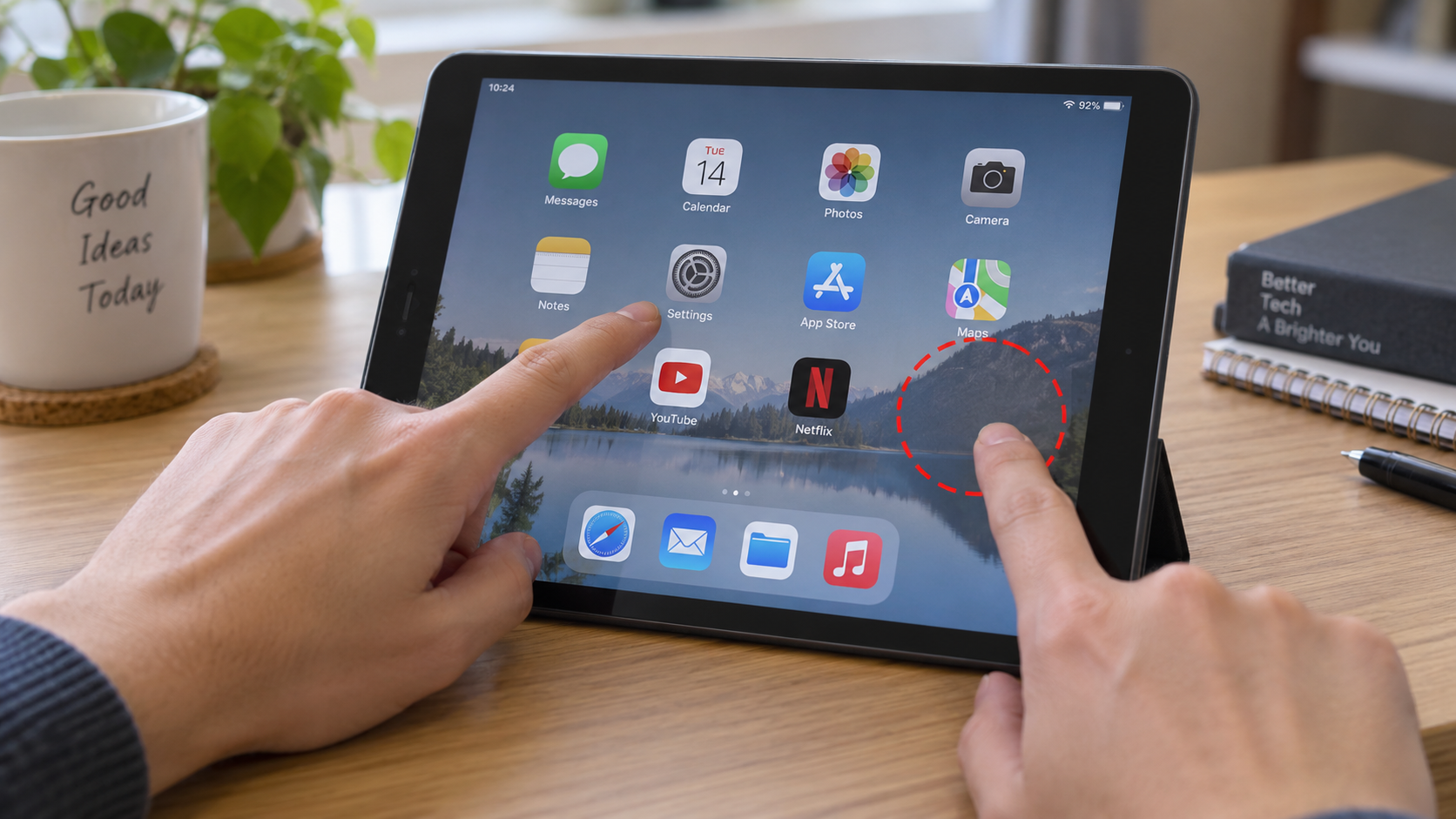
Try tapping different areas of the display using the same finger and roughly the same pressure. If one physical section repeatedly fails while the rest works normally, that pattern is more concerning for a localized touchscreen or hardware issue.
Don’t immediately conclude that the digitizer is damaged, though. A poorly fitted screen protector or another accessory can also interfere with touch recognition in particular areas. Samsung notes that some screen protectors can cause certain areas to recognize touches intermittently.
When touch is slow
Here’s a subtle distinction that can save you from chasing the wrong problem.
If you tap an app and the app itself takes several seconds to open, the touchscreen may not be the problem. The tablet could simply be busy processing another task.
Microsoft specifically distinguishes slow touch experiences from touchscreen failure on Surface devices and notes that perceived performance can depend on the device’s ability to process actions and tasks.
So ask yourself: Does the tablet fail to detect my tap, or does it detect the tap but take a long time to respond?
Those are two different problems.
When the tablet registers touches you didn’t make
This is commonly described as ghost touch or phantom touch.
You may see apps opening by themselves, menus selecting without your input, or random areas of the screen responding.
Before assuming the touchscreen is defective, check for moisture, screen protectors, accessories and possible electronic interference. Samsung identifies moisture, accessories and certain settings among potential touchscreen-related causes, while Microsoft’s Surface guidance also discusses phantom touches and possible interference.
Try These Simple Checks Before Changing Settings
Before touching drivers, recovery modes or factory-reset options, eliminate the easy causes.
1. Restart the tablet
A restart is more useful than it sounds.
Temporary system errors can affect touch response, and restarting gives the operating system a clean start. Samsung recommends restarting Galaxy devices for touchscreen problems related to temporary system errors. Apple also recommends restarting an iPad when its screen is too sensitive or responds intermittently.
If the touchscreen starts working normally immediately after restarting, that’s a useful clue. It doesn’t prove the hardware is healthy forever, but it makes a temporary software problem more plausible.
2. Clean and dry the screen
A touchscreen needs a clean contact surface.
Water, moisture, oil, dirt or other debris can interfere with touch recognition. Samsung specifically advises checking for moisture and wiping the screen with a soft, dry cloth. Apple similarly recommends ensuring the screen is clean and free of debris or water.
Don’t pour or spray cleaner directly onto the tablet.
Instead, follow the cleaning instructions provided by the device manufacturer.
3. Remove the screen protector temporarily
A screen protector is supposed to protect the display—not become the reason you can’t use it.
If touch problems started after installing tempered glass or another protector, remove it temporarily and test the tablet again.
Samsung notes that screen protectors and other attachments can affect touch sensitivity, particularly when they don’t adhere correctly.
If the touchscreen immediately behaves normally after removal, you’ve found an important clue.
4. Remove the case and other accessories
Don’t overlook the case.
A case with a poorly positioned edge, an accessory attached near the display, or another device connected to the tablet can sometimes complicate troubleshooting.
Apple recommends disconnecting Lightning or USB-C accessories and removing cases or screen protectors when an iPad screen responds intermittently.
Try the tablet in its simplest configuration:
Tablet only → clean screen → no case → no screen protector → no unnecessary accessories.
Then test it again.
5. Check whether the charger is involved
If the touchscreen behaves strangely only while charging, pay attention to that pattern.
Try disconnecting the charger and testing the tablet again. On supported devices, Apple recommends disconnecting connected accessories when investigating intermittent touchscreen behavior.
Don’t assume the charger is definitely the cause based on one test. The goal is to identify a repeatable pattern.
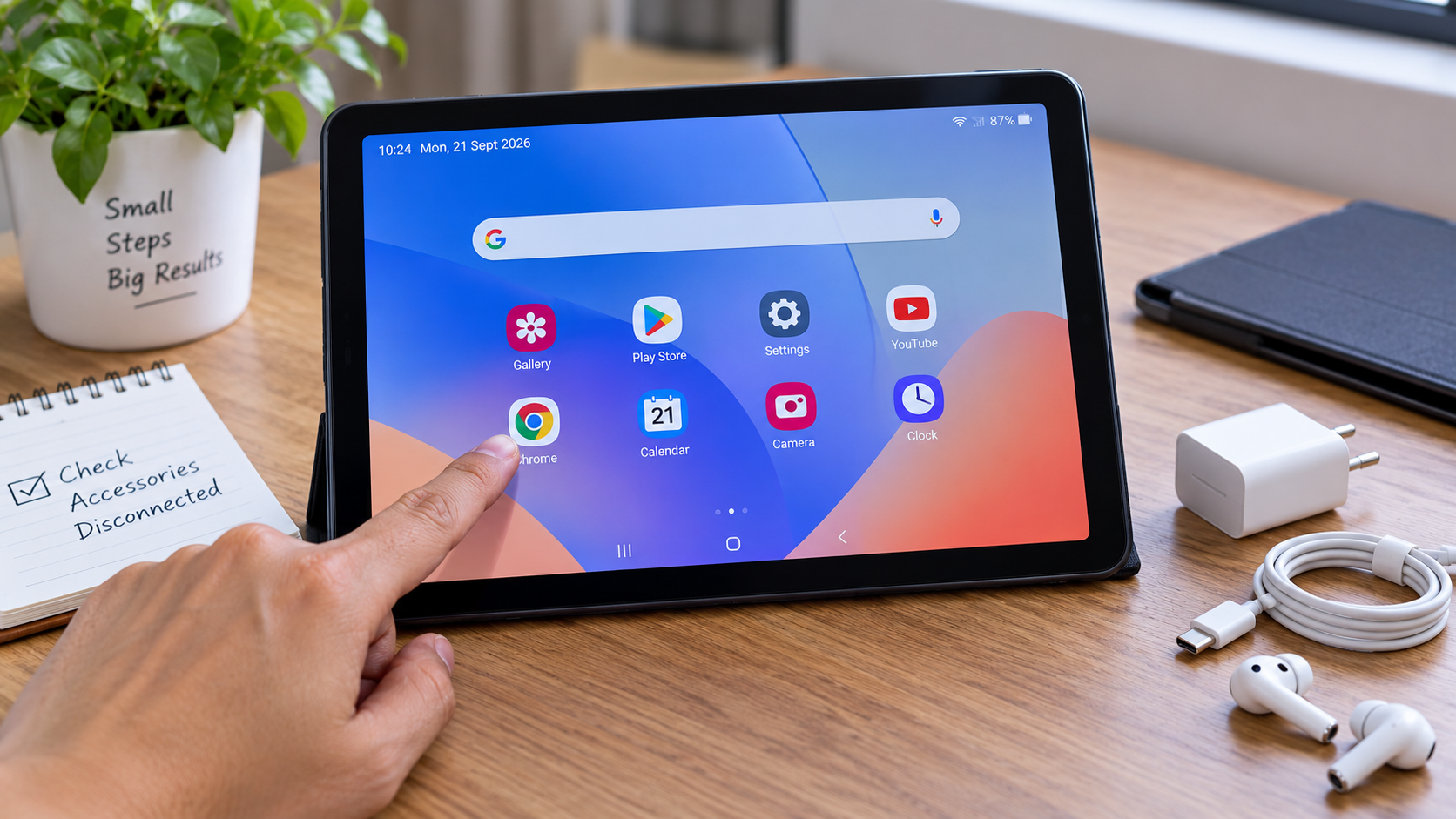
Could a Setting Be Making the Touchscreen Feel Broken?
Sometimes the hardware is fine but the tablet has been configured to respond differently to touch.
This is especially easy to miss because accessibility and touch settings can alter interaction behavior intentionally.
Touch sensitivity settings
Some Android devices include a touch-sensitivity option.
Samsung’s current support documentation says supported Galaxy devices can use Touch sensitivity, particularly when a screen protector is attached. Menu names and availability can vary by model and software version.
The general path on supported Galaxy devices is:
Settings → Display → Touch sensitivity
Don’t assume your tablet has exactly the same menu. Android manufacturers frequently change menu names between models and software versions.
Touch-and-hold behavior
A touchscreen can also feel “slow” when the operating system is waiting for a longer press.
For example, Samsung documents settings related to touch-and-hold delay, tap duration and ignoring repeated touches.
Apple also provides Touch Accommodations on iPad that can change how the device interprets taps, holds and multiple touches.
So if your tablet seems to ignore quick taps but responds to longer touches, check interaction settings before assuming the digitizer is failing.
Accessibility features
Accessibility features are designed to help users interact with their devices. They aren’t defects.
However, if a setting was enabled accidentally, the resulting behavior can be confusing.
Samsung specifically notes that TalkBack can change how touch gestures work. Apple provides several touch accommodations that intentionally modify how the iPad recognizes taps and gestures.
If the touchscreen suddenly seems to require unusual gestures, check accessibility settings.
Could a healthy screen look broken simply because the tablet is interpreting your taps differently? Absolutely.
When the Problem Is Actually Software
Software problems can look remarkably similar to hardware failures.
The easiest clue is often where the problem occurs.
If touch fails only inside one app
Open another app and test:
- Tapping
- Scrolling
- Swiping
- Typing
- Pinch-to-zoom, if supported
If the touchscreen works normally everywhere else, investigate the affected application before blaming the tablet’s display.
The app may have a compatibility problem, corrupted state, outdated version or another software-specific issue.
If touch fails throughout the operating system
If the problem appears on the home screen, settings, browser and multiple apps, the issue is broader.
At this point, check for:
- Available system updates
- Device-specific updates
- Recent software changes
- Accessibility settings
- Manufacturer diagnostics
Samsung currently recommends checking software and related apps for updates when dealing with touchscreen sensitivity issues.
Don’t confuse a slow tablet with a slow touchscreen
Imagine you tap Chrome and the screen registers the tap immediately, but Chrome takes five seconds to appear.
That’s primarily a performance problem, not evidence that the touchscreen itself is slow.
Now imagine you tap the icon repeatedly and nothing happens until several seconds later, even though the rest of the interface is responsive. That’s more suggestive of an input problem.
The distinction isn’t perfect, but it helps you test the right thing.
Windows Tablets: Drivers Can Matter
Windows tablets and 2-in-1 devices add another troubleshooting layer because touchscreen input depends on drivers and firmware.
Microsoft’s Surface troubleshooting documentation specifically includes the touchscreen driver, Windows updates and Surface updates in its recommended troubleshooting process.
On Windows, you can find touchscreen devices through:
Device Manager → Human Interface Devices → HID-compliant touch screen
Microsoft documents this location for enabling or disabling touchscreen functionality.
Microsoft also provides driver-reinstallation instructions for supported Surface devices when touchscreen problems persist.
Important: Driver instructions should be written for the exact Windows device where possible. Do not tell readers to uninstall random drivers simply because they sound related.
Microsoft’s Surface documentation also warns about device-specific exceptions, so readers should follow the instructions for their exact model.
A Useful Software-vs-Hardware Test
One of the best ways to explain touchscreen diagnosis is to stop treating every symptom as equal.
| What happens | What it suggests | What to do next |
|---|---|---|
| Touch returns after restart | Temporary software problem is possible | Monitor and update software |
| Touch fails only in one app | App/software issue is possible | Test another app and update the affected app |
| Protector removal restores touch | Accessory interference is possible | Replace or remove protector |
| Same physical area repeatedly fails | Hardware issue becomes more plausible | Run diagnostics/service |
| Problem started immediately after a drop | Physical damage is possible | Have device inspected |
| Ghost touches continue after cleaning/accessory removal | Further diagnosis needed | Check manufacturer guidance |
| Windows touchscreen works outside Windows but fails inside Windows | Windows/driver issue is more plausible | Check updates and drivers |
| Touch fails even in an independent hardware environment | Hardware issue becomes more likely | Seek service |
For Surface devices, Microsoft provides a particularly useful example: testing touch in UEFI. Because UEFI operates independently of Windows, Microsoft says that touch failure in UEFI points toward a likely hardware failure, while touch working in UEFI suggests investigating Windows or the touchscreen driver.
That principle is useful because it illustrates an important diagnostic idea:
The more independent the test environment, the easier it becomes to separate software problems from hardware problems.
Hardware Factors Behind Tablet Touchscreen Problems
When simple software and accessory checks don’t change anything, hardware becomes more relevant.
Physical screen damage
A cracked display can affect more than what you see.
Depending on the device and the nature of the damage, physical impact can interfere with touch functionality as well.
Samsung’s current display guidance states that physical damage from external impact can cause abnormal device behavior and advises service inspection for damaged displays.
If the touchscreen problem appeared immediately after the tablet was dropped, don’t ignore that timeline.
The digitizer or touch layer
The display you see and the touch system that detects your finger are related but distinct parts of the device assembly.
The digitizer is the touch-sensing layer responsible for detecting input. If the display looks normal but touch consistently fails in a particular region, the touch layer may be involved.
However, a symptom alone isn’t enough to confirm a failed digitizer.
That’s why a good troubleshooting article should say “possible hardware problem” rather than confidently declaring “your digitizer is broken.”
Moisture and liquid exposure
Moisture is another easy cause to overlook.
A tablet doesn’t have to be submerged for moisture to affect normal touch operation. Samsung explicitly lists moisture or water on the screen as a potential cause of touchscreen malfunction.
If the device has been exposed to water, don’t keep pressing the screen repeatedly to “see if it comes back.”
Follow the manufacturer’s guidance for your specific device.
Previous screen replacement
If the touchscreen problem began after a display replacement, mention that history when contacting a repair provider.
Replacement parts, installation quality and device-specific components can all matter. That doesn’t mean every replacement screen causes touch problems; it simply makes the repair history relevant evidence.
Internal hardware faults
Persistent dead zones, inaccurate touch, failed multitouch and repeated ghost touches can eventually require professional inspection.
Opening a tablet is not a sensible next step for most casual users. Modern tablets can be tightly assembled, and an unnecessary repair attempt can create additional damage.
Android, iPad, and Windows Tablets Don’t All Troubleshoot the Same Way
The basic principles are similar, but the tools differ by platform.
Android tablets
For Android devices, start with:
- Restarting
- Cleaning and drying the display
- Removing the protector/case
- Checking touch sensitivity
- Checking accessibility settings
- Installing supported updates
- Running manufacturer diagnostics
On supported Galaxy devices, Samsung Members provides a Touch screen diagnostic option. Samsung’s current instructions direct users through Samsung Members → Support → diagnostics and then the touchscreen test.
Menu names can change between devices and software versions, so don’t treat a screenshot as universal Android instructions.
iPad
Apple’s troubleshooting path includes many of the same basic checks:
- Restart the iPad
- Keep the display clean and dry
- Disconnect connected accessories
- Remove cases and screen protectors
- Seek service if the problem remains
Apple’s current support documentation specifically recommends these steps when an iPhone or iPad screen is too sensitive or responds intermittently.
If the iPad is frozen or completely unresponsive, Apple provides device-specific force-restart procedures.
Windows tablets and 2-in-1s
Windows devices have additional diagnostic options involving:
- Device Manager
- HID-compliant touch screen
- Windows Update
- Manufacturer drivers
- Firmware
- UEFI on supported hardware
Microsoft’s Surface guidance specifically uses UEFI as a way to test whether touch works independently of Windows.
What Not to Do When the Touchscreen Stops Working
Troubleshooting can become counterproductive when frustration takes over.
Don’t press harder
A touchscreen isn’t a physical button.
If a tap isn’t registering, pressing harder isn’t a reliable diagnostic method and can put unnecessary pressure on a damaged display.
Don’t use sharp objects
Don’t stab, scratch or repeatedly tap the screen with pens, keys or other objects to test it.
Samsung specifically warns against using other objects, including sharp objects, to interact with a touchscreen.
Don’t spray liquid directly onto the display
Use the manufacturer’s recommended cleaning method. Microsoft also advises against applying liquids directly to the screen in its display troubleshooting guidance.
Don’t factory-reset immediately
A factory reset can erase data and is rarely the smartest first move.
Try simpler diagnostics first. If a reset eventually becomes appropriate, make sure important data is backed up and follow the manufacturer’s instructions.
For Surface devices, Microsoft places reset after earlier troubleshooting steps such as UEFI testing, driver troubleshooting and updates.
Don’t buy a replacement screen before diagnosing the problem
This is perhaps the most expensive mistake.
If a $10 accessory is causing the issue, replacing a display doesn’t solve the underlying problem.
Diagnosis should come before replacement.
When Should You Stop Troubleshooting?
There is a point where more experimentation isn’t useful.
Consider professional service if:
- The entire touchscreen remains unresponsive.
- A specific section consistently has a dead zone.
- Ghost touches continue after basic checks.
- The device has visible physical damage.
- The touchscreen problem began after significant impact.
- Liquid exposure is suspected.
- Manufacturer diagnostics report a touchscreen problem.
- Supported software troubleshooting doesn’t resolve the issue.
Samsung advises service inspection when physical damage is involved, while Microsoft says persistent Surface touchscreen problems after troubleshooting may require service.
If your tablet contains important work files, photographs or documents, back up your data before any reset or repair procedure whenever the device still allows you to do so.
DIY Touchscreen Troubleshooting: Pros and Cons
Pros
- Basic checks cost little or nothing.
- A restart can resolve temporary system issues.
- Removing a protector can quickly identify an accessory problem.
- Settings checks can solve altered touch behavior.
- Manufacturer diagnostics can provide useful evidence before service.
- Troubleshooting can prevent unnecessary hardware replacement.
Cons
- Similar symptoms can have very different causes.
- Some hardware faults cannot be confirmed safely at home.
- Advanced driver changes require care.
- A factory reset can create data-loss risks if performed without a backup.
- Opening the tablet can cause additional damage.
- Manufacturer diagnostic options vary by device.
The biggest benefit of DIY troubleshooting is therefore diagnosis, not guaranteed repair.
A Practical Tablet Touchscreen Troubleshooting Checklist
If you’re standing in front of a tablet that suddenly won’t cooperate, work through this list in order:
- Restart the tablet.
- Clean and dry the screen.
- Remove the case temporarily.
- Remove the screen protector temporarily.
- Disconnect unnecessary accessories and chargers.
- Check whether the problem occurs everywhere or only in one app.
- Test another app.
- Check touch-sensitivity settings.
- Review accessibility and touch-interaction settings.
- Install supported operating-system updates.
- Run the manufacturer’s touchscreen diagnostic if available.
- If you’re using Windows, check the touchscreen driver and relevant device updates.
- Look for physical damage or a consistent dead zone.
- Back up important data if possible.
- Seek professional service if the problem persists.
This sequence moves from low-risk checks toward more advanced diagnosis without assuming that the first symptom automatically means a broken screen.
Frequently Asked Questions
Why is my tablet touchscreen not responding?
A tablet touchscreen may stop responding because of a temporary software problem, moisture, a screen protector or case, accessibility settings, an accessory, a driver problem on Windows devices, or physical hardware damage. Start with a restart, clean and dry the screen, remove accessories, and test whether the problem occurs across the entire device.
How do I fix a tablet touchscreen that isn’t working?
Start with basic checks rather than immediately resetting or repairing the tablet. Restart it, clean and dry the screen, remove the case and screen protector, disconnect accessories, test another app, check touch-related settings, install supported updates, and use the manufacturer’s diagnostic tools if available.
Why does only part of my tablet screen respond to touch?
A localized dead area can be caused by an accessory or screen protector, but persistent failure in the same physical area can also indicate a hardware-related problem. Test the screen without the protector and case before assuming the digitizer or display assembly needs replacement.
Can a screen protector cause tablet touch problems?
Yes. A screen protector can affect touch sensitivity or recognition on some devices, particularly if it does not adhere correctly or isn’t compatible with the device. Samsung specifically identifies screen protectors and attachments as possible contributors to intermittent or reduced touch response.
How can I tell if my tablet touchscreen is damaged?
Look for persistent symptoms such as a consistent dead zone, inaccurate touch, repeated ghost touches or a touchscreen that remains unresponsive after basic software and accessory checks. A symptom alone cannot conclusively identify a damaged digitizer. Manufacturer diagnostics or professional inspection can provide stronger evidence.
Should I factory-reset a tablet if the touchscreen isn’t working?
Usually, a factory reset shouldn’t be your first troubleshooting step. Try restarting, cleaning the screen, removing accessories, checking settings and updates, and running available diagnostics first. If a reset becomes necessary, back up important data beforehand and follow the manufacturer’s instructions.
Conclusion
A broken-looking touchscreen doesn’t always mean a broken touchscreen.
Tablet touchscreen problems can begin with something as simple as moisture or a poorly fitted screen protector, or they can point to software, accessibility settings, drivers or physical hardware damage. The trick is to look at the pattern rather than jumping straight to the most expensive explanation.
Start with the basics: restart the tablet, clean and dry the display, remove accessories, and test whether the problem occurs everywhere. Then move into settings, updates and manufacturer diagnostics. Windows tablets may require additional driver or UEFI checks, while Android and iPad devices have their own manufacturer-specific troubleshooting tools.
And if the same part of the screen keeps failing, ghost touches continue, or the device has suffered physical or liquid damage, that’s the point to stop experimenting and consider professional service.
A few minutes of structured troubleshooting can tell you far more than repeatedly tapping a screen and hoping it suddenly changes its mind.