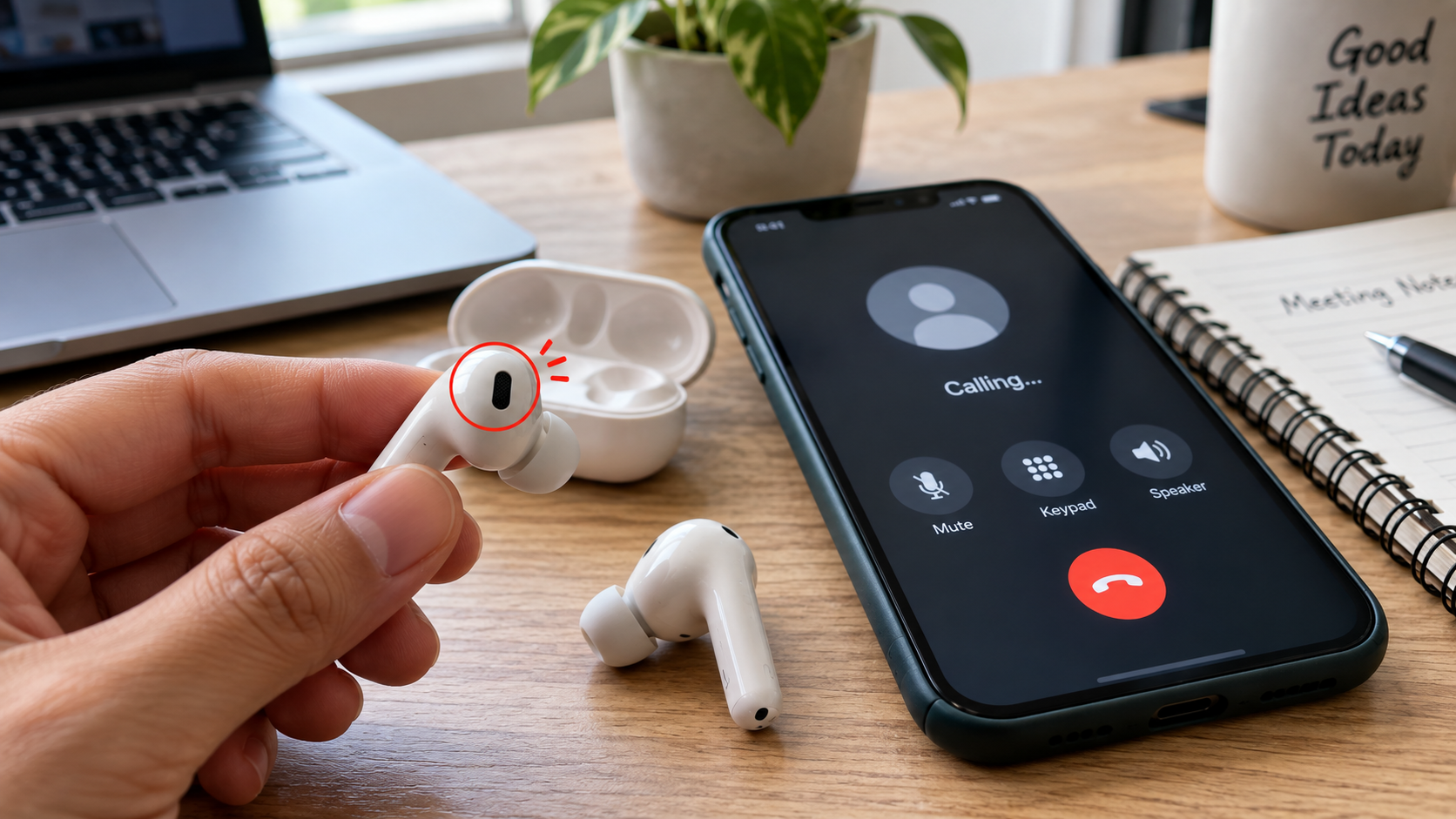
There is a particularly annoying kind of earbud problem: your music sounds perfectly fine, but the moment you join a call, your voice suddenly sounds distant, muffled, robotic, or barely audible. That does not automatically mean the microphone inside your earbuds has failed.
Earbud microphone problems can come from several different places, including Bluetooth audio profiles, microphone permissions, incorrect audio routing, voice-processing systems, connection issues, firmware, or the microphone hardware itself.
The confusing part is that several of these problems can produce almost the same symptom.
A useful way to troubleshoot them is to stop asking only, “Is my earbud microphone broken?” Instead, ask: Where in the audio chain is the problem happening?
That chain can involve the earbud microphone, voice processing, Bluetooth communication, your phone or computer, operating-system permissions, and finally the app handling your call.
Quick answer: Why does my earbud microphone sound bad?
Earbud microphone problems do not always indicate defective hardware. The most common areas to investigate are:
- Bluetooth communication profiles
- Microphone permissions
- The selected input device
- App-specific audio settings
- Noise suppression and other voice processing
- Bluetooth connection quality
- Multipoint connections
- Earbud firmware
- Physical microphone blockage or damage
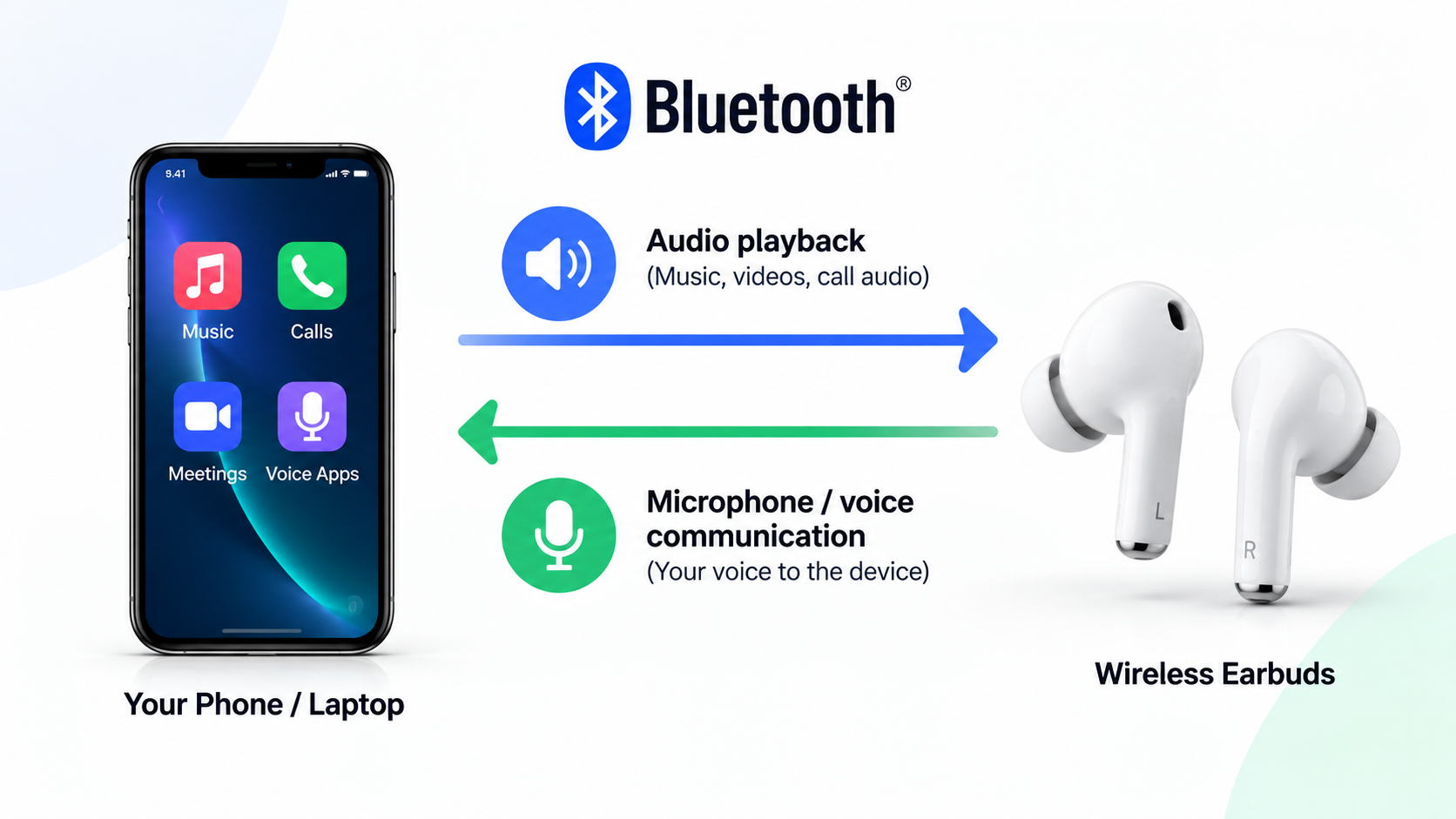
Bluetooth itself supports different profiles for different audio purposes. The Bluetooth SIG describes A2DP as a profile for high-quality audio distribution, while HFP is designed for hands-free communication and voice connections.
That distinction helps explain one of the strangest things about wireless earbuds: music playback can sound good while microphone-based communication behaves differently.
Why do earbuds sound good for music but bad on calls?
This is where many people understandably assume something has gone wrong with the microphone.
You listen to Spotify or YouTube and everything sounds normal. Then you open a meeting app, make a call, or start recording your voice. Suddenly the audio changes.
On compatible systems, using the built-in microphone can cause Bluetooth headphones to switch into a different communication mode. Apple explicitly documents this behavior on Mac: when an app starts using a Bluetooth headphone’s microphone, audio quality and volume can be reduced because Bluetooth switches from a higher-quality listening mode to a mode that supports speaking and listening at the same time.
So there are really two different jobs happening:
Listening:
Your device sends audio to the earbuds.
Two-way communication:
Your device receives microphone audio from the earbuds while also sending audio back to them.
Those requirements are not identical.
Listening and talking are different Bluetooth jobs
The Advanced Audio Distribution Profile, or A2DP, is designed around high-quality audio distribution. The Hands-Free Profile, or HFP, supports hands-free functionality and voice connections between a phone and a hands-free device such as a headset.
That does not mean every modern earbud behaves in exactly the same way, nor does it mean that HFP alone explains every microphone-quality problem.
It simply gives us an important piece of the puzzle.
Why does starting a call change the audio?
When an application needs microphone input, the operating system has to establish a two-way audio path.
That can change the Bluetooth audio behavior.
Apple’s current Mac support documentation gives a practical example: when the built-in microphone on Bluetooth headphones is being used, audio quality can be reduced until microphone use stops.
So if your complaint is:
“My music sounds excellent until I open a meeting app.”
that is a different troubleshooting situation from:
“Nobody can hear me even in a simple voice recording.”
The first points toward communication-mode behavior and audio routing. The second requires broader troubleshooting.
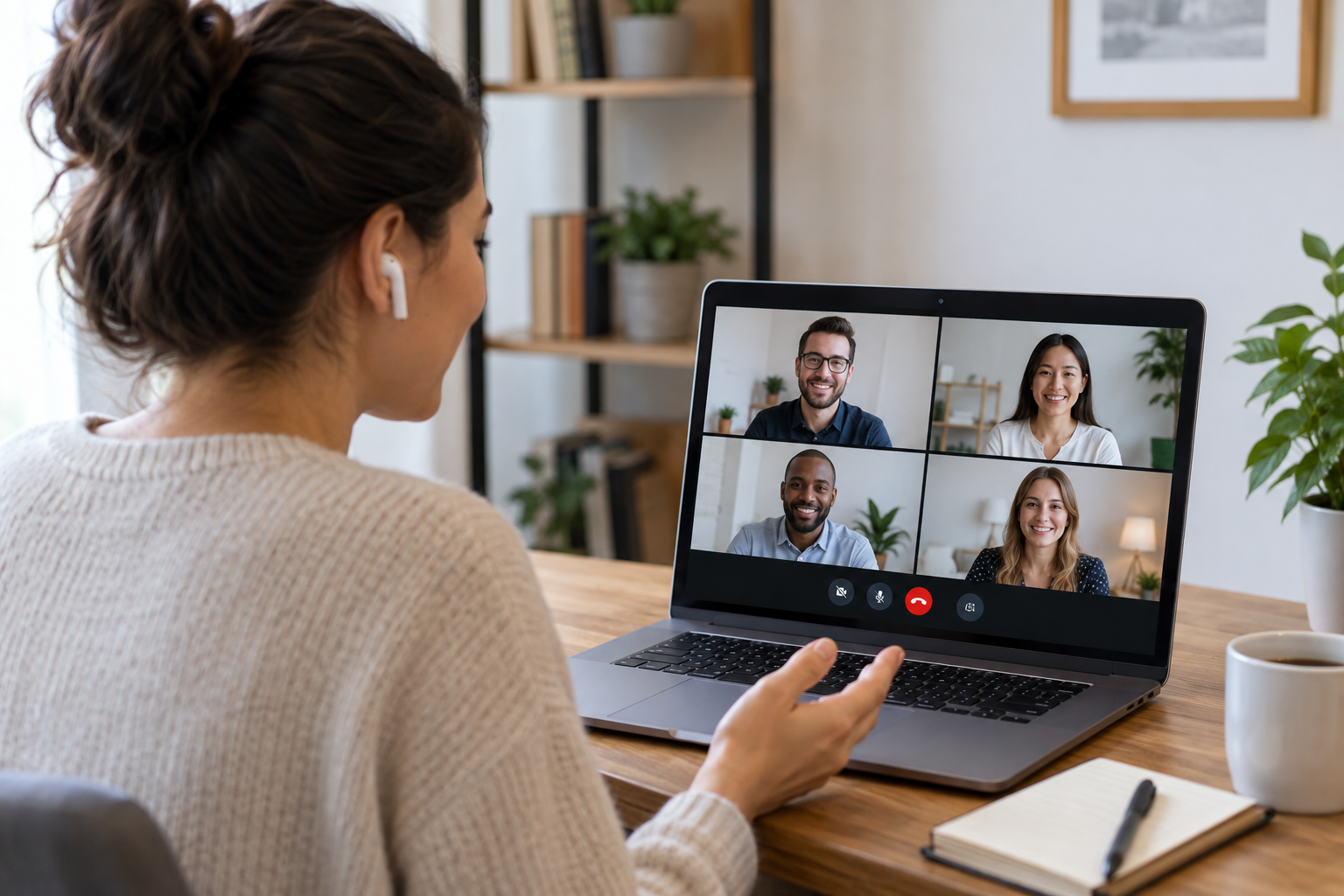
Bluetooth profiles can change the microphone experience
Bluetooth profiles are essentially sets of rules that allow Bluetooth devices to perform particular functions.
For this topic, three names are especially useful: A2DP, HFP, and HSP.
| Bluetooth profile | Main purpose | Relevance to earbuds |
|---|---|---|
| A2DP | High-quality audio distribution | Primarily associated with music and other playback |
| HFP | Hands-free communication and voice connections | Important for calls and microphone-based communication |
| HSP | Headset communication | Older/basic headset profile |
| LE Audio | Newer Bluetooth audio architecture | Can provide different capabilities on supported devices |
The Bluetooth SIG currently lists A2DP and HFP among Bluetooth profiles and continues to publish specifications for the Bluetooth ecosystem.
What A2DP does
A2DP is designed for Bluetooth audio distribution. The Bluetooth SIG describes it as defining requirements for Bluetooth devices supporting high-quality audio distribution.
In practical terms, think about music, podcasts and other playback.
What HFP does
HFP is designed for hands-free communication. The Bluetooth SIG’s current HFP specification describes voice connections between a mobile phone and a hands-free device.
This is much closer to the use case where your earbud microphone becomes part of the communication path.
What about HSP?
HSP, or Headset Profile, is an older Bluetooth headset profile. It is useful to know about historically, but modern troubleshooting shouldn’t assume that every contemporary earbud is relying on HSP.
The Bluetooth SIG’s assigned-numbers documentation identifies HSP separately from HFP.
The important point
Don’t reduce the entire problem to:
“Bluetooth microphone quality is bad because of HFP.”
That’s too simplistic.
The actual experience can depend on the device, operating system, Bluetooth implementation, application, supported profiles, codecs, voice processing and hardware.
Bluetooth profiles help explain the behavior; they are not a complete diagnosis.
The codec is not the whole story
Bluetooth discussions often become a list of codec names: SBC, AAC, aptX and others.
Codecs matter, but choosing a codec is not a universal solution to an earbud microphone problem.
A codec is concerned with how audio is encoded and transmitted. The microphone experience also depends on the communication profile, operating system, Bluetooth implementation, application and voice-processing pipeline.
This distinction matters because someone can spend time changing Bluetooth codec settings while the actual problem is simply that:
- The wrong microphone is selected.
- The application lacks permission.
- The earbuds are connected to another device.
- The communication mode is behaving differently.
- A voice-processing system is altering the recording.
- The microphone opening is blocked.
So if your earbud microphone sounds bad, don’t jump straight to codec settings.
Diagnose the audio path first.
Noise processing can make a good microphone sound strange
Your earbud microphone does not necessarily send completely untouched microphone audio to the other person.
Modern communication systems can process voice to make speech easier to understand in noisy environments.
That processing can include:
- Noise suppression
- Echo cancellation
- Automatic gain control
- Voice activity detection
- Other manufacturer-specific speech-processing techniques
The goal is generally useful: reduce unwanted sound and make speech more understandable.
But processing can also change how your voice sounds.
Noise suppression
Imagine you’re speaking while a ceiling fan, keyboard, road traffic or air conditioner is running.
A voice-processing system may try to reduce those sounds.
When it works well, the other person hears more of your voice and less background noise.
When processing becomes aggressive, speech can sometimes sound:
- Thin
- Muffled
- Metallic
- Choppy
- Artificial
- Like parts of words are disappearing
That does not necessarily mean the physical microphone is damaged.
Echo cancellation
During a call, your device may be playing another person’s voice while your microphone is also capturing sound.
Echo cancellation is designed to help prevent the other person’s voice from being sent back to them.
This is another reason voice communication involves more processing than simply recording audio.
Automatic gain control
If your voice is quiet, the system may increase the microphone level. If you speak loudly, it may reduce the level.
That can be useful, but the resulting recording may not sound identical to a raw microphone recording.
When should you suspect voice processing?
If your voice is understandable in a quiet room but becomes strange in a noisy environment, processing deserves attention.
A simple experiment can help:
Record the same sentence in a quiet room and then in a noisy environment.
If the character of your voice changes dramatically, compare the behavior across another app or device before deciding that the microphone hardware is defective.
Before blaming the earbuds, check microphone permissions
Sometimes the microphone isn’t broken.
The application simply isn’t allowed to use it.
Android, Windows and macOS all provide microphone-access controls, although the exact menus depend on the platform and version.
Android microphone permissions
Android treats the microphone as a permission that apps can request. Google’s current documentation identifies Microphone as the permission that allows an app to record audio.
A typical path is:
Settings → Apps → Select the app → Permissions → Microphone
The exact wording can differ between manufacturers and Android versions.
Also check the system-wide microphone control if your device provides one.
iPhone and iPad microphone access
On Apple’s platforms, an application must have appropriate access to microphone input.
If an app cannot record or transmit your voice, check its microphone permission before troubleshooting the Bluetooth hardware.
The exact settings location can vary between operating-system versions, so use a current screenshot rather than publishing an old menu path.
Windows microphone permissions
Windows provides system and app-level microphone controls.
Microsoft currently instructs Windows 11 users to check:
Start → Settings → Privacy & security → Microphone
From there, microphone access and app access can be controlled. Microsoft also notes that desktop apps have a separate setting for microphone access.
macOS microphone permissions
On current macOS versions, Apple says to go to:
Apple menu → System Settings → Privacy & Security → Microphone
Then enable microphone access for the application that needs it.
Apple also recommends checking microphone permissions when an application cannot record audio from an external source.
Your device may be using the wrong microphone
This is one of the easiest problems to overlook.
Your earbuds can be connected while your phone or computer is still using another microphone.
For example, a laptop may have:
- Internal microphone
- Bluetooth earbud microphone
- USB microphone
- Webcam microphone
A meeting application can also have its own input-device setting.
So “Bluetooth earbuds connected” does not automatically mean:
“This app is definitely using the earbud microphone.”
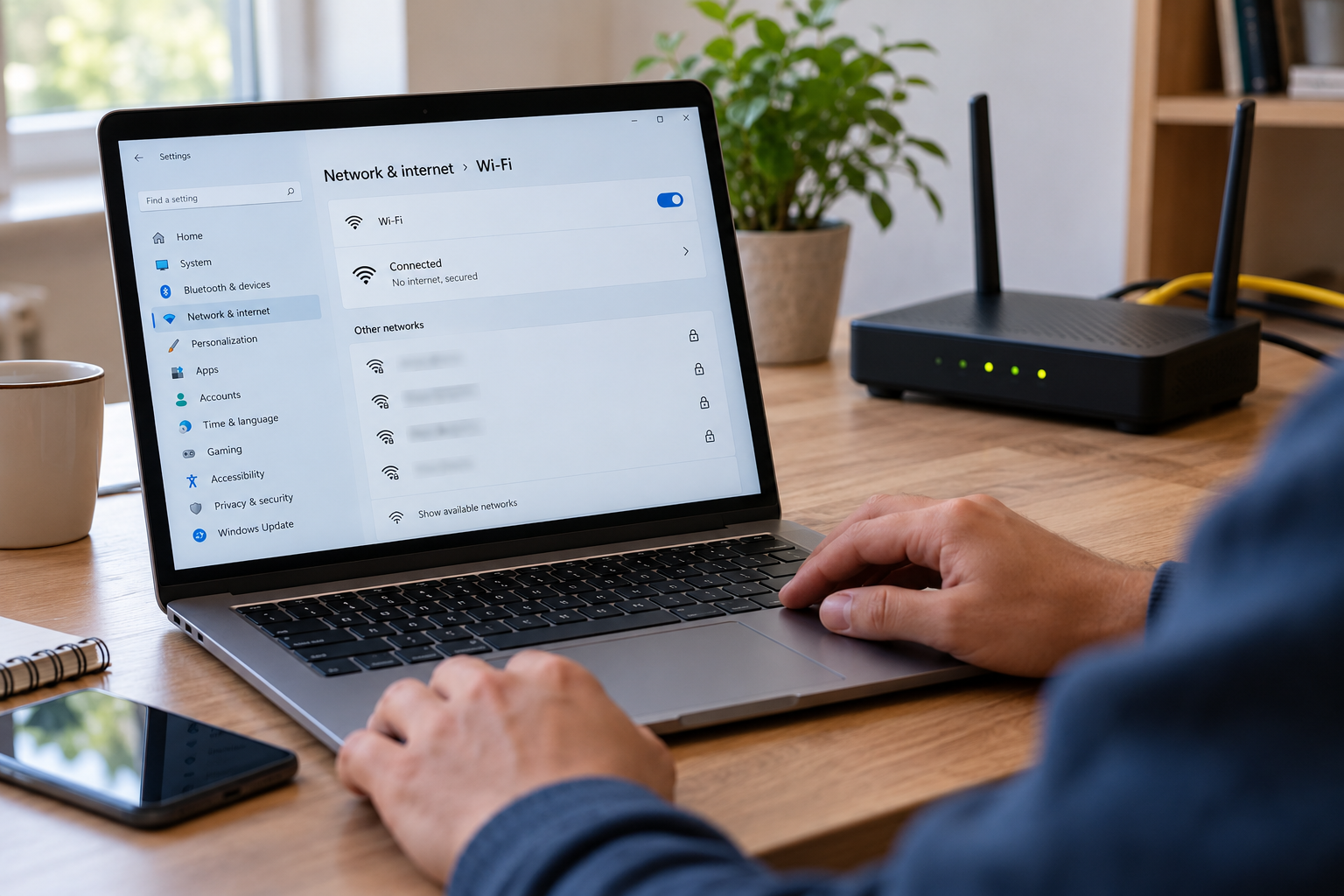
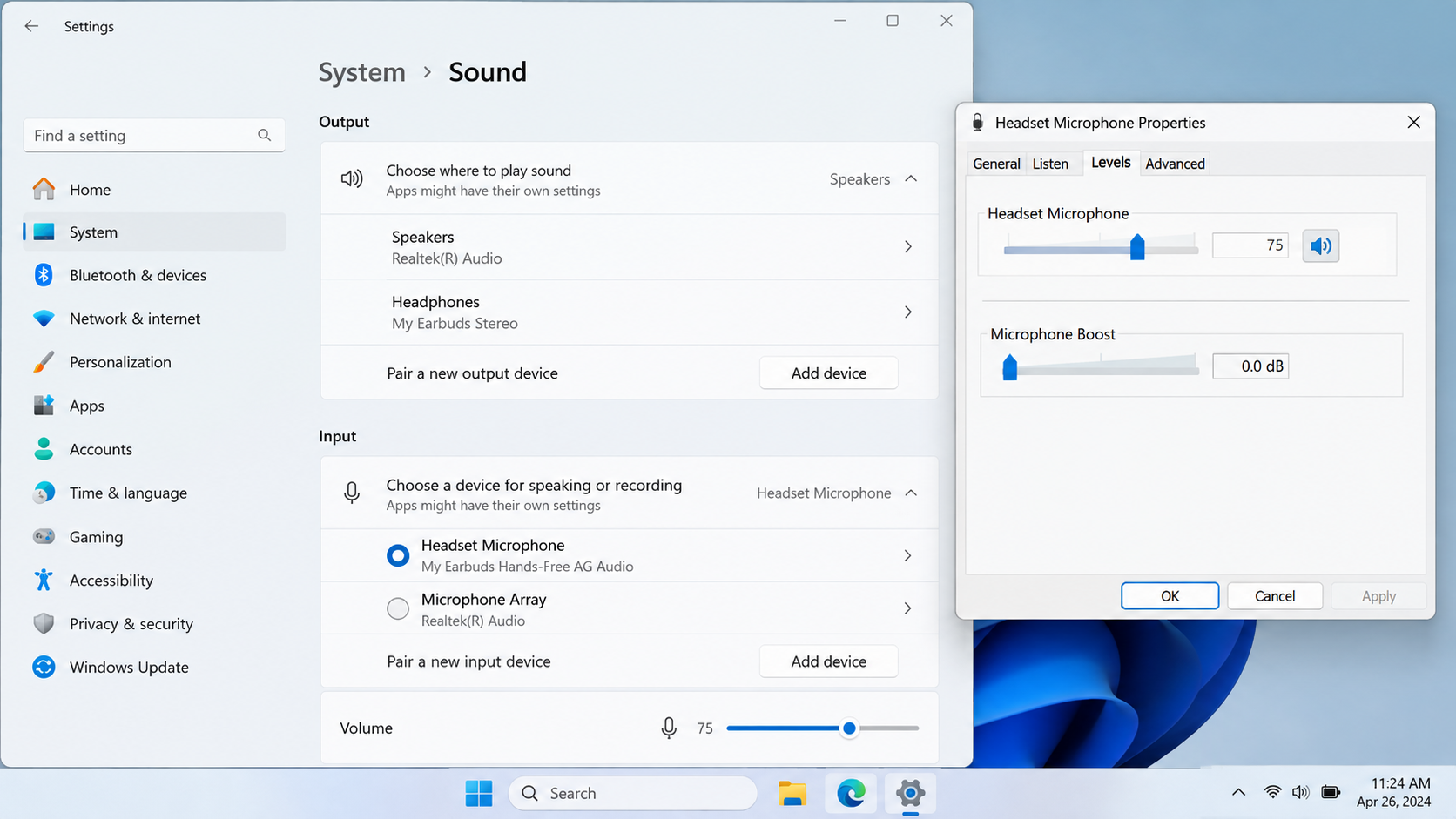
On Windows, check the input device
Microsoft’s current microphone troubleshooting guidance tells Windows 11 users to go to:
Settings → System → Sound → Input
and select the device they want to use for speaking or recording. Windows also provides a microphone test from the device properties.
Check the app too
Meeting and chat applications can provide their own microphone selectors.
If your system says the earbuds are connected but the application has “Internal Microphone” selected, the application may continue using the computer’s built-in mic.
This is why troubleshooting should happen at two levels:
Operating system → Application
Not just:
Bluetooth settings → Earbuds
Connection problems can affect microphone behavior
Not every bad microphone experience is caused by a profile or permission.
Sometimes the connection itself needs attention.
Possible factors include:
- Bluetooth connection instability
- Distance from the phone or computer
- Physical obstacles
- Wireless interference
- Multipoint connections
- Another connected device
- Firmware problems
- Device compatibility
- A partially completed pairing
Don’t assume every drop-out is caused by interference, though. Test the behavior before deciding.
Try a clean connection
A useful troubleshooting sequence is:
- Disconnect the earbuds.
- Turn Bluetooth off and back on.
- Reconnect the earbuds.
- Close unnecessary communication apps.
- Test the microphone again.
- If the problem continues, forget/remove the earbuds from Bluetooth settings and pair them again.
If your earbuds support multipoint, temporarily disconnecting them from the second device can also be useful.
The goal is to remove extra variables.
A four-test diagnosis can save you a lot of guessing
Instead of changing ten settings at once, test the microphone systematically.
Test 1: Make a local voice recording
Connect your earbuds and open a recording application.
Say the same sentence for 10–15 seconds.
Listen to the recording.
If the recording already sounds bad, the issue may be below the communication app level.
Test 2: Make a normal phone or voice call
Now make a call and ask the other person how your voice sounds.
If the local recording is good but the call is poor, the communication path deserves more attention.
Test 3: Try another application
Test another calling or recording application.
If one app works and another doesn’t, investigate the problematic app’s microphone permission and input-device settings.
Test 4: Try another device
This is one of the most useful tests.
Connect the same earbuds to another compatible phone or computer and repeat the test.
If the microphone works normally there, the original device or its software configuration becomes a more likely place to investigate.
If it behaves badly everywhere, the earbuds themselves deserve closer inspection.
What do the results suggest?
| What happens | What to investigate first |
|---|---|
| Microphone fails everywhere | Earbud hardware, firmware or connection |
| Works on phone but not computer | Computer audio routing, permissions or drivers |
| Works in recorder but not meeting app | App permissions or input selection |
| Works in quiet room but struggles in noise | Voice processing and environment |
| Problems begin when another device connects | Multipoint or connection management |
| Only one earbud behaves badly | Physical microphone, individual earbud connection or firmware |
These are diagnostic clues, not guaranteed diagnoses. Several causes can produce similar symptoms.
How to fix common earbud microphone problems
Once you know where the problem appears, the solution becomes much more targeted.
If nobody can hear you at all
Start with the basics:
- Confirm the earbuds are connected.
- Check microphone permissions.
- Confirm the earbuds are selected as the input device.
- Check the application’s microphone setting.
- Disconnect and reconnect the earbuds.
- Test with a recording app.
- Test with another device.
If Windows is involved, Microsoft’s troubleshooting guidance specifically recommends checking the headset connection, selecting the correct recording device and testing the microphone from Sound settings.
If your voice sounds muffled
Check:
- Whether the microphone opening is blocked
- Earbud positioning
- Whether noise processing is heavily altering your voice
- Whether the problem occurs in every app
- Whether the same thing happens on another device
- Whether the earbuds need a firmware update
Don’t immediately assume the Bluetooth codec is responsible.
If your voice sounds robotic or cuts out
Look at:
- Bluetooth connection stability
- Multipoint connections
- App-specific behavior
- Device compatibility
- Distance from the connected device
- Firmware/software updates
Try a clean connection with only one device paired or actively connected.
If only one earbud microphone seems bad
This points toward a narrower set of possibilities.
Inspect the microphone openings for dirt or blockage and test each bud according to the manufacturer’s supported configuration.
Then check whether the same behavior occurs on another device.
If one physical earbud consistently produces the problem across multiple devices and applications, hardware or firmware becomes more relevant.
Don’t poke the microphone opening with a sharp object while cleaning it. Follow the manufacturer’s cleaning instructions instead.
“My earbuds support Bluetooth 5.x, so the microphone should be excellent.”
Bluetooth version numbers do not tell the whole story about microphone performance.
The Bluetooth SIG separately identifies core versions and profiles such as A2DP and HFP.
A newer Bluetooth core version does not automatically guarantee superior microphone quality.
“A better codec will fix everything.”
Not necessarily.
The codec is only one part of the audio system. Permissions, routing, profiles, processing and hardware can all matter.
“Noise cancellation always makes calls better.”
Noise-processing systems can be helpful, but the result depends on the implementation and environment.
A microphone may sound natural in a quiet room and noticeably different in strong wind or background noise.
“Music sounds perfect, so the Bluetooth connection can’t be the problem.”
Music playback and microphone communication are different use cases.
A Bluetooth system can behave differently once microphone input is active. Apple documents exactly this kind of mode change for Bluetooth headphones on Mac.
“One app can’t hear me, so my earbuds are broken.”
That’s one of the easiest conclusions to get wrong.
Check the app’s microphone permission and selected input device first.
When should you actually consider replacing the earbuds?
Replacement should generally be the last step, not the first troubleshooting step.
Consider investigating the earbuds themselves more seriously when:
- The microphone fails across multiple compatible devices.
- Multiple applications show the same problem.
- Microphone permissions are correct.
- The correct input device is selected.
- Re-pairing doesn’t change anything.
- Firmware/software is current.
- The microphone opening appears physically damaged.
- The problem affects one earbud consistently.
At that point, compare the behavior against the manufacturer’s support information or warranty terms.
If the microphone works correctly on another device, replacing the earbuds may not address the actual problem. The original phone, computer, application or configuration may be responsible.
Pros and considerations of Bluetooth earbud microphones
Bluetooth microphones are useful precisely because they remove cables from everyday communication. But their performance depends on a larger system than the microphone capsule itself.
Pros
- Wireless convenience: No cable is needed between your earbuds and phone or computer.
- Hands-free calls: You can talk while keeping your device nearby.
- Compact design: The microphone is integrated into a small wearable device.
- Voice processing: Modern earbuds and communication systems can use processing to reduce unwanted background sound.
- Multi-device flexibility: Compatible earbuds can work with phones, tablets and computers.
Considerations
- Audio behavior can change during microphone use: Communication can involve a different Bluetooth audio path from normal playback.
- Software matters: Permissions and input selection can prevent a functioning microphone from being used.
- Voice processing changes the sound: Noise suppression and related processing can sometimes make speech sound different.
- Computer audio routing can be confusing: Multiple microphones and applications may compete for input.
- Multipoint adds complexity: Connecting to more than one device can introduce another variable when troubleshooting.
The key takeaway is simple: a Bluetooth earbud microphone is part of a system, not an isolated component.
A simple troubleshooting order to remember
If you want the shortest practical checklist, use this order:
1. Check permissions.
Can the application access the microphone?
2. Check the input device.
Is the application actually using the earbuds’ microphone?
3. Make a local recording.
Does the microphone work outside the calling app?
4. Test another application.
Does the problem follow you?
5. Test another device.
Does the same pair of earbuds behave differently?
6. Reconnect or re-pair.
Remove unnecessary connection variables.
7. Check firmware and physical condition.
Only after the software and connection checks.
This order is more useful than randomly changing Bluetooth settings because every test eliminates a different category of possible causes.
Frequently asked questions
Why is my Bluetooth earbud microphone so bad?
A poor Bluetooth earbud microphone can result from several causes, including communication-mode behavior, microphone permissions, incorrect input selection, aggressive voice processing, connection problems or physical microphone issues. Test the earbuds in a local recording and on another device before assuming the hardware is defective.
Why do my earbuds sound good for music but bad on calls?
Music playback and two-way communication can use different Bluetooth audio paths. A2DP is designed for high-quality audio distribution, while HFP supports hands-free communication and voice connections.
On Mac, Apple specifically documents that audio quality can decrease when an application starts using a Bluetooth headphone’s built-in microphone.
Why does my earbud microphone sound muffled?
Possible causes include aggressive noise processing, microphone blockage, positioning, input-level behavior, Bluetooth communication conditions or application-specific processing. Try a quiet-room recording and compare it with another application or device.
Why isn’t my Bluetooth earbud microphone working on Windows?
First check whether Windows has microphone access enabled, then confirm that the earbuds are selected under Settings → System → Sound → Input. Also check whether the calling application has access to the microphone. Microsoft provides both microphone permission controls and a microphone test in Windows Sound settings.
Can Bluetooth profiles affect microphone quality?
Yes, Bluetooth profiles define different audio capabilities. A2DP is associated with high-quality audio distribution, while HFP supports hands-free communication and voice connections.
However, profile behavior is only one part of microphone performance. The device, operating system, application, codec, processing and hardware can also affect the result.
Does noise cancellation affect earbud microphone quality?
Noise-processing systems can change how your voice sounds because they process the microphone signal and surrounding sound. They can help reduce background noise, but aggressive processing may also make speech sound less natural. The best way to determine whether processing is involved is to compare recordings in different environments and, where possible, across devices or applications.
Conclusion
Earbud microphone problems are rarely as simple as “the microphone is bad.”
The microphone is only one part of the path between your voice and the person listening. Bluetooth profiles determine how devices communicate, operating systems control microphone access, applications choose input devices, and voice-processing systems can reshape the sound before it reaches the other person.
That’s why the most useful troubleshooting approach is not to change everything at once.
Start with the basics: permissions, input selection, a local recording, another application and another device. Those tests can quickly tell you whether you’re dealing with an app setting, operating-system configuration, Bluetooth behavior or something more specific to the earbuds.
And if your earbuds sound great for music but suddenly sound different when the microphone turns on, don’t assume they have failed. That change can be a normal consequence of how Bluetooth handles two-way communication on the particular device and software combination you’re using.