
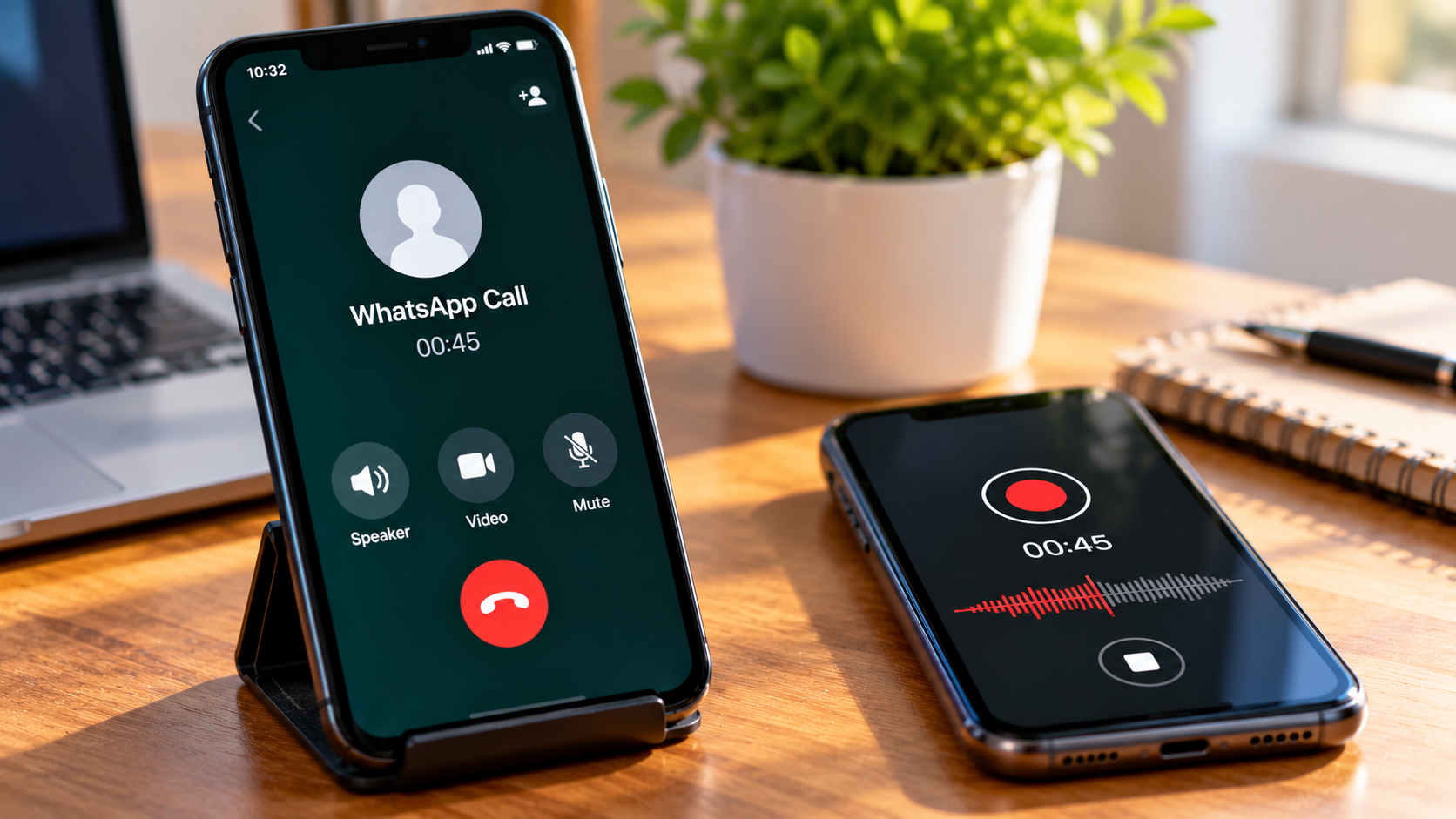
If you want to save a conversation for meeting notes, an interview, a class discussion or personal reference, there are practical options worth checking. The key is to test your chosen method before relying on it.
Quick answer: Can you record WhatsApp calls?
Yes, it may be possible to capture a WhatsApp call using a phone’s recording features or another recording device. However, screen recording does not guarantee that both participants’ voices will be saved.
Here is the practical difference between the available approaches:
| Recording method | What it may capture | Main limitation |
|---|---|---|
| Android screen recorder | Screen video and supported audio sources | Some phones block call audio |
| iPhone screen recorder | Screen activity and supported microphone input | WhatsApp call audio may be unavailable |
| Second phone or recorder | Sound played through the first phone’s speaker | Background noise and reduced audio quality |
| Third-party recording app | Depends on the app and supported recording method | Compatibility and privacy concerns |
| Official cellular call recording | Ordinary phone calls on supported devices | Does not automatically record WhatsApp calls |
For example, Google’s Phone app offers call recording on certain supported devices and in eligible regions, but that feature is for calls handled by the Phone app. It should not be confused with recording a WhatsApp internet call.
Before choosing a method, ask yourself one question: Do you need a video of the call, or do you need an audio file containing both voices? Those are different requirements, and the distinction determines which method is worth trying.
How to Record WhatsApp Calls on Android
Android phones have built-in screen-recording tools, but their capabilities differ by manufacturer, operating-system version and audio-capture restrictions. Start with the recorder already available on your phone before installing another application.
Method 1: Try your phone’s built-in screen recorder
The built-in recorder is a sensible first option because it does not require downloading an unfamiliar app. It may capture the screen and certain audio sources, but you must verify whether it records WhatsApp call audio on your particular device.
Follow these steps:
-
Check the recording controls. Open your phone’s Quick Settings panel by swiping down from the top of the screen. On some phones, you may need to swipe down twice.
-
Find Screen Record or Screen Recorder. If the control is not visible, look for an edit button to add it, or check your phone manufacturer’s instructions.
-
Review the available audio options. Depending on the device, you may see choices such as microphone audio, device audio or media sounds. These labels do not guarantee that WhatsApp call audio is available for capture.
-
Obtain the other participant’s agreement. Explain that you intend to record and wait for their consent before proceeding.
-
Start a short test call. Connect the WhatsApp call and start recording if the device permits it. Keep the call on speaker if you are testing microphone-based capture.
-
Stop and play back the recording. Check whether the video, your voice and the other person’s voice are present.
-
Repeat only if necessary. If the recording is silent or incomplete, check the device’s supported audio options rather than assuming that changing a setting will bypass a system restriction.
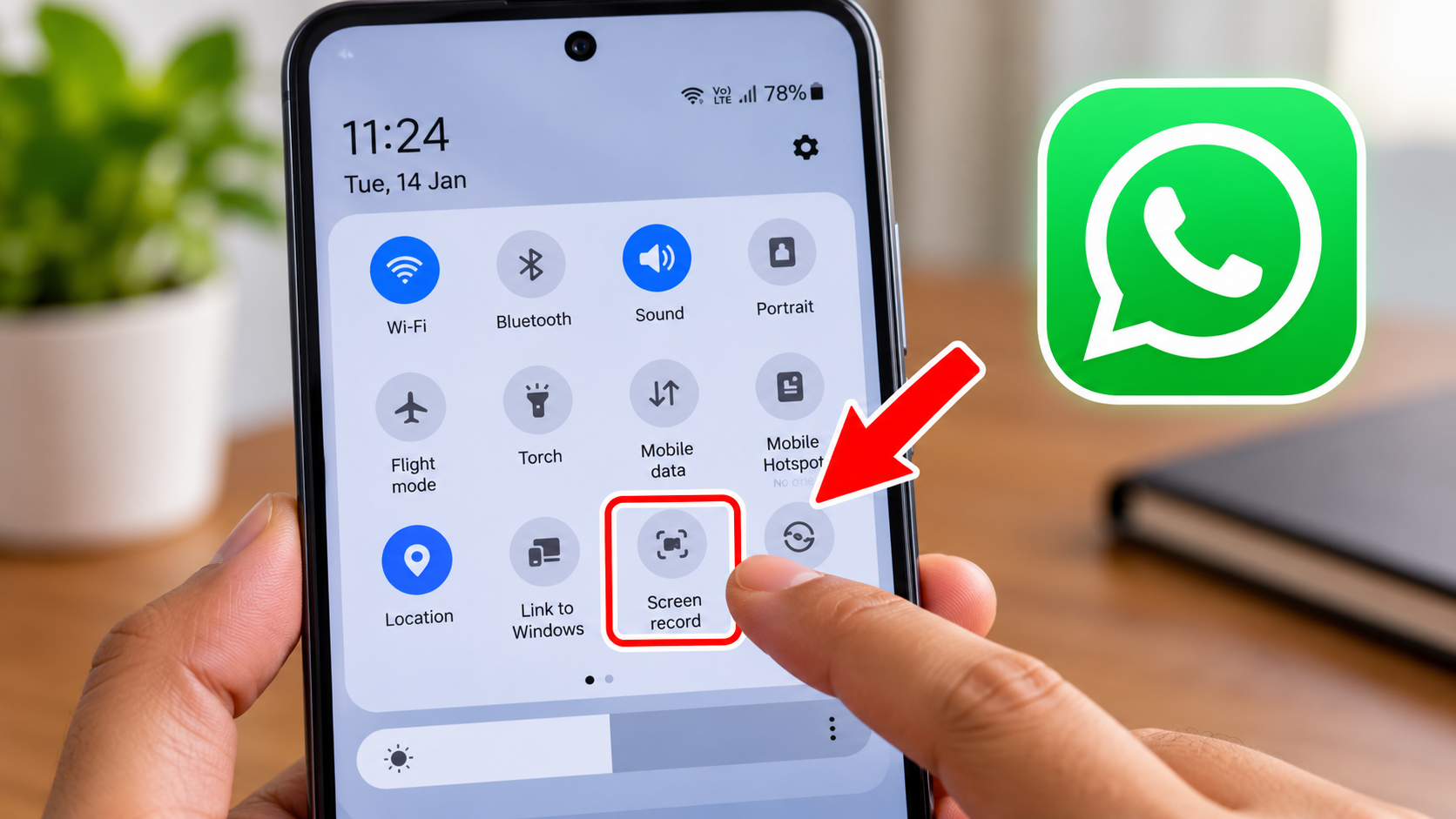
Important: A setting labelled “device audio” or “internal audio” does not necessarily mean that it can capture a live WhatsApp call. Android documentation describes audio-capture restrictions, and manufacturers may impose additional limitations. Google’s Android guidance and developer documentation should be consulted before making device-specific claims.
Method 2: Check your phone manufacturer’s recording restrictions
If the built-in recorder captures the screen but not the conversation, check the support documentation for your exact phone model.
Samsung Galaxy, Xiaomi/Redmi, OnePlus, Vivo, Oppo and Google Pixel devices can have different menus and recording behavior. Even phones from the same manufacturer may behave differently across software versions.
Samsung, for example, documents restrictions on recording voice, VoIP and video calls with its screen recorder on the supported devices described in its guidance. This means that a tutorial demonstrating one model should not automatically be treated as instructions for every Android phone.
Check these details before repeating the process:
-
Your phone’s exact model.
-
The Android version and current software update.
-
Whether the recorder supports microphone audio, device audio or both.
-
Whether call-related restrictions are documented.
-
Whether the saved recording contains both voices.
If the manufacturer explicitly blocks the required audio capture, repeatedly changing unrelated settings is unlikely to solve the problem.
Method 3: Use a second device to capture speaker audio
A second phone or dedicated audio recorder is a possible alternative when your primary device cannot capture the call audio directly. This method records sound coming from the speaker rather than extracting audio from WhatsApp itself.
It is less convenient, but it does not depend on the primary phone offering an internal call-audio recording option.
-
Ask the other participant for permission to record.
-
Place your WhatsApp call on speakerphone.
-
Position a second phone or recorder near the speaker, without covering it.
-
Start a short test recording on the second device.
-
Speak normally and ask the other participant to do the same.
-
Play back the test and check whether both voices are clear.
-
Adjust the distance and volume if necessary, then record the full conversation only after confirming the setup works.
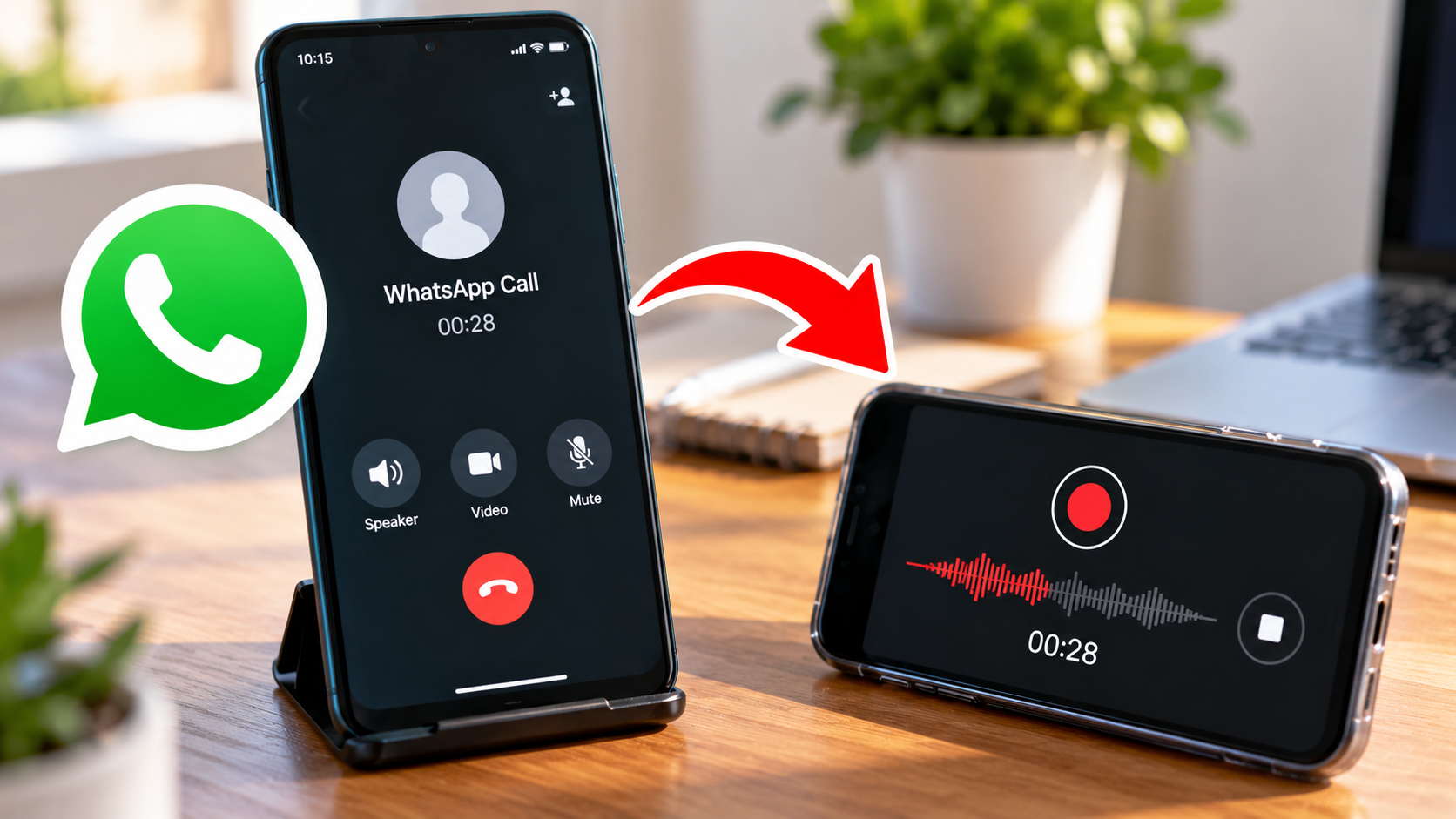
There are trade-offs. Speakerphone recording can pick up traffic, fans, television noise and room echo. The other participant’s voice may also sound quieter than your own.
This method is best suited to situations where the participants agree to recording and the environment can be kept reasonably quiet.
How to Record WhatsApp Calls on iPhone
The iPhone’s built-in Screen Recording feature is useful for capturing supported on-screen activity, but it should not be treated as a guaranteed WhatsApp call recorder. Apple’s documentation explains how to record the screen and enable microphone input; it does not establish that every WhatsApp call will produce a recording containing both participants.
Set up Screen Recording in Control Center
If you want to capture the screen during a WhatsApp voice or video call, first make sure the recording control is available.
-
Open Settings and locate Control Center. Depending on your iOS version, you may be able to add controls directly from Control Center.
-
Add Screen Recording if it is not already available.
-
Open WhatsApp and prepare for the call.
-
Ask the other participant for permission before recording.
-
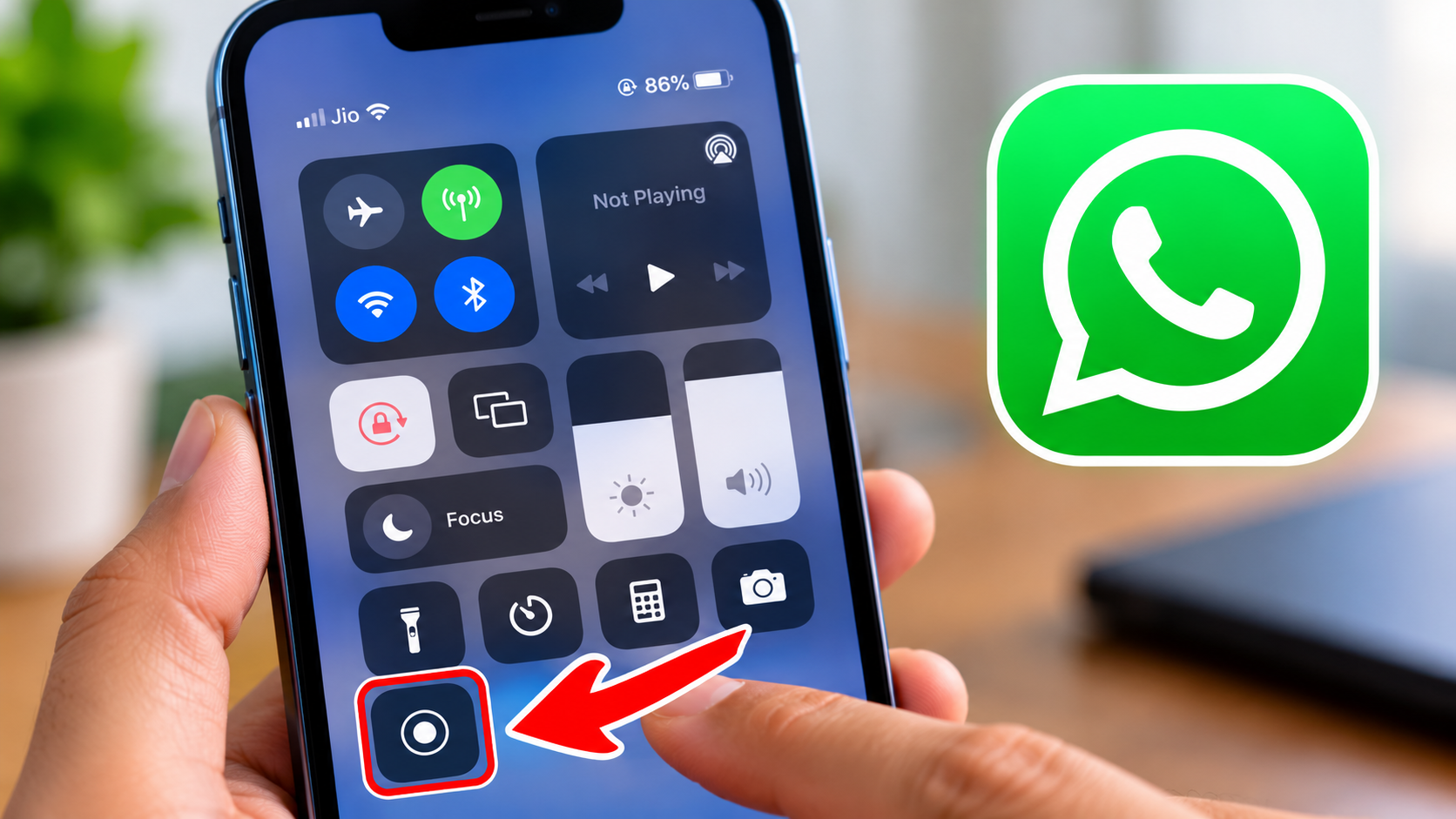
Open Control Center and tap the Screen Recording control.
-
If you need microphone input and the option is available, press and hold the Screen Recording control and check whether the microphone can be enabled.
-
Start the call or continue it as appropriate for your test, then stop recording when finished.
-
Open Photos and play the saved screen recording to verify its contents.
The exact interface may vary with your iOS version. Consult Apple’s current instructions if your controls differ.
What happens when you turn on the microphone?
Enabling the microphone allows supported screen-recording sessions to capture microphone input. However, it does not guarantee that the recording will contain the audio coming from the other participant’s side of a WhatsApp call.
This is the distinction that many short tutorials overlook. Your iPhone may record the screen correctly while the call audio is missing or incomplete.
If you need both voices, perform a short test with the other participant’s permission. If the recording does not contain the expected audio, do not assume that enabling the microphone a second time will solve it.
What if the iPhone recording has no call audio?
Use this checklist:
-
Play the saved video and confirm that it actually has no audio, rather than simply having low volume.
-
Check whether microphone input was enabled for the recording.
-
Verify whether the microphone captured your voice.
-
Check Apple’s current documentation for the behaviour of your iOS version.
-
If you need both voices and the phone does not capture them, consider an agreed-upon second-device recording method.
Apple also provides a native call-recording feature for certain ordinary phone and FaceTime audio calls on supported software and in eligible regions. That feature is separate from WhatsApp call recording, so its availability does not mean that WhatsApp calls can be recorded through the same control.
How to Record WhatsApp Video Calls
Recording a WhatsApp video call introduces another challenge: you may want the picture, your own voice and the other person’s voice in one file.
A successful screen recording does not automatically mean a successful video-call recording. The device might capture the visible screen while restricting one or both audio sources.
Use this process to establish what your phone can capture:
-
Confirm that the participants agree to the recording.
-
Check the available screen-recording controls.
-
Start a short test with the same settings you intend to use for the actual call.
-
Verify that the video is visible and the audio is audible.
-
Check whether notifications or private information appear in the recording.
-
If the recording is incomplete, investigate the device’s documented limitations before selecting another method.
If the other participant appears on screen, remember that recording their image and voice also raises privacy considerations. Ask permission for the intended recording and any subsequent sharing.
Can you record WhatsApp video calls with a computer?
Using a computer does not automatically remove the audio restrictions. Desktop screen-recording tools can capture supported on-screen activity, but they may not capture every audio source used by a WhatsApp call.
If you use WhatsApp Desktop or WhatsApp Web, check the current application permissions, operating-system audio settings and the recorder’s documented capabilities. Then conduct a test call with consent and inspect the result.
Do not assume that a recording tool which works for online meetings or ordinary computer audio will necessarily work for WhatsApp calls.
Which WhatsApp call recording method should you choose?
The best option depends on what you need to save and what your device supports. Use this table as a starting point, not as a promise that a particular method will work on every phone.
| Method | Best suited for | Advantages | Limitations |
|---|---|---|---|
| Built-in Android screen recorder | Testing screen and supported audio capture | Already available on many devices | Call audio may be blocked |
| Built-in iPhone screen recorder | Capturing supported screen activity and microphone input | Convenient and integrated | Does not guarantee two-way call audio |
| Second phone or audio recorder | Capturing sound played through the speaker | Works independently of internal audio capture | More background noise and lower convenience |
| Third-party app | A device-specific method with verified support | May offer additional recording features | Compatibility, permissions and privacy must be checked |
| Cellular call recording feature | Supported calls made through the phone dialler | May offer built-in playback and recording indicators | Not a substitute for WhatsApp call recording |
For an important conversation, the most useful method is the one you have verified beforehand. A simple test recording is more valuable than an application’s marketing claim.
Should you install a third-party WhatsApp call recorder?
Not immediately. First, establish whether the built-in recorder can capture the audio you need and whether the manufacturer documents a restriction.
Before installing another app, check:
-
Whether the app explicitly supports WhatsApp calls on your device and software version.
-
Whether the developer explains how recording works.
-
Which microphone, accessibility, storage or other permissions it requests.
-
Whether its privacy policy explains how recordings and personal information are handled.
-
Whether it contains subscriptions, advertisements or other costs.
-
Whether independent evidence supports its claims about recording both voices.
An app that records ordinary cellular calls is not necessarily capable of recording WhatsApp calls. Similarly, a tool that records the screen is not automatically a two-way call recorder.
Avoid applications that promise guaranteed results on every device without explaining the technical limitations.
Pros and Cons of Recording WhatsApp Calls
Recording can be useful when there is a legitimate reason to retain a conversation. The main benefits are practical, but the limitations deserve equal attention.
Pros
-
Accurate reference: A recording can help you revisit information from an agreed meeting, interview or discussion.
-
Less reliance on memory: You can check details later instead of trying to remember every point.
-
Flexible playback: A saved file can be replayed when permitted and stored securely.
-
Potentially lower cost: A phone’s built-in recording features may be sufficient for some recording needs without buying extra equipment.
Cons
-
Audio is not guaranteed: The device may capture the screen but not both participants’ voices.
-
Quality can vary: Speakerphone recordings may contain echo, noise or uneven volume.
-
Compatibility changes: A software update may change how a recorder behaves.
-
Privacy matters: A recording can contain personal, confidential or sensitive information.
-
Storage needs attention: Large video files can consume space and may be backed up to cloud services depending on your settings.
A recording should be treated as a private file, not as something that can automatically be shared with others. Consider who needs access, how long it needs to be retained and how it will be deleted when no longer required.
Fix WhatsApp Call Recording Problems
If your recording does not work, identify exactly what went wrong before changing settings or installing another app. A missing voice, a blank video and a missing file are different problems with different solutions.
| Problem | What to check | Practical next step |
|---|---|---|
| Recording has no sound | Microphone settings and supported audio sources | Make a short test recording and play it back |
| Only your voice is audible | Whether the other participant’s audio is available to the recorder | Test speakerphone capture or use a second device |
| Recording stops unexpectedly | Available storage, battery settings and recorder restrictions | Check the device’s documentation and repeat a short test |
| Recording cannot be found | Photos, Gallery, Files or the recorder’s own library | Search by the recording date and check the app’s save location |
| Audio sounds distorted | Speaker volume, microphone distance and background noise | Move the recorder farther from the speaker and use a quieter room |
| Video is missing or black | App restrictions and the recorder’s capture mode | Check supported recording behaviour for the device and app |
Why is your WhatsApp call recording silent?
A silent recording does not necessarily mean the screen recorder is broken. It may have captured the screen without receiving an audio source that it is allowed to record.
Try these checks:
-
Play the saved file with the phone’s media player.
-
Confirm whether all audio is missing or only the other participant’s voice.
-
Review the recording’s microphone and audio-source settings.
-
Check the manufacturer’s documentation for restrictions on recording calls.
-
If appropriate, test a second-device recording with the other participant’s agreement.
Do not install several recorder apps in succession without checking their permissions and capabilities. If the operating system prevents an app from accessing the required audio, a different app may encounter the same restriction.
Why is only your voice recorded?
This can happen when the microphone captures your speech but the other person’s audio is not available to the recorder. It is particularly frustrating because the resulting file may appear normal until you play it back.
Try a short speakerphone test with a second device. If both voices are captured clearly, you have a practical alternative that does not depend on internal call-audio capture.
Where are WhatsApp call recordings saved?
The location depends on the method used.
-
Android screen recording: Check Gallery, Photos or the phone’s screen-recording folder.
-
iPhone screen recording: Check Photos.
-
Third-party recorder: Check the app’s recording library and documented export location.
-
Second-device recording: Check the second device’s recorder app or file manager.
WhatsApp’s own chat history and call log are not the same as a saved audio or video recording. Seeing a call in your history does not mean you have a recording of the conversation.
Is It Safe and Legal to Record WhatsApp Calls?
Before recording a conversation, consider both the technical method and the rights of the people involved. A recording method that works technically is not automatically lawful or appropriate to use.
Ask for consent before recording
Tell the other participant that you want to record the conversation, explain the reason and obtain their agreement. If they object, do not proceed with the recording.
Consent requirements vary by jurisdiction and situation. Business conversations, sensitive personal discussions and recordings intended for publication may raise additional considerations.
For readers in India, do not assume that every call recording is automatically legal or automatically illegal. The legal position can depend on the circumstances, privacy interests, how the recording was obtained and how it is subsequently used. For a sensitive dispute or a recording intended as evidence, seek advice from a qualified Indian lawyer.
The Act is relevant to privacy research, but it should not be presented as a complete answer to every question about recording a private conversation. Verify applicable provisions and commencement dates before publishing detailed legal conclusions.
Protect the recording after saving it
A saved conversation can contain names, financial details, personal information or confidential business discussions. Treat the file accordingly.
-
Keep recordings only for as long as you have a legitimate reason to retain them.
-
Use your phone’s available screen lock and storage-protection features.
-
Check whether your device backs up recordings to a cloud service.
-
Share files only with people who are authorized to receive them.
-
Avoid uploading private conversations to unknown transcription or file-conversion websites.
-
Delete recordings securely when they are no longer needed, subject to any applicable retention obligations.
WhatsApp’s privacy policy explains that its messages and calls are end-to-end encrypted, but that does not prevent a participant from independently recording a conversation using a device. Encryption protects communications in transit; it does not make a recording created at the receiving end impossible.
Frequently Asked Questions
Can you record WhatsApp calls without an app?
Sometimes, but it depends on your device and what you want to capture. A built-in screen recorder may capture the screen and supported audio sources, but it does not guarantee that both participants’ voices will be saved. If the phone cannot capture the call audio, an agreed-upon second-device recording may be an alternative.
How do I record WhatsApp calls on Android?
Open Quick Settings, locate Screen Record and review the available audio options. If the phone allows the required audio capture, make a short test call with consent and play the recording back. Android devices vary, so check your manufacturer’s instructions if the other person’s voice is missing.
Can I record WhatsApp calls on an iPhone?
You can use iPhone Screen Recording to capture supported on-screen activity, but it is not a guaranteed way to capture both sides of a WhatsApp call. Check microphone options, test the result and consider a second recording device if the required audio is unavailable.
How can I record both sides of a WhatsApp call?
First, check whether your device supports the required audio capture. If it does not, place the call on speakerphone and use a second phone or recorder to capture the sound in the room, with the other participant’s permission. Test the arrangement before relying on it for an important conversation.
Why is my WhatsApp call recording silent?
Your phone may have captured the screen without recording the call audio. Check microphone settings, supported audio sources, device restrictions and the saved file’s playback. If the other participant’s voice is missing, a second-device recording may be worth testing.
Is it legal to record WhatsApp calls in India?
The answer depends on the circumstances, applicable law and intended use. Do not assume that every recording is lawful simply because you participate in the conversation. Inform the other participant, obtain their agreement and consult a qualified lawyer if the recording relates to a sensitive legal or business matter.
Conclusion
Knowing how to record WhatsApp calls starts with understanding what your phone can actually capture. Android and iPhone offer screen-recording features, but those features do not guarantee a complete recording of a live WhatsApp conversation.
Begin with the built-in recorder, check your device’s documented limitations and make a short test recording. If both voices are not captured, an agreed-upon second-device recording may be the more practical option.
Most importantly, verify the recording before relying on it, protect the saved file and respect the other participant’s privacy. A method that works consistently on your particular device is more useful than an app that promises results it cannot guarantee.

bull _ warrior_04
Gowthamggg